
[Reading time: 4 minutes]
Overview
This article explains how to use the Recordings sub-module in the Quality Management module: how to search and filter your recordings, browse the list, listen to or download a recording, and open a recording to explore everything attached to it: interaction data, participants, CRM card, linked case, and the AI features (transcription, sentiment analysis and an AI summary).
Looking to set recordings up in the Maker instead? See Recordings – set them up.
1. Accessing the Recordings sub-module
Recordings is the first section of the Quality Management module. What you can see and do depends on your license and your profile permissions.
Access to the module requires a Smart license and the Access recordings permission. Which recordings you then see depends on your role:
- Advisor: their own recordings only.
- Administrator: all recordings of the users covered by their active profile.
- Manager: their own recordings and those of the teams they manage.

2. Search and filters
2.1. Search by date
You can search recordings using a date range of up to three rolling months. Use the date picker to define your start and end dates.
2.2. filters
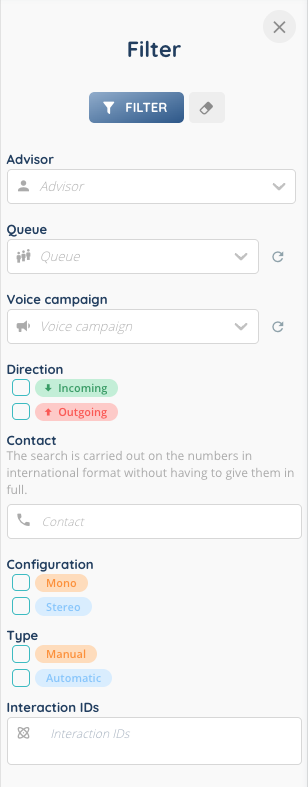
Use the Filters button to narrow down the list. Available filters include:
- Interaction ID
- Direction (incoming or outgoing)
- Advisor
- Queue
- Voice campaign
- Type (automatic or manual)
- Configuration (mono or stereo)
- Sentiment: overall, advisor, or contact
3. Recordings list
3.1. Columns
The list shows every recording you are allowed to access. For each one:
- Date and time
- Duration
- Direction — incoming or outgoing
- Type — automatic or manual
- Configuration — mono or stereo
- Advisor — hidden when the list is already filtered to a single advisor
- Contact — the other party’s number
- Queue — clickable when the call comes from a queue
- Voice campaign — clickable when the call comes from a campaign
Each row also offers a set of quick actions:
- Listen — play the recording directly in the list
- Download
- Open in another tab — opens the public link
- Open in a side panel — opens the recording next to your current screen
- Open — opens the full recording detail view
- Create an evaluation
- Delete
The Evaluation feature is covered in a dedicated article.
Some actions depend on configuration and permissions: Listen and Download are unavailable when the recording is stored only on a repository connector. Download also requires the download permission and, for stereo recordings, the processing to be finished. Open in another tab is available only when public link generation is enabled in the Maker.
3.2. Opening a recording
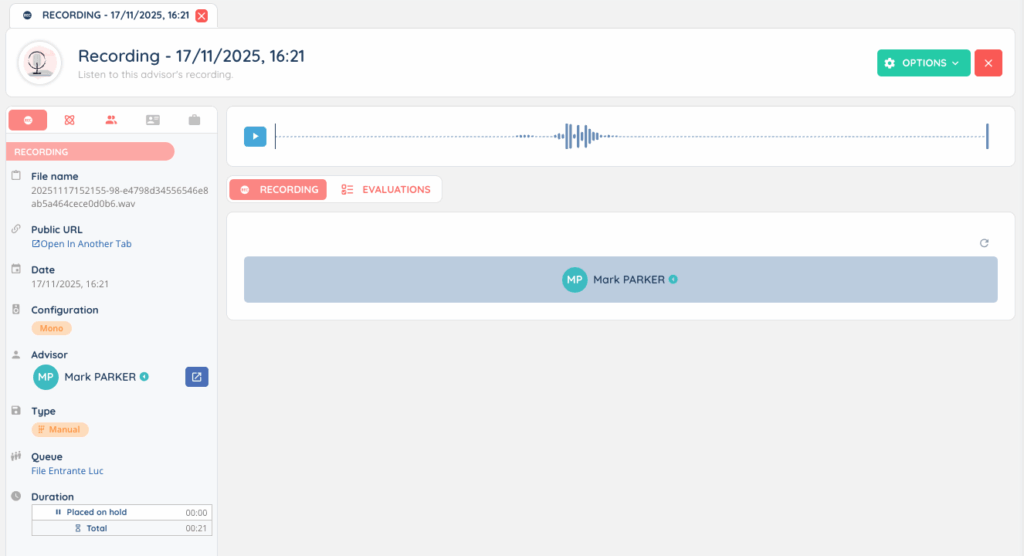
Click Open to display the full detail view. It brings together contextual information, an audio player, and — depending on your configuration and license — the AI features.
The three AI features each have their own article: Transcription tab, Sentiment analysis tab and AI summary in Recordings.
3.2.1. Contextual information (left panel)
The left panel gathers everything related to the interaction, organized in tabs:
- Recording — file name, public URL, date, configuration, advisor, type, queue or voice campaign, and duration (on-hold time and total).
- Interaction — a button to open the interaction in a side panel, plus its ID, flow, direction, original and current routing, original pool, queue, called number, session start and end, and the waiting / processing / on-hold / post-interaction times.
- Participants — the list of participants involved in the interaction.
- CRM card — shown when a CRM card is linked to the interaction.
- Case — shown when a case is linked to the interaction.
The Interaction, Participants, CRM card and Case tabs appear depending on the modules enabled for your account.
3.2.2. Audio player
At the top of the central area, the audio player lets you listen to the recording and move through it on the waveform.
When sentiment analysis is available, color-coded sentiment markers appear directly on the waveform (green, orange, red). You can show or hide them — see Sentiment analysis tab.
3.2.3. Recording content
The main area is organized in tabs:
- Recording — the recording itself, along with the AI summary card when the summary is enabled. Users with the right permission can edit the summary. See AI summary in Recordings.
- Evaluations — the evaluations linked to this recording, with filtering options. Creating and managing evaluations is covered in a dedicated article.
- Transcription — the written transcription of the conversation, with keyword and entity detection. See Transcription tab.
- Sentiment — the sentiment analysis of the conversation, broken down by phase and by participant. See Sentiment analysis tab.
The Transcription and Sentiment tabs appear only when those features are enabled and available for the recording.
3.2.4. Options menu
At the top of the screen, the options menu gives access to:
- Create a new evaluation
- Download the recording
- Delete the recording
Download and delete depend on your profile permissions.