

[Reading time: 5 minutes]
Overview
The AI recording summary feature automatically generates a written summary of a call recording using artificial intelligence. Once a call ends and the recording is processed, the system produces a concise summary describing the key points of the conversation.

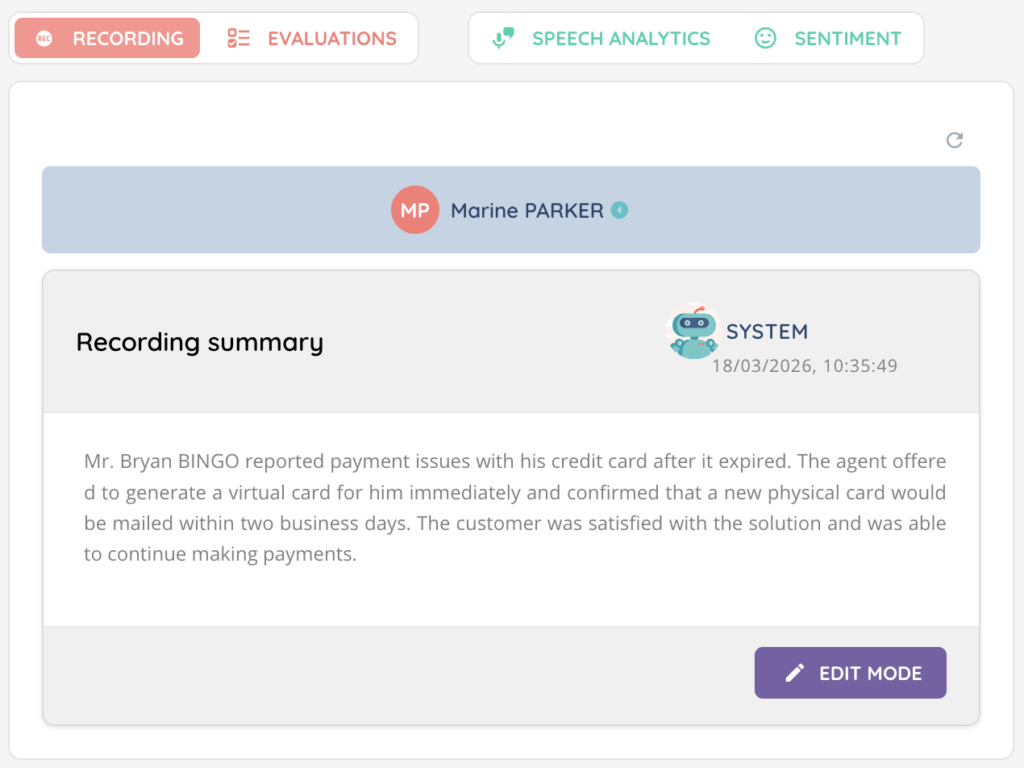
The summary appears in the Recording tab of the recording detail view, displayed as a card authored by System.
Advisors with the appropriate permissions can edit the summary to refine or correct it, and all modifications are tracked in a full version history with a diff view to compare changes.

Prerequisites
- A Smart license.
- Access recordings permission enabled in the user profile.
- Transcription enabled on the distribution queue or voice campaign: the summary option is only available when transcription is enabled.
- AI recording summary enabled on the distribution queue or voice campaign.
- To edit summaries: the Edit a recording summary permission enabled in the user profile.
1. Enabling AI call summary
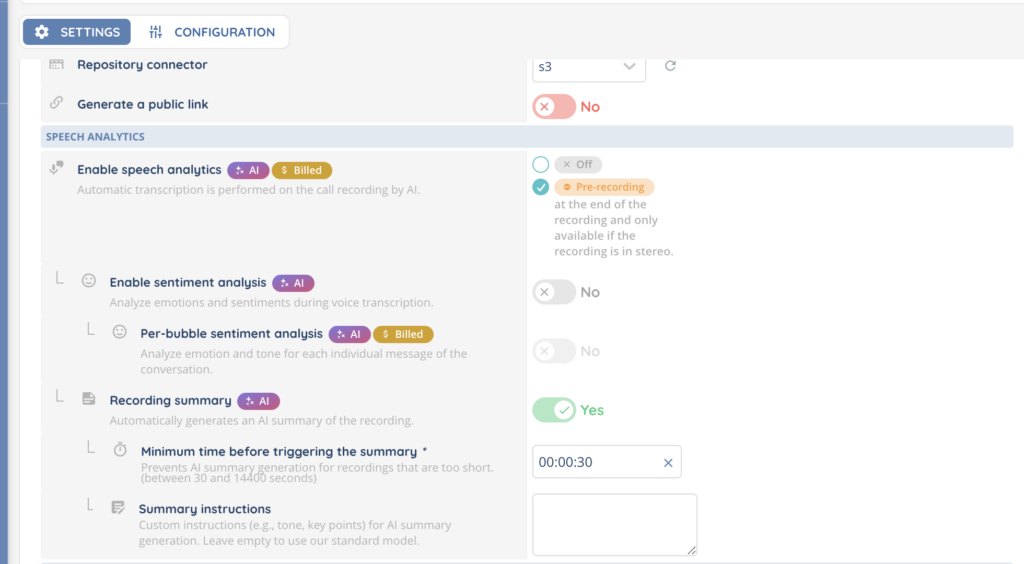
The AI summary is configured at the distribution queue or voice campaign level in the Maker.
- In the Maker, navigate to the desired distribution queue or voice campaign.
- In the Speech analytics section, locate the recording summary field.
- Enable the feature.
1.1. Configuration options
| Field | Description |
|---|---|
| Recording summary | Enable or disable the automatic generation of a summary for recordings in this queue/campaign. |
| Minimum time before triggering the summary | The minimum recording duration (in seconds) required before a summary is generated, between 30 and 14,400 seconds (4 hours). Default: 30 seconds. Recordings shorter than this threshold will not produce a summary. |
| Summary instructions | Custom instructions (e.g., tone, key focus areas) for the AI summary generation. Leave empty to use the default model. Limited to 1,000 characters. |
Note: Use the Summary instructions field to tailor the output to your business needs. For example, you could instruct the AI to focus on action items, customer sentiment, or specific compliance requirements.
2. Viewing the summary
Once a recording has a generated summary, it is displayed in the Recording tab of the recording detail view.
2.1. Summary card structure
The summary card contains the following elements:
| Element | Description |
|---|---|
| Title | “Recording summary” — identifies the summary section. |
| Author | Shows System with a robot icon for AI-generated summaries, or the advisor’s name and avatar if manually edited. |
| Date | The date and time the summary (or its latest version) was created. |
| Summary text | The body of the summary describing the key points of the conversation. |
| Edit mode button | A purple button to switch to edit mode (visible only to users with the edit permission). |
3. Editing the summary
Users with the Edit a recording summary permission can modify the AI-generated summary.
3.1. Entering edit mode
- Open the recording (from Quality Management or History of interactions).
- In the Recording tab, locate the summary card.
- Click the Edit mode button.
The summary text becomes an editable text area.
3.2. Saving changes
- Modify the summary text as needed.
- Click Save to confirm your changes.
Note: The save button is disabled if the text has not been changed or if the text is empty. You will see the message “Please modify the summary before saving” if you attempt to save without changes.
3.3. Cancelling
Click Cancel to exit edit mode without saving. The summary reverts to its previous content.
4. Version history and diff
Every modification to a summary is tracked. You can browse the full history and compare versions.
Note: The version history is only available once the summary has been edited at least once. As long as only the initial system-generated version exists, the history feature is not displayed.
4.1. Viewing history
- From the summary card, click Show history.
- A timeline appears showing all versions of the summary, from the most recent to the initial version.
Each version displays:
- The author (System for the original AI-generated version, or the advisor’s name for manual edits).
- The date of the modification.
- A tag: Initial version for the first version, Latest version for the most recent.
Click Hide history to collapse the timeline.
4.2. Comparing versions (diff view)
When you select a version from the history, a diff view appears showing the changes between the selected version and the previous one. Two display modes are available:
| Mode | Description |
|---|---|
| Unified | Shows both versions merged in a single view, with additions highlighted in green and removals in red with strikethrough. |
| Side by side | Shows the previous version on the left (“Previous version”) and the current version on the right (“Current version”) for direct comparison. |
Note: If no changes exist between two versions, the message “No changes in the summary were detected.” is displayed.
5. Summary statuses
The AI summary goes through different statuses during and after generation.
| Status | Display | Description |
|---|---|---|
| In progress | “Summary in progress” | The summary is being generated by the AI. A loading state is displayed. |
| Completed | Summary card is shown | The summary has been successfully generated and is ready to view. |
| Failed | “Summary unavailable” | The summary could not be generated. A Regenerate button is displayed to retry. |
| Skipped | “Summary not performed” | The recording did not have enough content to produce a meaningful summary (e.g., very short call). |
5.1. Regenerating a summary
If the summary generation failed, a Regenerate button appears, allowing you to trigger a new attempt (provided the transcription has completed successfully).
- Click the Regenerate button.
- The system retries the summary generation.
- If successful, the summary card replaces the error state.
You can also click the Refresh button at the top of the recording detail view to check whether a pending summary has completed.