

[Reading time: 2 minutes]
Overview
A transfer rule (or redirection rule) is a rule implemented in a system, to determine how and when to transfer an interaction from one agent to another, or to another queue, distribution group, or smart routing. These rules are crucial to ensuring a smooth and efficient customer experience.

If no rule is set, no transfer will be possible.
You’ll be able to set them up in the Maker, in the ‘Routing’ module, ‘Transfer rules’ sub-module.
The transfer rules are displayed in list form.
Using the search bar, you can search through the names of the transfer rules; search for transfer rules with a Tag; or create a new one.
Several actions are possible for each transfer rule:
- open (click on the arrow)
- duplicate, view history, dependencies and add tags (click on the cogwheel)
- modify it (click on the pencil)
- delete it (click on the bin)
Note: the bin will be greyed out if the transfer rule is used in a profile. Click on ‘dependencies’ if you want to see where.
Prerequisites
The queues and distribution groups must already be created (in the ‘routing’ module, sub-module ‘queues’).
The smart routings must have been configured (‘routing’ module, ‘voice’, ‘email’ and ‘messages’ sub-modules).
Users must have been created.
Configuring (Maker)
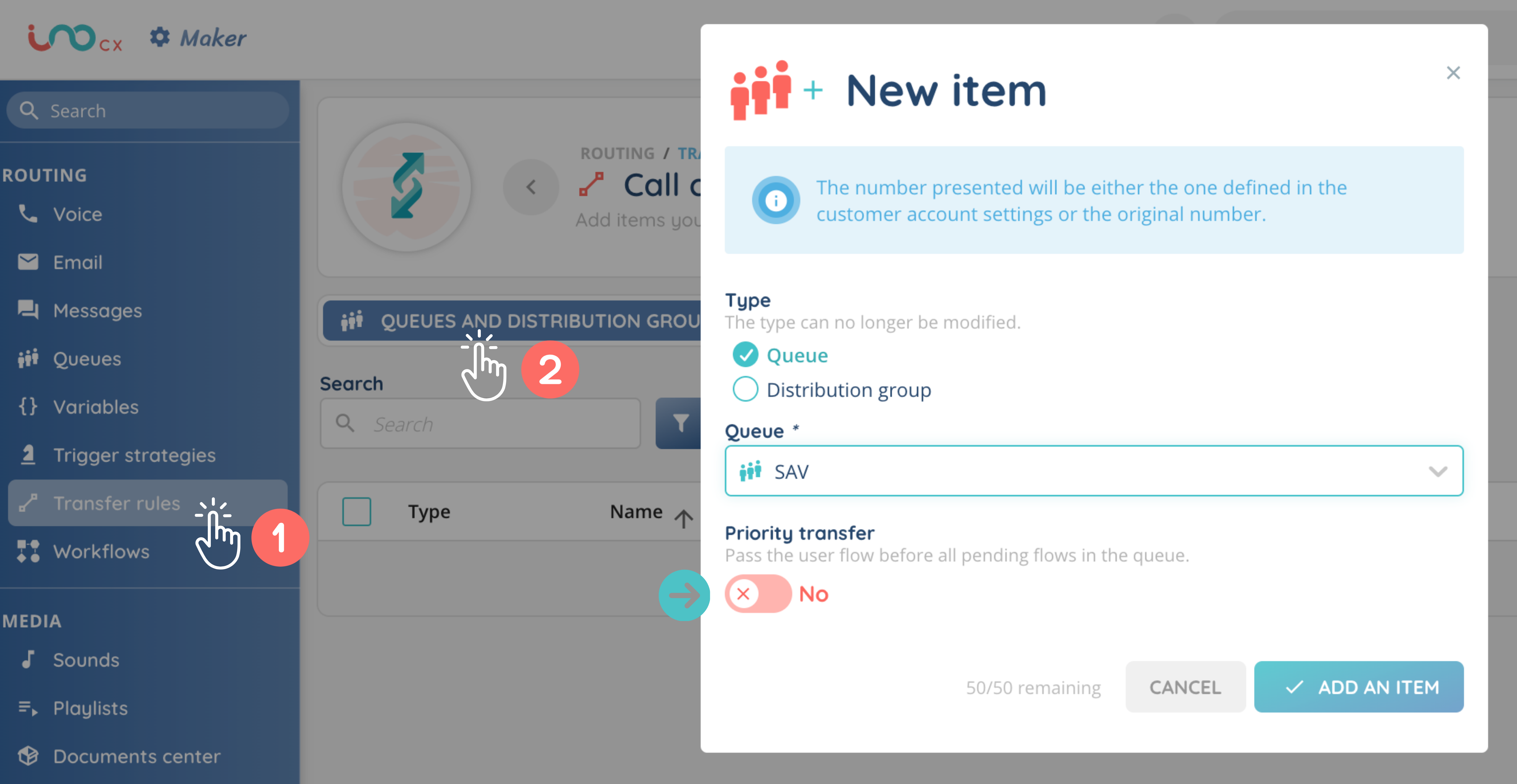
You can create a new transfer rule in the ‘routing’ module, sub-module ‘transfer rules’. Once you have done this, open it.
You will see 3 tabs:
- queues and distribution groups
- users
- smart routings
Under each tab, add all the transfers you want to allow.
In the ‘queues and distribution groups’ tab, you can add queues only, distribution groups only, or both at the same time.
Note: you can choose a queue or distribution group that will be a priority transfer, meaning that it will go before all the flows waiting in the queue. Only one queue or distribution group can be given priority.
Giving access (Maker)
Once you have set up your transfer rule, you can add it to one or more profiles.
Several transfer rules can be added to the same profile, and the rules will be added together. For example, transfer rule A allows you to transfer the interaction to user A. Transfer rule B transfers the interaction to user B and user C. If transfer rule A and transfer rule B are added to the ‘Sales’ profile, the agent with the active ‘Sales’ profile will be able to transfer the interaction to user A, user B or user C.
Note: the limit for the number of transfer rules per profile is set at 20.
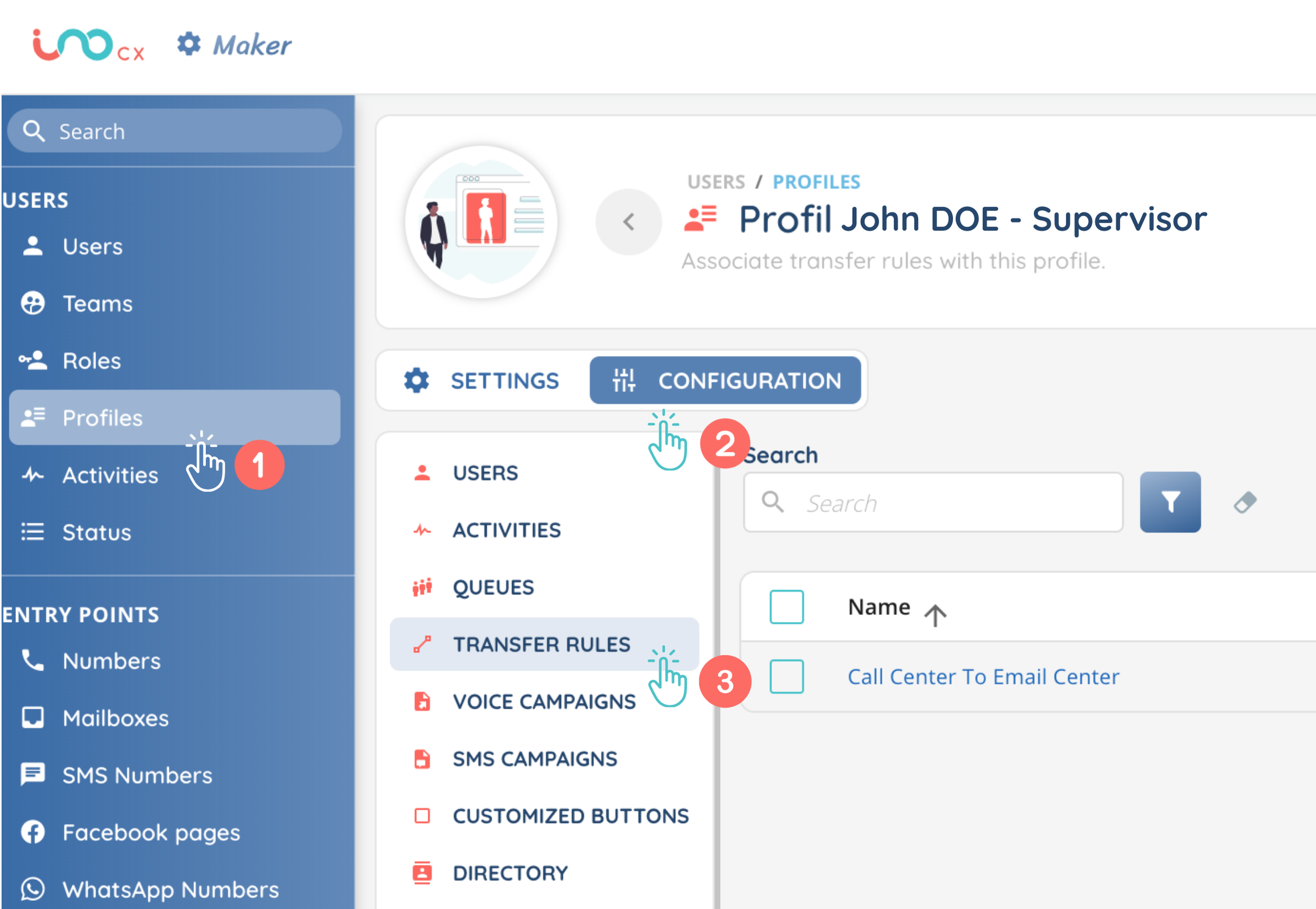
Users with this profile will now be able to use the transfer rules in the Banner!