
[Reading time: 2 minutes]
Overview
A team can be used to group together one or more users according to their department (sales, aftersales, marketing, QA, etc.) or any other criteria.
You can add up to 50 users to each team. Each of them can have a ‘collaborator’ or ‘manager’ type within the team.
Note: some of the supervision features in the Banner will only be available to managers.

The teams will be used primarily for collaborative work (sending messages or calls internally, discussion groups, video meetings), supervision and quality management.
Prerequisites
The users you wish to add to a team must already have been created. If you need help to add new users, please click here.
Optional: users you wish to be ‘manager’. Note that you can change the type of user to ‘collaborator’ or ‘manager’ at a later date if required.
Configuring (Maker)
List of teams
You can set up teams in the Maker, in the ‘users’ module, ‘teams’ sub-module.
Teams will be displayed in a list. Several actions are possible for each list: open it, duplicate it/view history/tags, modify it, delete it.

Note: these actions will be possible depending on the settings for the role associated with the user.
You can search the list using the search bar or tags.
You will be able to create up to 50 teams.
Public and private teams
When it is created, each team can be private or public.
- Members of a public team are visible to all other users, who can then interact with them.
- Members of a private team can only be contacted by users who are also on that team.
The status of a public/private team can be changed at any time in the Maker.
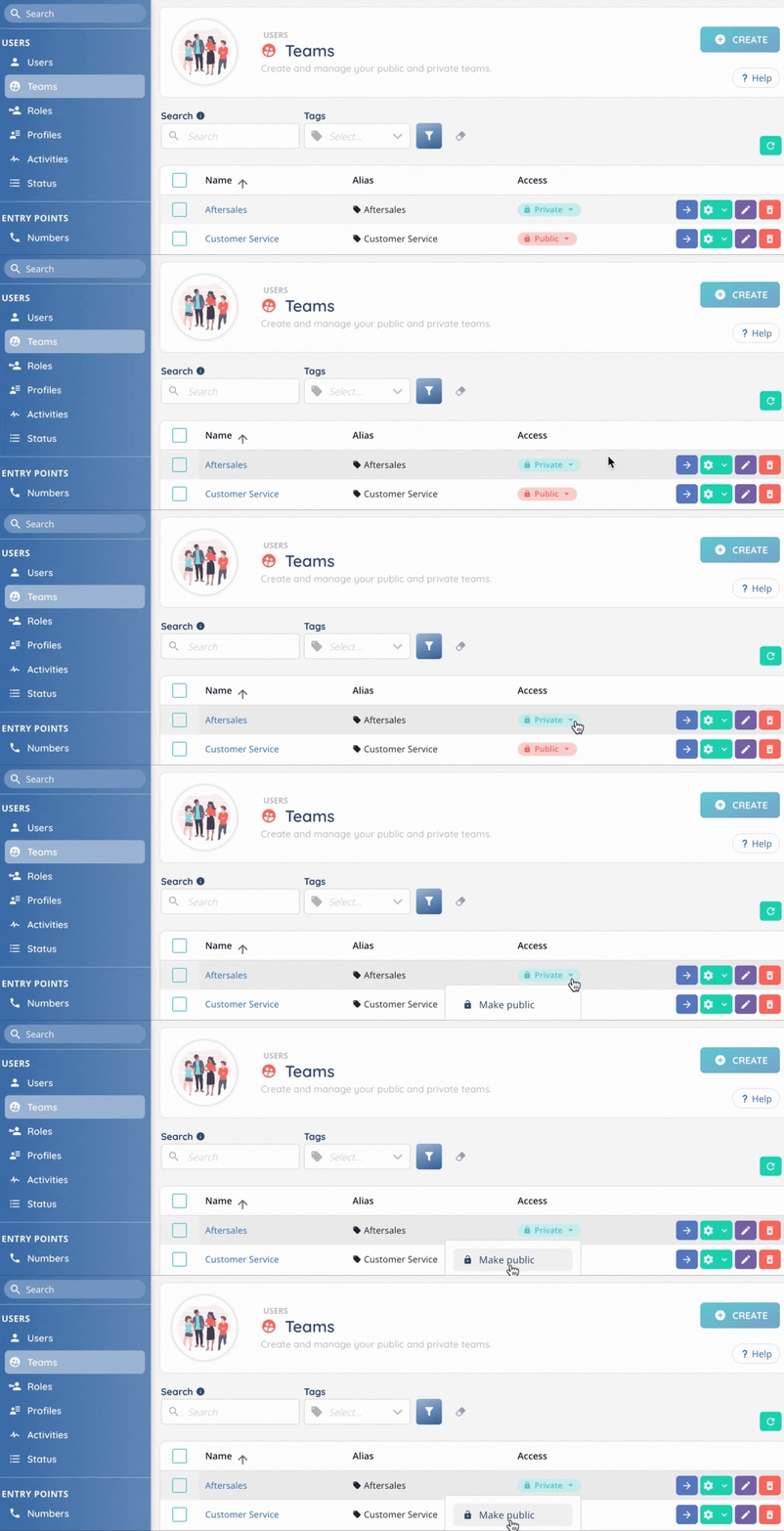
Note: if you belong to several teams, including one that is public, you will appear in searches, even if the other teams are private.
Manager and collaborator
These are the two “types” that can be assigned to team members, each with different prerogatives.
- A collaborator has no specific right.
- A manager can change the role of the other members of his team.
There may be several managers in the same team.
Note: a Smart license does not give you manager status.
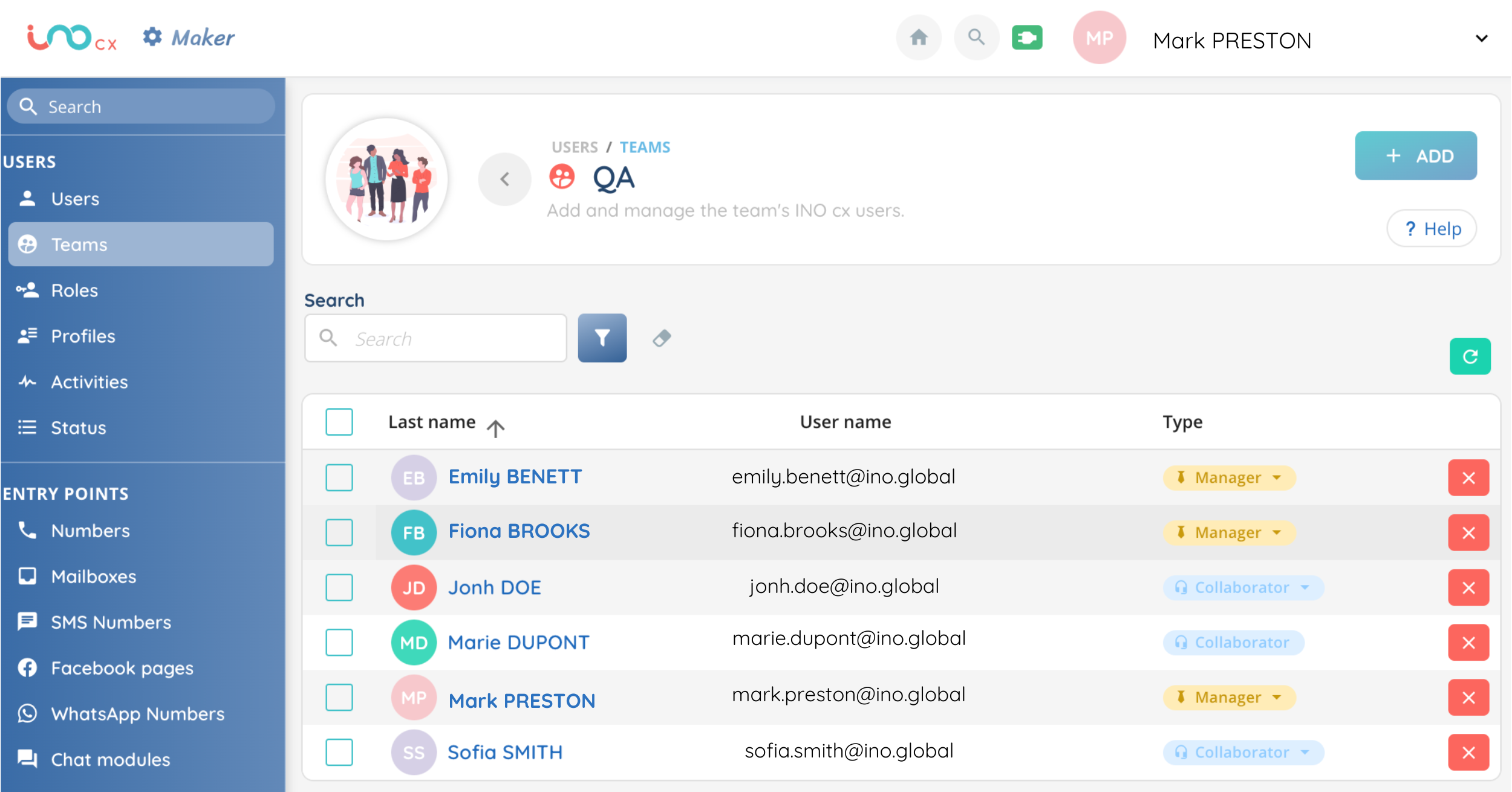
Preview
This is what a team looks like in the Maker.
Now you can use Teams in the Banner!