

[Reading time: 2 minutes]
Overview
The Status syncs module allows you to synchronize INO cx activities with the statuses of your third-party tools. It is currently available for Zendesk Support and Teams (MSO) integrations.

When a user’s status changes in Zendesk or Teams, their INO cx activity is automatically updated. INO cx activities can be mapped to specific third-party statuses (for example Busy, Away, DoNotDisturb). Synchronization can then be enabled or disabled by each user in their profile, under the Activities tab.

1. Accessing the module
In the Maker, search for Status syncs using the navigation bar. The page lists all existing status syncs.
The list displays:
- Name: the name of the status sync
- Integration type: the connected third-party tool (MSO or Zendesk Support)
- Authentication method: the authentication method, already created
Available actions on the right-hand side of each line:
- ▶️ Open the status sync details
- ⚙️ Options: access history, view dependencies, or manage tags
- ✏️ Edit the status sync
- 🗑️ Delete the status sync
2. Creating a status sync
To create a new status sync, click Create. A configuration window will open:
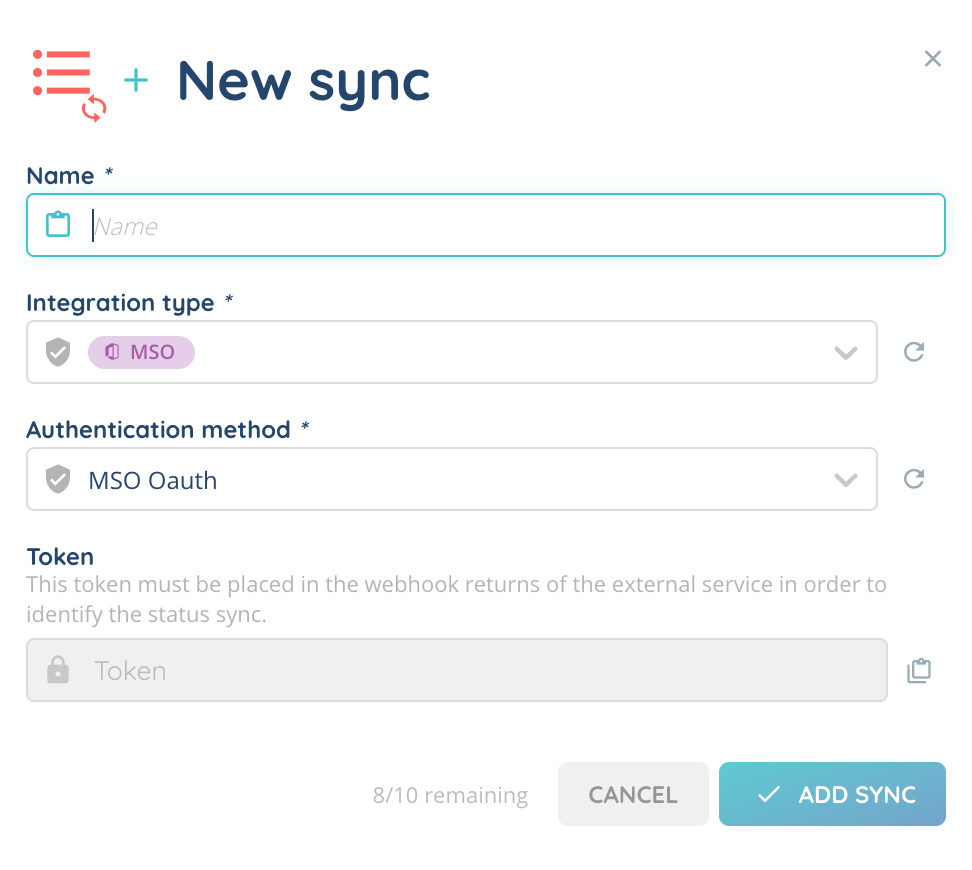
Fill in the following fields:
- Name: name of the status sync
- Integration type: type of integration (e.g. MSO, Zendesk Support)
- Authentication method: authentication method linked to the selected integration
- Token: a unique key automatically generated by INO cx. This token must be included in the webhook response of the third-party service.
How the token works
The token acts as a security identifier between INO cx and the third-party tool:
- When the third-party tool (Zendesk/MSO) sends a status update to INO cx via a webhook, the token must be included in the request.
- INO cx checks the token to verify that the request is valid and comes from the configured integration.
- If the token matches, INO cx updates the user’s activity. If not, the update is rejected.
This ensures that only trusted services can trigger status synchronization in INO cx.
Click Add sync to confirm creation.
3. Viewing and editing a status sync
Clicking on an existing status sync, or on the arrow opens its details.
General settings
- Name
- Integration type
- Authentication method
- Token
Status correspondences
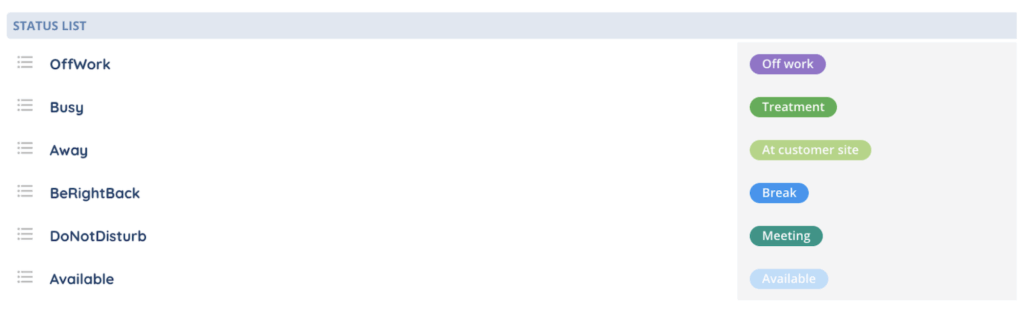
The INO cx activity / Third-party status correspondences section allows you to map INO cx activities to third-party statuses (e.g. OffWork, Busy, Away, DoNotDisturb, Available). Each third-party status is represented by a colored tag.
You can edit these correspondences by clicking Edit mode.
Now, you can use status sync!