
[Reading time: 7 minutes]
This article explains how to set up the authentication methods that INO cx uses to connect to other services: CRMs, status syncs, SSO, and the web services of your partners. It covers every type of method, including the OAuth2 Client Credentials type with an mTLS certificate. To call a partner’s API, see also Web services – set them up.

Overview
An authentication method stores, in one place, what INO cx needs to connect to another service: identifiers, secrets, certificates. You create it once in the Maker, then select it wherever it is needed.
| Where the method is used | What you select there |
|---|---|
| CRMs v2 (kind integration) | A method of the CRM’s integration type: Salesforce, Zendesk Sell, Zendesk Support, Hubspot, ZOHO Desk, ZOHO CRM or Dynamics 365 |
| Status syncs | A method of type MSO Status Sync or Zendesk Support |
| SSO connectors (OAuth2) | An OAuth2 method of an SSO provider |
| Web services | Any method except an mTLS certificate, for the authentication of the calls; an mTLS certificate for the Certificate field |
Secrets, tokens and certificates are never shown again once saved, and they are encrypted.
1. Prerequisites
- A Smart license.
- A role with the rights on Authentication methods: read to see the list, Creation, Modification and Deletion for the other actions. The tests also need Modification.
- The information given by the service you connect to: client ID, secret or certificate, token URL.
2. The list of authentication methods
In the Maker, the Authentication methods module is in the Data menu.
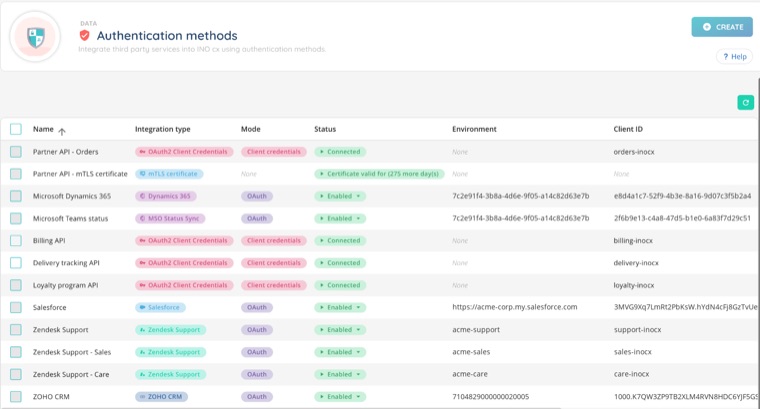
The list shows, for each method:
- Name
- Integration type
- Mode: OAuth for the CRM and SSO integrations, Client credentials for the OAuth2 Client Credentials type
- Status (see below)
- Environment
- Client ID
The status depends on the type of method:
| Type | Statuses |
|---|---|
| CRM and SSO integrations (OAuth) | Enabled, Disabled, Activating, Error, Expired. Click the status to enable or disable the method. Enabling it opens the sign-in window of the service. |
| OAuth2 Client Credentials | Connected: the last token exchange worked (its date shows on hover). Failed: the last exchange was refused (hover shows the last success). Untested: no token has been requested since the last change. |
| mTLS certificate | The number of days the certificate is still valid. It turns orange 30 days before expiry. |
On each row:
- the pencil edits the method;
- the bin deletes it. A method used elsewhere cannot be deleted;
- the gear menu offers Duplicate, History, and a test: Test the connection for an OAuth2 Client Credentials method, Test the authentication method for an mTLS certificate. When the method is used elsewhere, it also offers See dependencies.
Note: An account can have up to 50 authentication methods: see Limits.
3. Creating an authentication method
- Click Create.
- Enter a Name.
- Choose the Integration type. The fields that follow depend on it.
- Fill in the fields, as described in the sections below.
- Click Add authentication method.
When you duplicate a method, its secrets are not copied: enter the token, the client secret, the certificate or the private key again.
4. CRM, status sync and SSO integrations
For Salesforce, Zendesk Sell, Zendesk Support, Hubspot, ZOHO CRM, ZOHO Desk, Dynamics 365 and MSO Status Sync, the mode is OAuth. Fill in:
- Environment: required for Salesforce, Zendesk Sell, Zendesk Support and Dynamics 365. For Dynamics 365, it is the Application ID.
- Client ID. For Dynamics 365, it is the Directory ID.
- Token: the secret given by the service.
- For Dynamics 365 only, Scope: the URL of your Dynamics CRM, and
offline_accessif you want a refresh token.
Then activate the method from its status in the list.
5. mTLS certificate
Some partners only accept calls from a client that presents a certificate: this is mutual TLS (mTLS). The mTLS certificate type stores that certificate, so that web services and OAuth2 Client Credentials methods can use it.
- Certificate (in mTLS format): paste the full bundle, in PEM format: your client certificate (X.509), its private key and, if needed, the intermediate certificates. Files cannot be uploaded and PFX / P12 bundles are not accepted: convert them to PEM first.
- Passphrase: only if the private key is protected by one.
INO cx checks the bundle when you save: there must be exactly one private key, it must match the certificate, the certificate must be valid today, and it must allow client authentication.
To check the certificate later, use Test the authentication method in the gear menu.
Note: INO cx emails your account’s technical contact 30 days before the certificate expires, and again on the day it expires.
6. OAuth2 Client Credentials
Use this type when a partner protects its API with OAuth2 and gives you a client ID to request tokens yourself, with or without an mTLS certificate. INO cx requests the token and renews it on its own: the web services that use the method send it with each call.
6.1. The fields
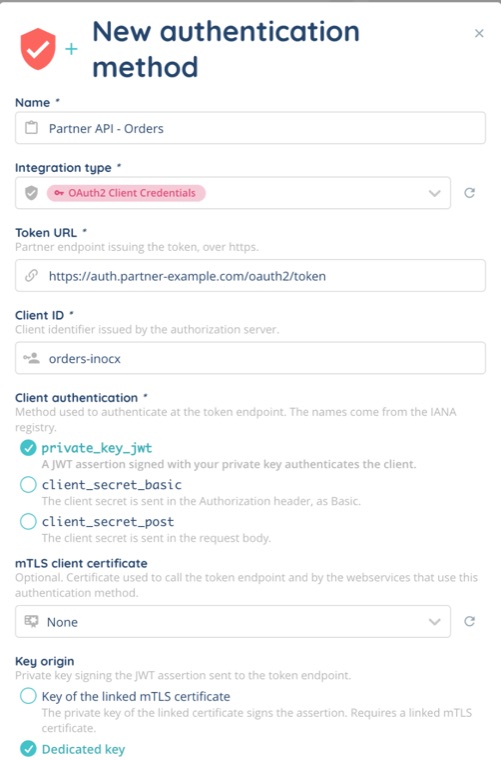
| Field | What to enter |
|---|---|
| Token URL | The partner’s address that issues the tokens. It must start with https://. |
| Client ID | The client identifier given by the partner. |
| Client authentication | How INO cx proves its identity to the partner. See the choices below. |
| mTLS client certificate | Optional. An mTLS certificate method, used to call the token URL and by the web services that use this method. Choose No linked certificate if the partner does not require one. |
| Scope | Optional. Required by some servers, such as Microsoft or Okta. Separate several values with spaces. |
The Client authentication choices use the names of the OAuth2 standard:
| Choice | How it works | Fields to fill in |
|---|---|---|
private_key_jwt (default) | INO cx signs a short JWT assertion with a private key. | Key origin, Key ID (kid) |
client_secret_basic | The client secret is sent in the Authorization header. | Client secret |
client_secret_post | The client secret is sent in the body of the request. | Client secret |
With private_key_jwt:
- Key origin:
- Dedicated key (default): paste the private key in Signing private key (PEM), and its Passphrase if it has one.
- Key of the linked mTLS certificate: the key of the certificate chosen in mTLS client certificate signs the assertion. This choice is only available when a certificate is linked.
- Key ID (kid): optional. The key identifier the partner expects in the JWT header. It changes each time the certificate is renewed.
6.2. Advanced options
Show advanced options opens settings that most partners do not need. Leave them empty unless the partner asks for them.
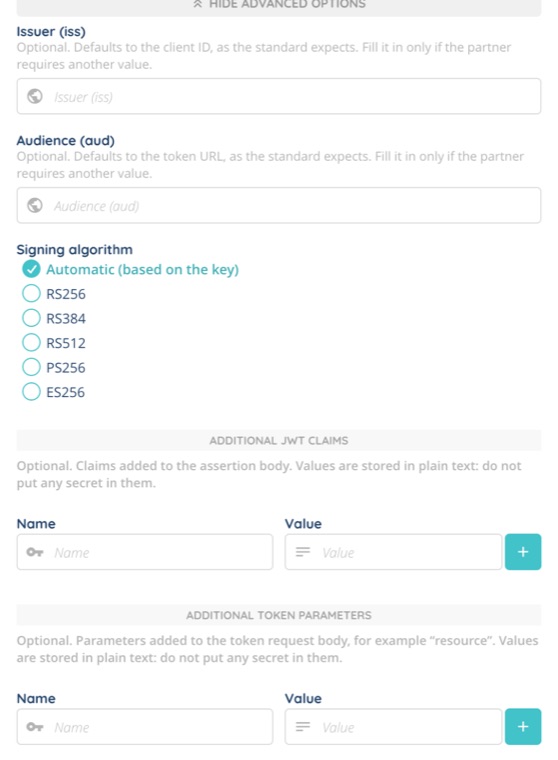
- With
private_key_jwtonly:- Issuer (iss): the client ID by default.
- Audience (aud): the token URL by default.
- Signing algorithm: Automatic (based on the key) by default, that is RS256 for an RSA key and ES256 for an EC key. You can also force RS256, RS384, RS512, PS256 or ES256.
- Additional JWT claims: name / value pairs added to the assertion.
- Additional token parameters: name / value pairs added to the token request, for example
resource.
Up to 20 pairs can be added to each list. Their values are stored in plain text: never put a secret in them. The standard claims and parameters, such as iss, aud, exp, grant_type or client_id, are generated by INO cx and cannot be overridden. Enter the scope in the Scope field, not as a parameter.
6.3. Testing the connection
Saving the method does not request a token: its status is Untested. To check it, choose Test the connection in the gear menu.
INO cx requests a token from the partner and shows the result:
- the client authentication used and, if any, the mTLS certificate and its expiry date;
- whether the signing key is valid;
- Token exchange: Token URL, Token type and Token validity (only when the exchange succeeds), Exchange duration, Partner HTTP status and, when the exchange fails, Partner response, with the error message.
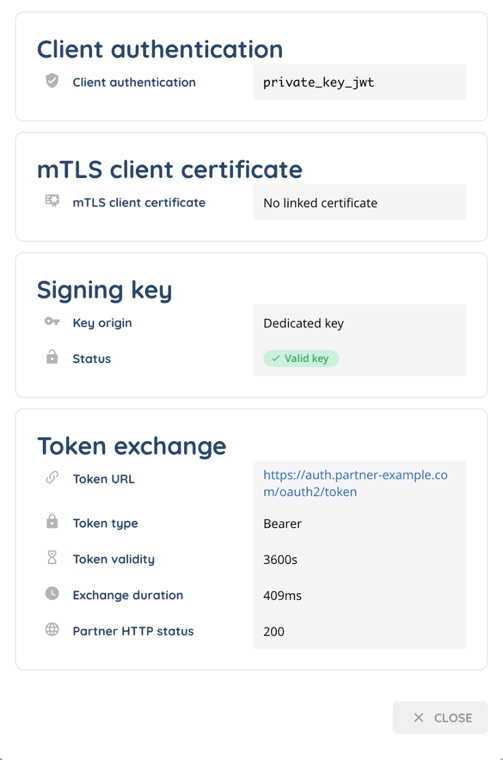
The token itself is never displayed. If the test works, the status becomes Connected.
Note: Each time you change a field used to get the token, the token in memory is discarded and the status goes back to Untested.
7. Using a method in a web service
In the web service, in Authentication, choose Authentication method, then select the method in Authentication method.
If the partner requires an mTLS certificate:
- with an OAuth2 Client Credentials method that has a linked certificate, the Certificate field shows Provided by the authentication method (linked mTLS certificate).;
- otherwise, select an mTLS certificate method in Certificate.
See Web services – set them up.
8. Managing authentication methods
- History, in the gear menu: the creations, changes and deletions of the method.
- See dependencies, in the gear menu when the method is used: the CRMs, status syncs, SSO connectors and web services that use the method.
- An mTLS certificate whose key signs another method cannot be deleted. Change the Key origin of that method first.