

[Reading time: 3 minutes]
Overview
his article explains how to have your outgoing SMS delivered by your own provider instead of letting them go out through INO cx, how to check that the connection works, and what INO cx passes to your provider on every send.
Overview
The SMS settings tab sits in the Maker, in the client account settings. Open your user capsule, click Client account settings, then SMS settings in the left-hand menu.
For an overview of the client account settings and all of its tabs, see the Client account settings article.
By default, your outgoing SMS are delivered by INO cx. This tab lets you route them through your own provider instead: you enter the address where it expects the messages, and INO cx passes each SMS to send to it rather than delivering it itself. Your provider then handles delivery to the recipient.

Note: this setup is optional. As long as the SMS provider URL field is empty, your SMS go out through INO cx and you have nothing to configure here.
1. Prerequisites
- The read right on Account settings must be enabled on your role to see the tab, and the edit right to change the values. Without the edit right, the Edit mode button does not appear.
- The address where your provider expects the messages. It must start with
https://. - The login and password given by your provider, if it requires authentication.
- Your provider must be ready to receive the data described in section 5: pass that section on before you start.
2. Open the SMS settings tab
- In the Maker, open your user capsule and click Client account settings.
- In the left-hand menu, click SMS settings.
3. Enter your provider
Click Edit mode at the top of the page to make the fields editable.
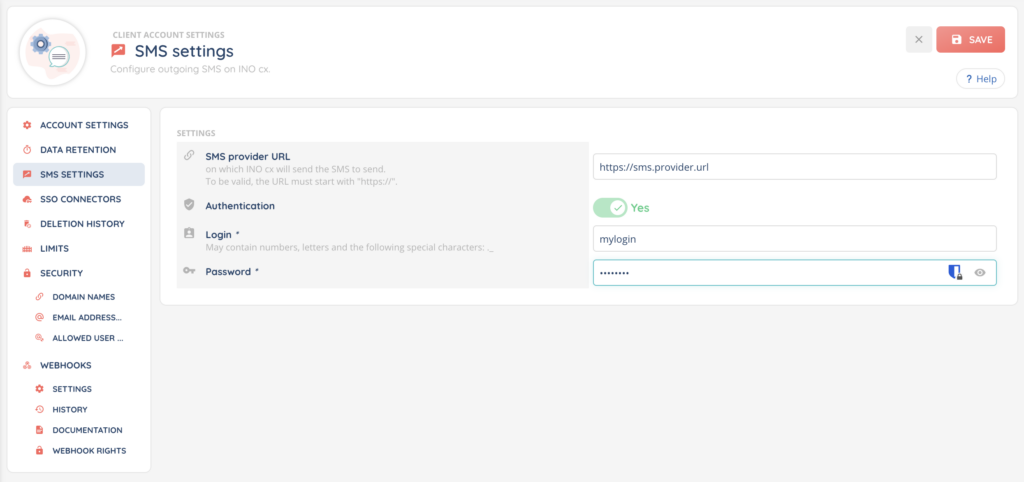
3.1. SMS provider URL
Enter the address on which INO cx will send the SMS to send. It must start with https://, otherwise the message “The URL is invalid.” appears and saving is refused.
3.2. Authentication
The Authentication field is set to Yes or No. On No, INO cx calls your provider without credentials. On Yes, two fields appear:
- Login: between 1 and 255 characters. The sublabel states that it may contain numbers, letters, and the special characters full stop and underscore.
- Password: between 1 and 255 characters. An icon lets you reveal what you type so you can check it.
Important: the password is never shown back to you. In display mode you always see six dots, even when no password is stored, and in edit mode the field is empty. Since it is required as soon as authentication is on Yes, you have to enter it again on every save, even when you are only changing the URL. Without it, the message “The password is required.” appears.
3.3. Save
Click Save. The message “SMS settings have been successfully modified.” confirms the change. Cancel drops your changes.
4. Test the connection
The Test the connection button only appears outside edit mode, and it checks the values already saved, not what you have just typed. So save first, then run the test.
Two possible results:
- “Authentication successful.”: your provider answered and accepted the credentials.
- “Authentication failed.”: it did not answer, refused the credentials, or the URL is not filled in.
5. What INO cx sends to your provider
On every SMS, INO cx passes these seven pieces of information in JSON format. Pass this table on to your provider so it can prepare its side.
| Information | Description |
|---|---|
type | NOTIFICATION for a transactional message (appointment confirmation, payment notice, delivery tracking), MARKETING for a promotional one, which may require an opt-out mention such as “STOP” to stay GDPR compliant. When no type is specified on the send, MARKETING is used. |
sender | The sender name set in INO cx. Empty if none is set. |
to | The recipient’s number, in international format. |
retId | The unique identifier of this send on the INO cx side. Keep it as it is, do not modify it. |
isUnicode | true if the message contains Unicode characters (accents, emojis). A single-credit SMS then goes from 160 to 70 characters, and from 153 to 67 characters per credit once the message is split over several credits. |
text | The content of the message. |
credits | The number of SMS credits this send represents. |
When authentication is on Yes, INO cx adds Basic authentication to every call, built from the login and password you saved.
Note: an SMS cannot exceed 8 credits. Beyond that, the send is refused before it ever reaches your provider, with the message “The SMS content is too long; it exceeds the maximum number of credits which is 8.”.
6. Go back to sending through INO cx
Switch to Edit mode, clear the SMS provider URL field, then save. Your outgoing SMS go back through INO cx. Nothing else changes.