

[Reading time: 3 minutes]
Overview
The Scripts module is part of the Quality Management module in the Banner. It provides agents with structured question-and-answer guides during voice and messaging interactions, helping them follow a consistent conversation flow.

Scripts are built as decision trees: each question can branch into different follow-up questions depending on the agent’s response. At the end of the script, final question(s) allow the agent to complete a summary or wrap-up. All answers are saved automatically for reporting purposes.
Note: Scripts are created and configured in the Maker. This article focuses on using scripts in the Banner. For script configuration, see Scripts (Maker).
1. Prerequisites
To use scripts in the Banner, the following conditions must be met:
- Smart licence — scripts require the Smart licence.
- Script access — the parameter must be set to Yes in your active profile.
- A script must be assigned to the distribution queue or voice campaign handling your interactions.

Scripts are available for voice and messaging interactions only.
2. How scripts are displayed
When an interaction is distributed, the script assigned to the queue or campaign is automatically presented in the Banner.
The script guides you through a series of questions. Each question may include:
- Question text — the main question to ask or follow.
- Suggestion — an optional hint displayed alongside the question to help you formulate your response.
3. Progressing through a script
3.1 Answering questions
For each question, select the appropriate answer from the available options. Your answer determines the next question in the flow, based on the branching logic defined in the script.
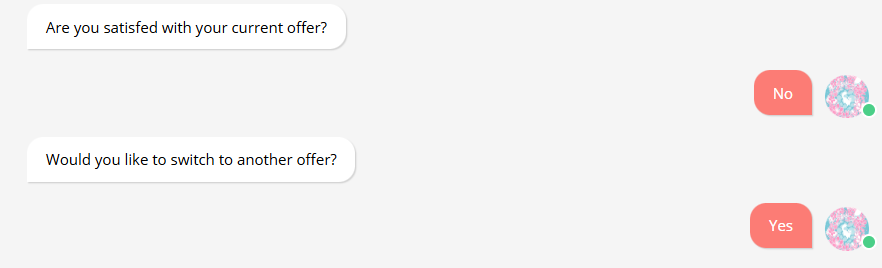
Continue answering until you reach the end of the tree.
3.2 Final Question
Once you have completed all the branching questions, final question(s) may be displayed. These are wrap-up or summary questions that appear at the end of the script, regardless of the path taken through the tree.
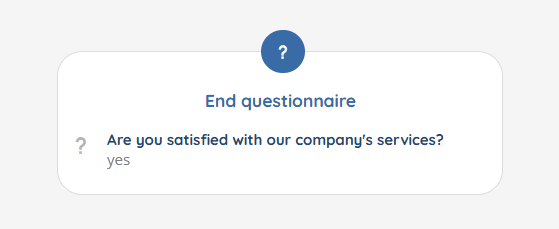
Answer all final questions to complete the script.
3.3 Script completion
The script is marked as completed when:
- You have reached the last question in the tree (no further branches available for your selected response).
- All final questions have been answered.
If you do not complete all questions or final questions, the script is saved as incomplete.
Your answers are saved automatically to the system when you finish.
4. Viewing script answers
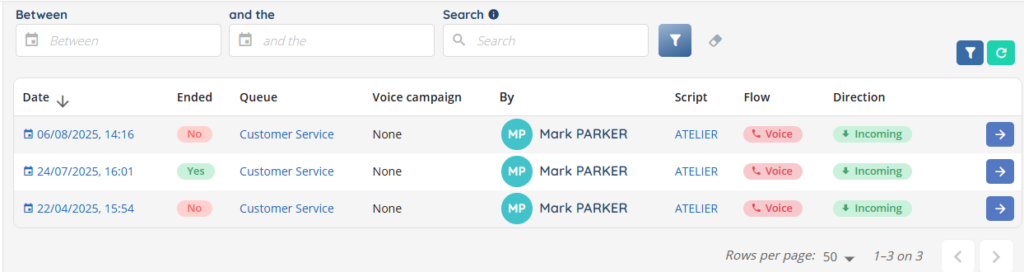
The script answers section allows you to review completed and incomplete script sessions.
4.1 Access and visibility
Access to script answers depends on your role:
- Agents can only view their own script answers.
- Managers can view the answers of users in their managed teams.
- Administrators can view all script answers.
4.2 Filters
You can refine the list using the following filters:
- Script — filter by script name.
- Advisor — filter by agent.
- Queue — the associated queue.
- Voice campaign — the associated campaign.
- Direction — filter by incoming or outgoing.
- Flow — filter by voice or messaging.
- Interaction IDs — you can find them in the interaction history module, for example.
4.3 Sorting
The list can be sorted by:
- Creation date.
- If the script was completed or not.
- The associated queue (if relevant).
- The associated voice campaign (if relevant).
- The advisor who filled the script.
- The associated script (with a Maker link).
- Flow.
- Direction.
4.4 Answer details
Click on a script answer to view the full details, including:
- Each question with the response selected by the agent.
- Final question answers.
5. Scripts in voice campaigns
When a voice campaign has multiple scripts assigned, the system automatically selects which script to present to the agent based on a weighted rotation. Each script is assigned a weight (charge), and the system distributes scripts proportionally, selecting the one with the lowest usage ratio.
This ensures a balanced distribution of scripts across campaign interactions.