

[Reading time: 7 minutes]
Overview
A Script in INO cx is a guided process that helps advisors deliver a consistent message during an interaction. The script is presented to the advisor as a sequence of questions — each with one or more possible answers — that branch into the next question depending on what the customer says. The result is a decision tree that drives the conversation step by step.

A script can be used to:
- Standardise the discovery phase of a sales conversation.
- Run a structured diagnostic on a support call.
- Walk an advisor through a compliance checklist.
- Capture qualified information at the end of an interaction with a final questionnaire.
Once configured, a script is attached to a distribution queue (for voice or messaging) and is automatically displayed to advisors who handle interactions of that queue.
1. Access and permissions
Scripts are configured in the Maker, in the Toolbox module. From the left menu, open Toolbox > Scripts.
To access and configure scripts, the user’s role must include the appropriate rights on the Scripts entity:
- Read – view the list and details of scripts.
- Create – create a new script.
- Modify – edit a script, add or remove questions, change links.
- Delete – delete a script.
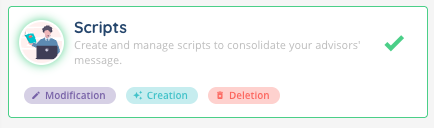
To use a script in the Banner, the advisor’s active profile must have the scripts feature enabled and the right to handle the corresponding flow (voice or messaging). Scripts are part of the Smart licence.

2. Create a script
To create a new script:
- Go to Maker > Toolbox > Scripts.
- Click the +Create button at the top right.
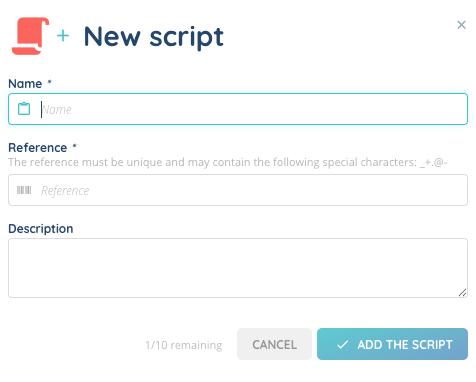
- Fill out the form:
| Field | Required | Description |
|---|---|---|
| Name | Yes | Display name of the script. |
| Reference | Yes | Unique identifier used to reference the script in your configurations. Must be unique and may contain only the following special characters: _ + . @ - |
| Description | No | Free text to describe the purpose of the script. |
- Click Save.
The new script appears in the list. At this stage, the script exists but does not yet contain any question. Click on its name to open the script editor and start building it.
3. Build the script
The script editor presents the script as a tree of questions, similar to the Smart Routing editor. Each question has a text, possible responses, and links that determine which question is displayed next depending on the response chosen by the advisor.
The tree always starts from a Start node, which marks the entry point of the script. This node is created automatically when the script is created — there is nothing to configure on it. The first real question is the one linked from the Start node.
3.1. Add a question
From the editor, click Add a question. Two options are offered:
- From zero: start from an empty question.
- Copy an existing question: duplicate a question that already exists in the script.
Each question contains:
| Field | Description |
|---|---|
| Question | The text displayed to the advisor (up to 3,000 characters). Variables can be inserted to personalise the question (see section 4). |
| Suggestion | Optional hint shown next to the question to help the advisor (up to 3,000 characters). |
| Responses | Up to 10 possible answers (Response no. 1 to Response no. 10). Each answer becomes a branch out of the question. |
3.2. Link the questions
Each response of a question can be linked to another question in the tree, so that selecting that response in the Banner brings the advisor to the right next step. Two types of links exist:
- Normal link: forward progression from one question to the next.
- Unnatural link: a link that goes back to a previous question or jumps across branches (useful for loops or shortcuts).
To create a link, use Create a link from this question on the source question, then Complete the new link to this question on the target question.
3.3. Modify or delete a question
On each question, the following actions are available:
- Modify this question: change the text, suggestion or responses.
- Delete this question: remove the question. The links pointing to it are also removed.
- Delete this question and its entire branch: remove the question and every question reachable only through it.
3.4. Final questions
In addition to the tree, a script can include final questions: a list of free-text questions presented to the advisor at the end of the script, once the tree has been walked through. Final questions do not branch and are used to capture closing information (notes, follow-up details, etc.).
From the script editor, manage final questions with the following actions:
- New final question: create a new final question.
- Modify the final question: edit the text.
4. Variables in the script
Questions and suggestions can include variables that are automatically replaced with data from the current interaction when the script is displayed to the advisor. Examples: the caller’s first or last name, the date of the interaction, the queue name, etc.
Variables use the notation {{variable.path}} directly in the question text. They are resolved in real time when the script is run during an interaction, so the advisor sees the personalised text without having to fill the variable manually.
5. Attach a script to a queue
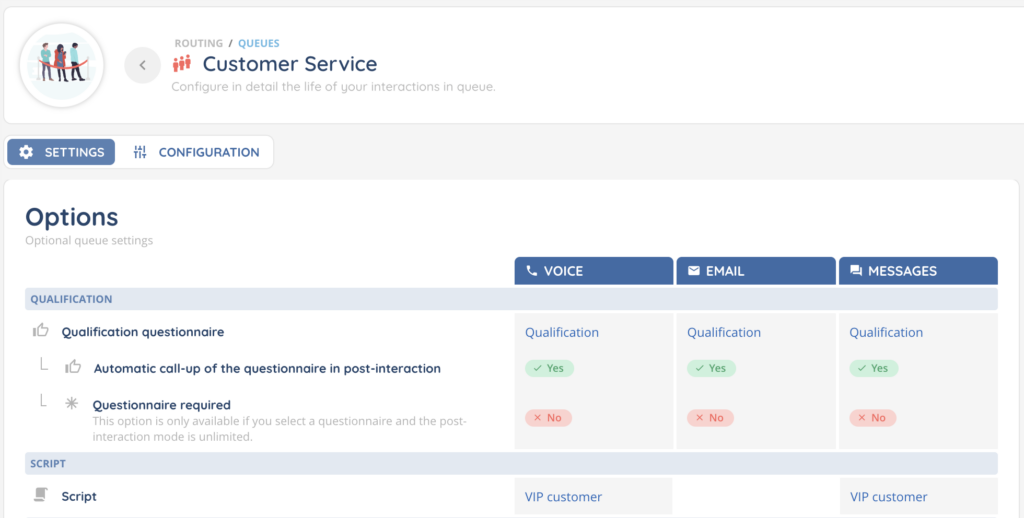
A script becomes available to an advisor through a distribution queue. From the Maker, open the relevant queue (Queues module), then in the queue configuration:
- Pick the script in the Voice script field to use it on voice interactions of that queue.
- Pick the script in the Messages script field to use it on messaging interactions of that queue.
A queue can have at most one script per flow (one for voice and one for messaging). Advisors handling interactions of that queue will automatically see the script in the Banner.
Scripts can also be attached to voice campaigns, in which case the script is displayed when the advisor handles a target of that campaign.
6. Use the script in the Banner
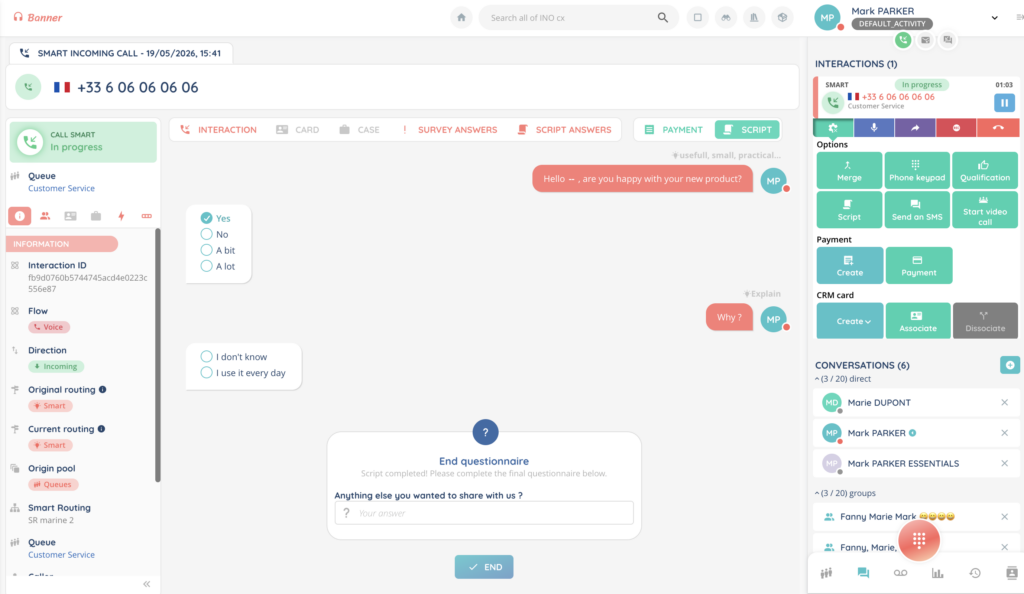
When an advisor handles an interaction whose queue has a script attached, the script is displayed in a dedicated panel of the interaction page.
The flow is the following:
- The first question of the script is displayed in a bubble, with its suggestion (if any) above.
- The advisor selects the response that matches what the customer said.
- The next question — defined by the link of the selected response — is displayed below.
- The advisor goes on until the end of the tree.
- If the script has final questions, they are displayed in a closing block titled End questionnaire, with the message: “Script completed! Please complete the final questionnaire below.”
- The advisor clicks Save to commit the answers.
The script is read-only once the interaction leaves the in-progress status: answers can no longer be modified after the interaction has been archived.
7. Edit, duplicate or delete a script
From the Scripts list, each row provides the following actions:
| Action | Description |
|---|---|
| Edit | Modify the Name, Reference or Description of the script. The tree is edited from the script details page. |
| Duplicate | Create a copy of the script, including all its questions, responses and final questions. Only the Name and Reference of the copy must be updated. |
| Delete | Remove the script. A script cannot be deleted if it is still attached to a queue or a campaign — detach it first. |
Several scripts can be deleted at once by selecting them in the list and using the bulk delete action.
8. View the answers collected by a script
Every time an advisor saves a script during an interaction, the answers are stored and can be reviewed afterwards. They are accessible from the Quality management area of the platform, under Script answers.
For each saved script answer, the following information is recorded:
- The script that was run.
- The advisor who handled the interaction.
- The interaction itself (flow, direction, queue or campaign).
- Every question asked and the response selected by the advisor.
- The text of the final questions and the answers entered by the advisor.
- Whether the script was completed up to the end or stopped before.
The list of script answers can be filtered by script, by flow, by advisor, by queue, by campaign or by date, and supports pagination for large volumes.
Read here Scripts – Use them