
Overview
We have already presented the Banner and its possibilities in a basic way. Here we will see how it can be exploited depending on the final use and the chosen licence.
Licences
Two licenses will give you access to the Banner: Essentials and Smart. They are assigned to the user upon creation in the Maker and cannot be modified afterwards.

The Essentials licence gives access to:
- collaborative tools such as chat between advisers or direct calls, or the knowledge base.
The Smart license gives access to all possible content for an Operator or a Supervisor, including:
- campaigns (SMS and voice).
- cases.
- queues
- tasks.
- CRM.
- Supervision.
- Supervision items: records, evaluations, qualifications.
The licence choice will depend on the nature of your business.
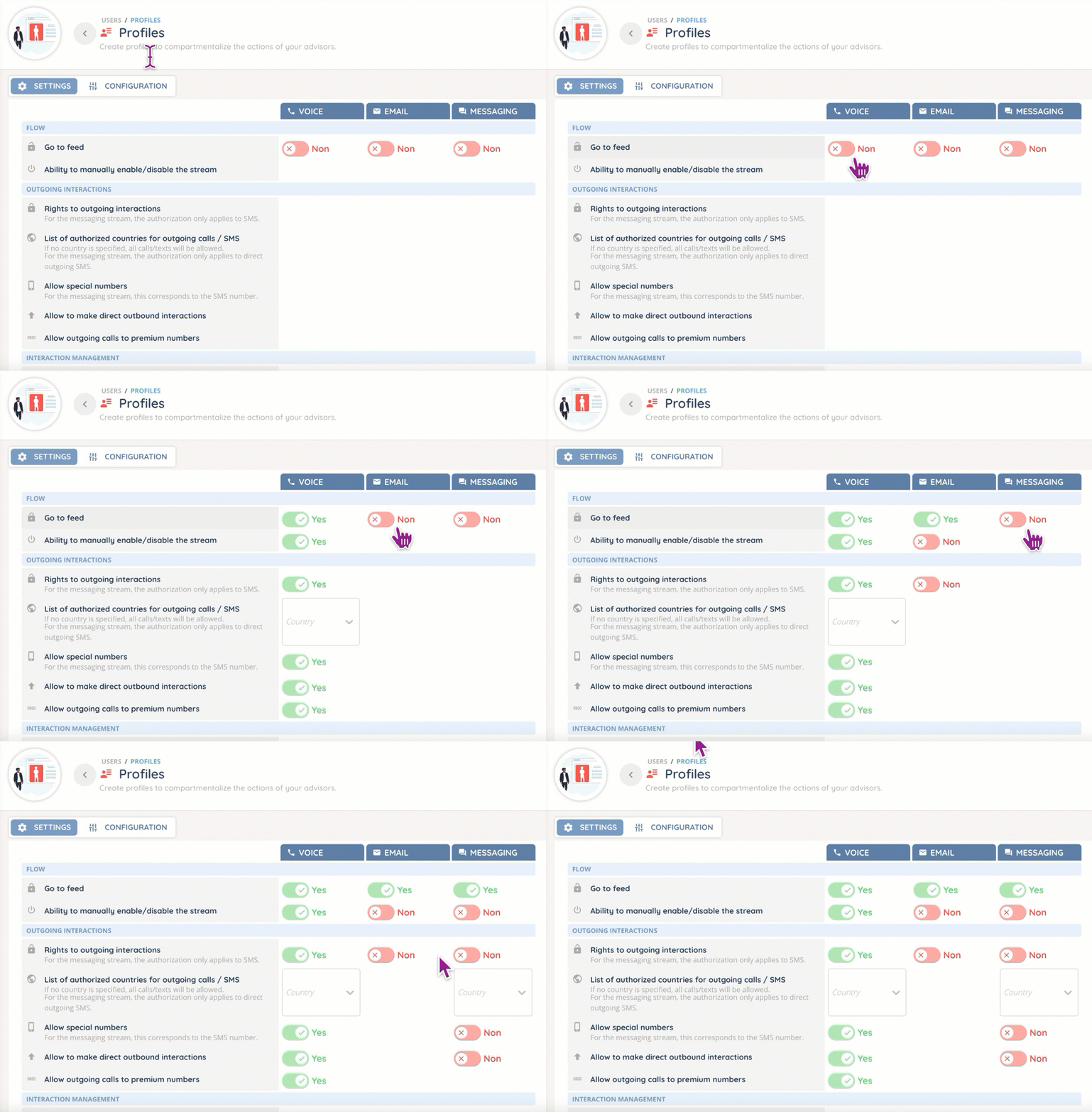
- Note: even with a Smart licence, access to each component of the Banner (campaigns, cases, records, document centre, etc.) depends on the profile settings.
First steps: mini screen and menu
When a user logs on to the INO platform, the Banner opens by default. The Maker and Reporter are accessible from the user capsule (if provided that access is authorized).
The interface is very complete (and sometimes complex), here is how it is structured:

- The mini-screen, where you can manage your incoming interactions, change your profile/activity/status), chat with your co-workers (in pairs or groups of up to 15) and access your daily statistics. Other functions (directory, history) must be allowed in your profile. The mini-screen can be positioned on the right or left side of the page as per your settings. It can also be used in pop-up mode and positioned wherever you want.
- The Banner menu: the modules’ display will change completely in accordance with your licence and profile permissions (campaigns, history, supervision items, etc.)
We will now review how each one works .
Mini-screen
As mentioned previously, the mini-screen can be detached from the Banner page to focus on interactions or use another tool in parallel, such as a dedicated CRM. It can also be reduced to the user capsule for a more comfortable navigation.
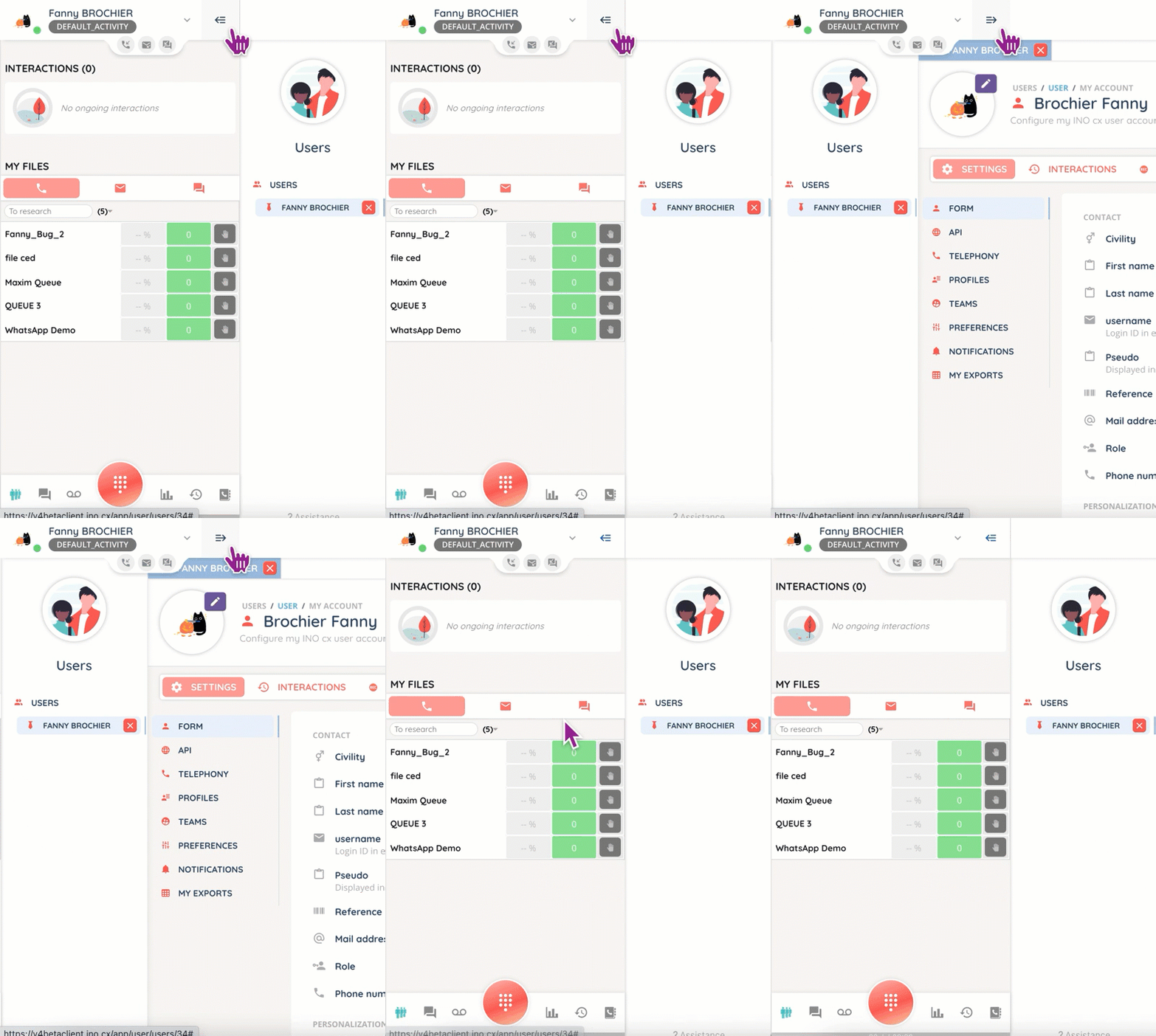
The mini-screen is where incoming interactions ( , , ) will be displayed, the presentation will depend on the channel as well as on the authorizations: refuse the call, transfer it, start a recording yourself, etc.
The details of each interaction can be seen in the mini-screen (“My interactions today” tab, in a condensed version (who, when, how) or in full.
Pages
The display will change drastically depending on the chosen module and the options (Operator or Supervisor).
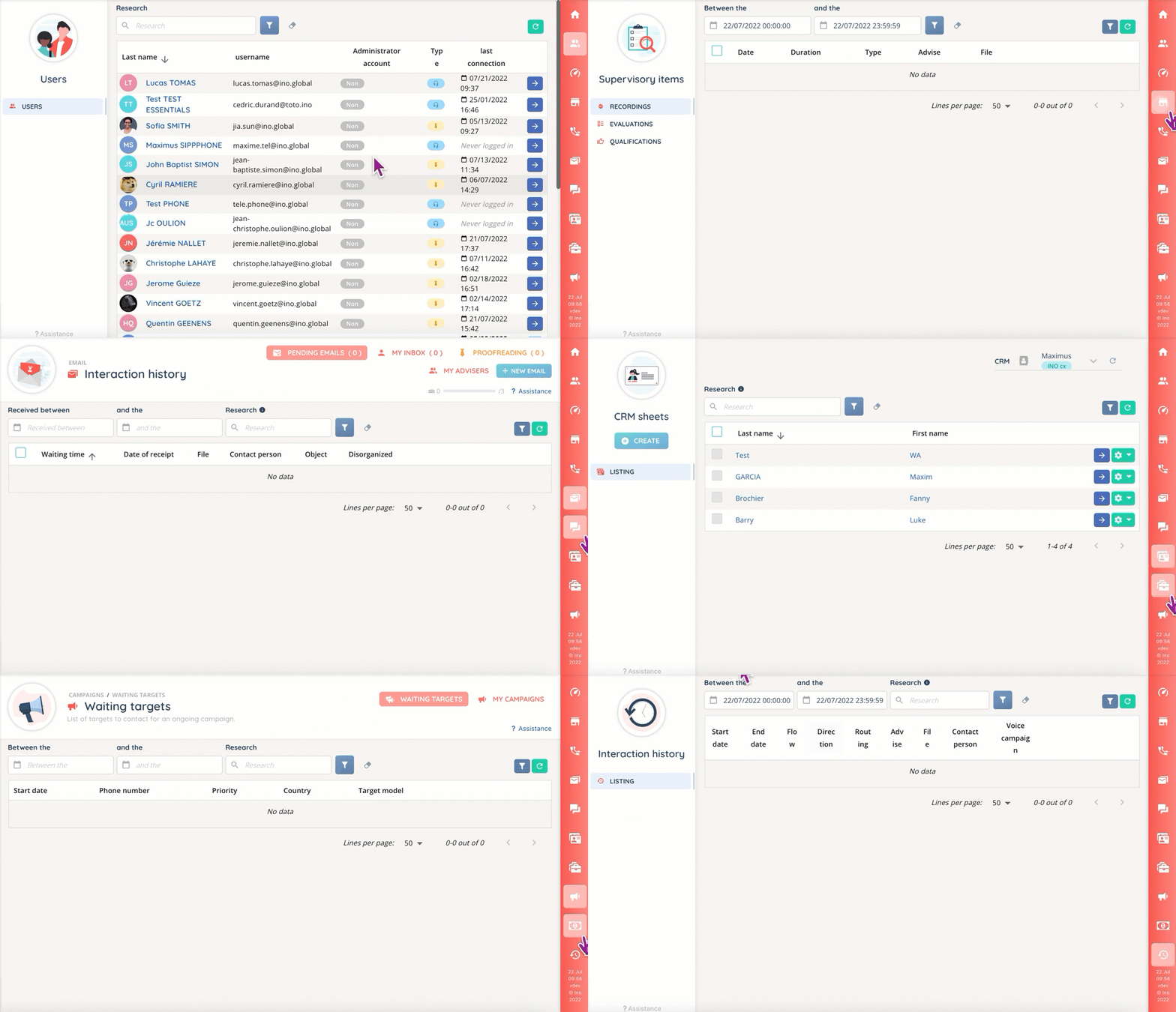
The display of users and teams is also partitioned, depending on whether the team is public or private. Almost every item displayed in the Banner is subject to profile authorisation.
Banner menu
As previously stated, the access and display of modules is based on the licence and rights granted in the profile. For example, a supervisor will have access to assessments, qualifications and records. They may also be asked to review outgoing emails.
It is not possible to rearrange the display of modules in the menu (to put the interaction history under users, for example).
Tips
- When an incoming interaction arrives in one of your queues and your channel is not activated, you can still take it with a dedicated button.


Frequently asked questions
- Where can I change the mini-screen display?
- In the user settings (My account < settings).