
What are we talking about?
Banner: your main location for interactions (campaigns, calls, messagings, etc.). It’s the most used feature.
Maker: the back-office, where you can create and set up smart routings, users, calendars, etc. Access to each module can be administered according to the needs of the agents.
Reporter: data and statistics to monitor and consolidate your business in real time.
Banner
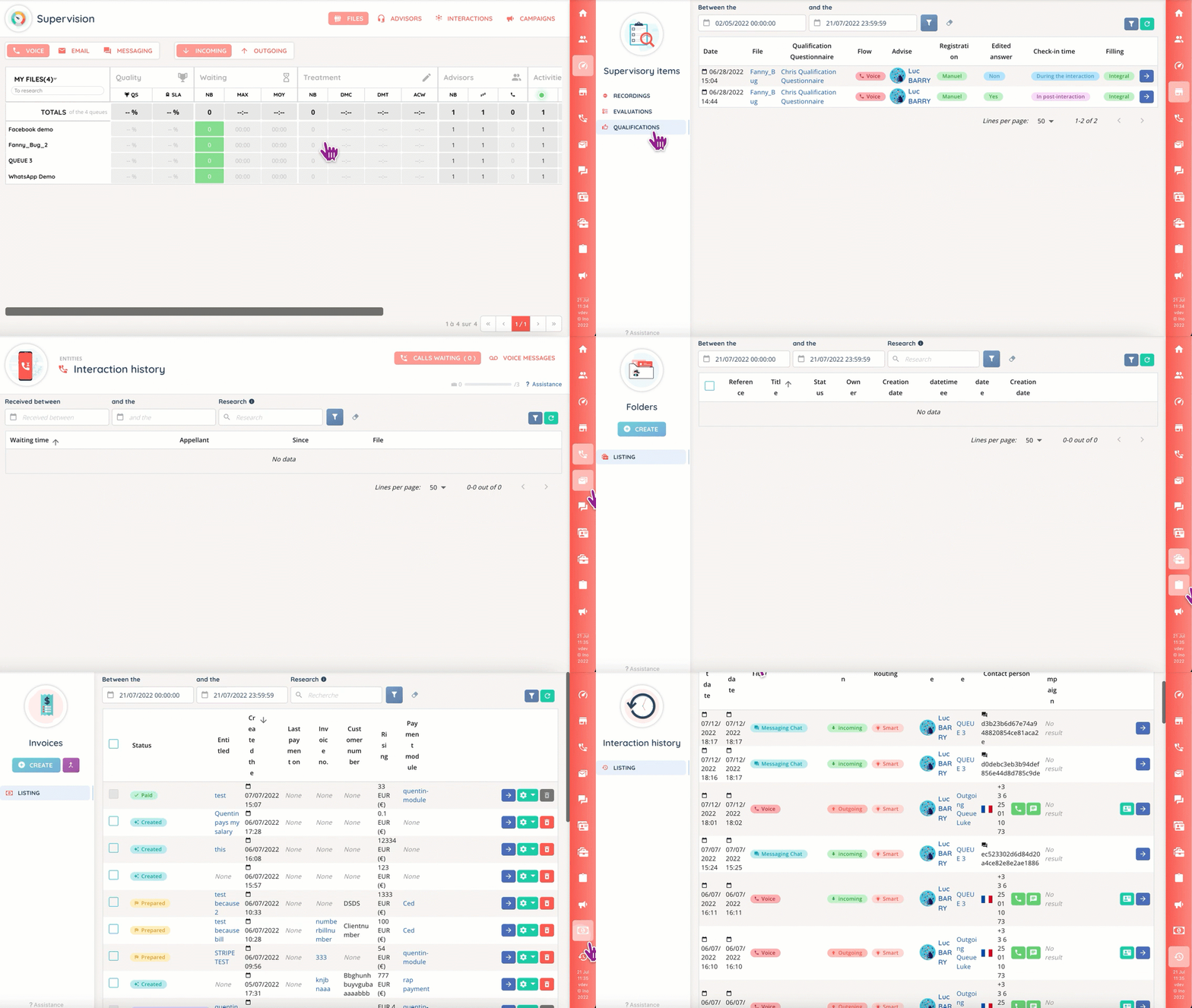
The agent’s and supervisor’s pop-up.
Here, you can:
- Make or receive internal and external calls.
- Chat with other agents.
- Use the available resources to ease the resolution of callers’ problems.
- Have a 360° view of your activities.
- Overview and manage your agents.
Maker
The laboratory for every INO service. It is structured as follows:
- Users: create users and assign them profiles, roles and teams.
- Entry points: configure (WhatsApp) phone numbers, facebook pages, mail boxes, payments and CTIs.
- Routing: voice, messaging and mail smart routings, and transfer rules.
- Media: sounds, playlists and document center.
- Campaigns: voice, mail and messaging campaigns.
- CRM: templates sheets and CRM fields.
- Files: templates, status and types to aggregate your interaction cases.
- Tasks: custom tasks (like reminders) for your agents.
- Toolbox: everything else, from calendars to mail templates.
- Data: for data bases and web services.
Modules can be accessed from the general menu or with the search bar.
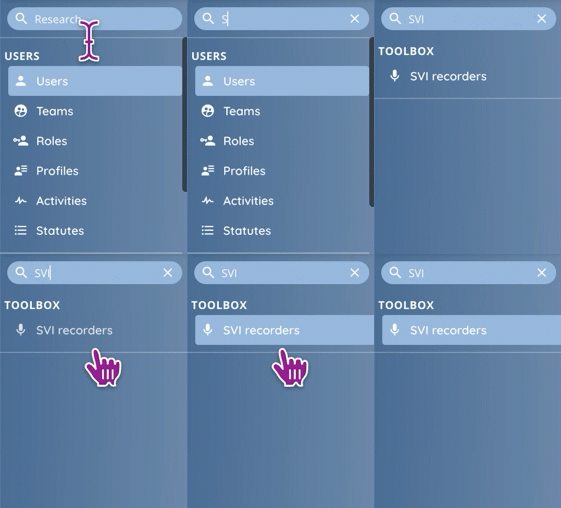
Note: some features can be found in a module’s tab, but they will not appear in the search results.
Reporter
The Reporter’s main focus is data: was you last campaign successful? When is there a peak in activity? Which service is most in demand?
You can mix and match several filters to sort out what suits your needs with scheduled reports and customized dashboards.
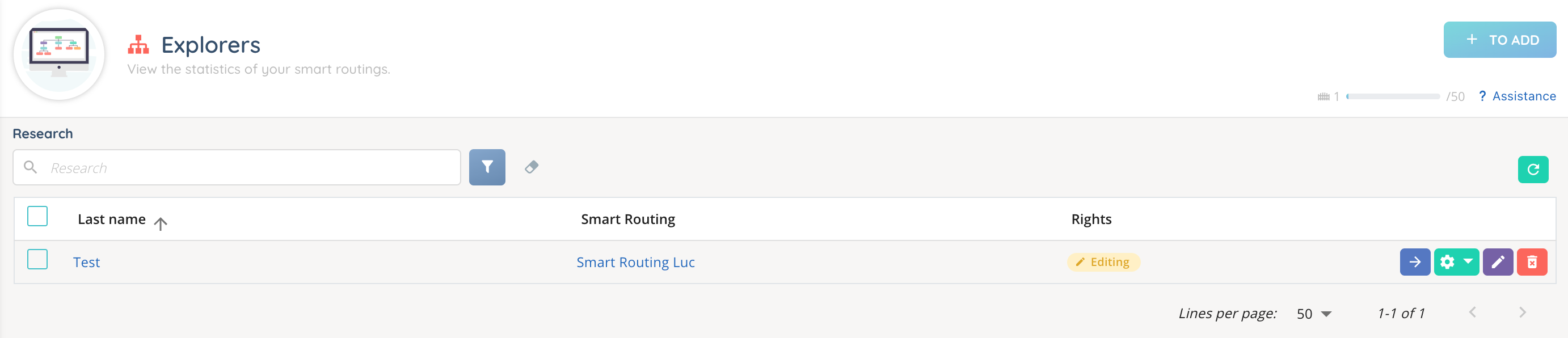
You can also export your datasets in CSV format, use hyper custom KPIs and consolidate date in real time.
Access and visibility
Each application has its own philosophy, and a different way to access its content.
- Banner: access to the different modules and interactions (making calls, accessing Supervision, etc.) is set in the profile.
- Maker: the role allows to see the applications, modules and sub-modules. It also controls access to the different buttons: create, modify, download, delete, etc.
- Reporter: here, the owner or guest status will determine whether you can view and edit an exploration, a dashboard or an explorer.
Licenses
Before the profile and the role, it is the license that decides what a user can reach in the three applications.
Two licenses are available: Essentials and Smart. The license is chosen for each user when the user is created, in the Maker, Users module. It cannot be modified afterwards: the License field stays visible in the user’s page, but it is greyed out.
The license belongs to the user, not to the account: the same account can therefore mix Essentials users and Smart users.
Essentials
Access to collaborative tools. An Essentials user can:
- call colleagues and chat with them in the Banner
- use the directory, the knowledge base and the document center
- process voicemail
- set their own preferences from My account
- and, if their role allows it, manage users, teams, roles, statuses, numbers, sounds and playlists, and the client account settings in the Maker
Smart
Access to collaborative tools and customer relationship tools. A Smart user has everything Essentials gives, plus:
- the voice, email and messaging flows, and therefore the interactions distributed by smart routings and queues
- voice, SMS and WhatsApp campaigns
- cases, tasks and CRM cards
- the history of interactions and the statistics
- Supervision
- Quality management: recordings, evaluations, qualifications, scripts and surveys
- invoices
Note: the flow buttons (voice, email, messaging) in the user capsule only exist for a Smart user. An Essentials user therefore never receives an interaction distributed by a smart routing.
Note: the license overrides administrator status. An Essentials administrator does not reach the modules reserved for Smart.
Finally, having the right license is not enough. Within what the license allows, access is still set by the profile in the Banner, by the role in the Maker, and by the owner or guest status in the Reporter.