
[Reading time: 2 minutes]
If you’re new to INO, we recommend you first read the article ‘Banner, Maker, Reporter: an overview‘.

What, why, who, where ?
The Maker is one of INO’s 3 applications (Banner, Maker, Reporter) which is used by administrators or managers to set accesses, rights, users, functionalities, routings, etc. which will be displayed in the Banner and in the Reporter.
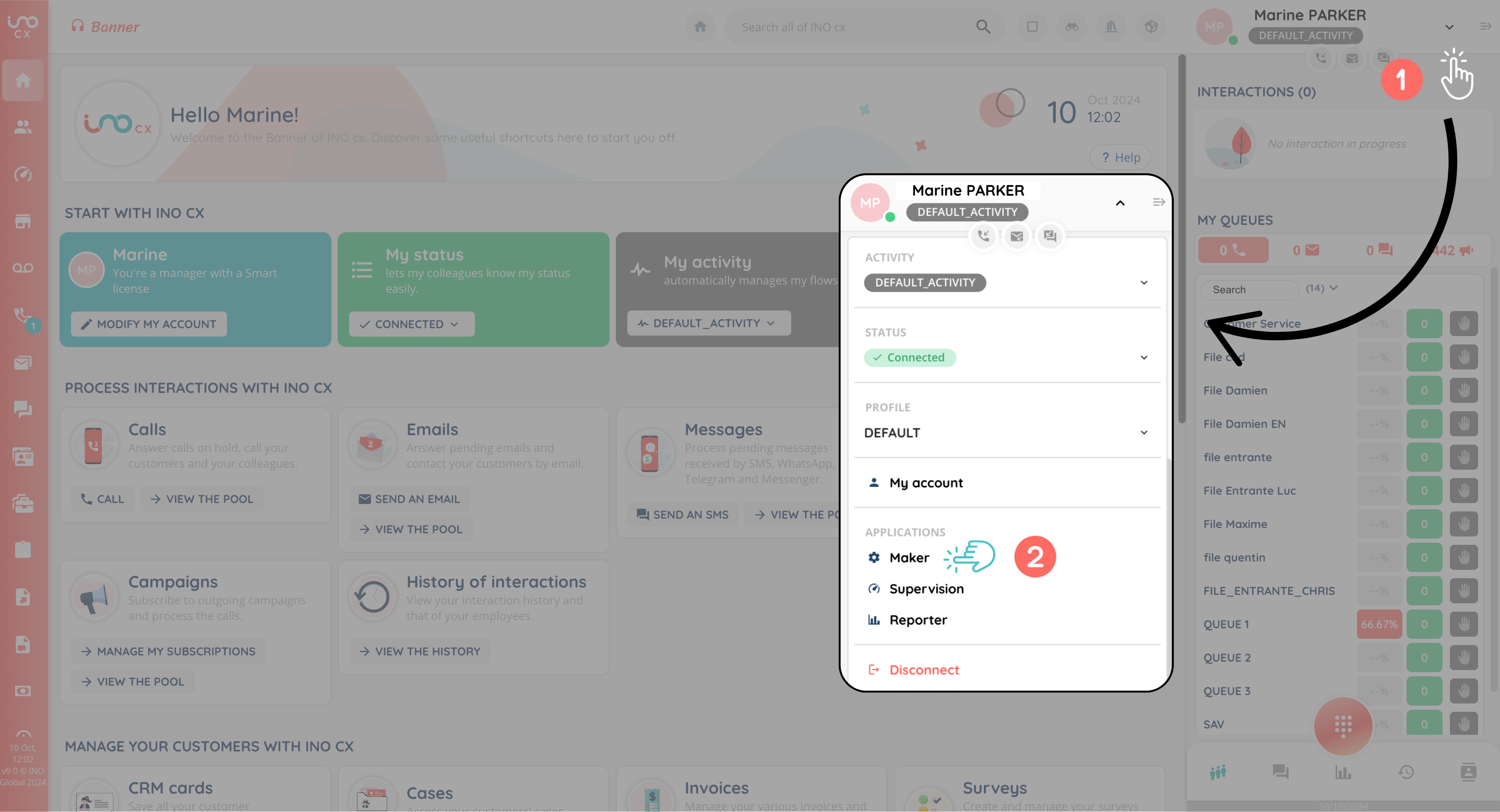
When you log on to INO, you access the Banner directly. To open the Maker, click on the drop-down menu near your user name, called ‘user capsule’ then on “Maker”. The Maker opens in a new tab and the Banner remains open.
Note: you will be able to open the Maker & Reporter from the drop-down menu, or from the shortcut ‘Access the other INO cx apps’. You won’t be able to open the Banner from the Maker.
To access the Maker, your user must have a role that authorises access. If he doesn’t have this access, he won’t be able to see the Maker at all.
Display
Home page
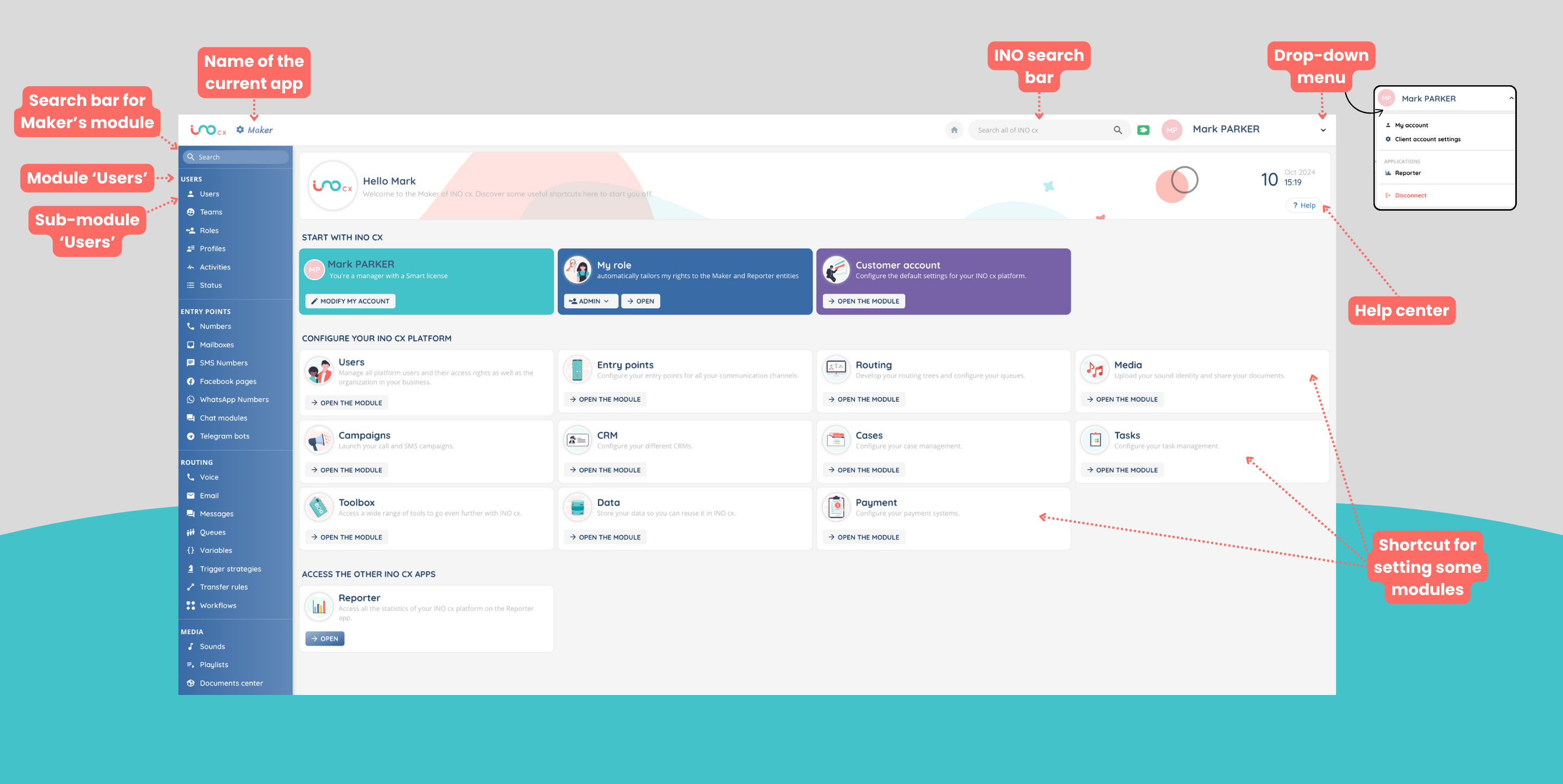
The Maker consists of a menu detailing the modules and sub-modules, plus a search bar on the left.
At the top, you’ll find the “User capsule” drop-down menu, on the right the direct link to the Help Center, and in the center a shortcut to certain modules.
User capsule
The user capsule on the Maker contains:
- The user’s initials by default (or an avatar if they change it), then first name and last name.
- My account: configuration of INO cx user account.
- Client account settings: configuration of parameters in the account, which will affect all users of the platform.
- Direct link to the “Reporter” application.
- Disconnect. Note: you will be automatically logged out of the Maker if you log out of the Banner.
sub-module

Once entered, each sub-module offers a list display, which can be modified with action buttons. The bin can be grayed out, meaning that the item is in use elsewhere and cannot be deleted for the time being.
Note: if some modules are not displayed, this may be due to a missing role, which should be configured in the Role sub-module.
Start setting up
In this help center you’ll find a number of ‘set them up’ articles to help you configure each module to suit your needs!