

[Reading time: 8 minutes]
Overview
Email is an asynchronous channel: unlike chat, the customer does not stay connected waiting for a real-time answer. Emails are received, queued, picked up by an agent, replied to (sometimes after a delay) and can come back later for follow-up exchanges.
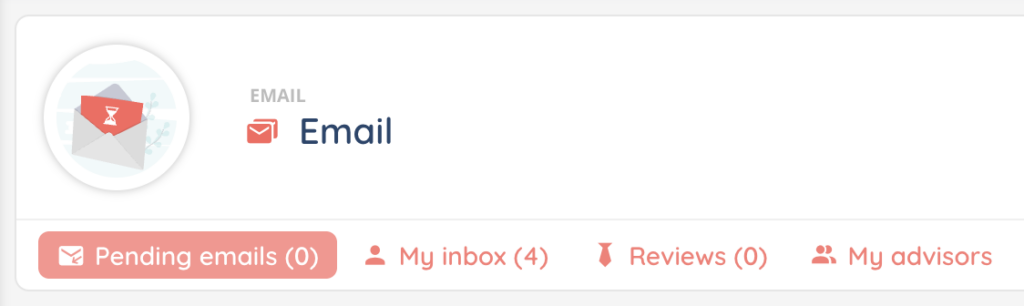
The Email pool is organised in several tabs:
- Pending emails: emails waiting to be picked up in the queues the agent is allowed to handle.
- My inbox: emails the agent has already taken and is currently working on.
- Reviews: emails awaiting proofreading by a supervisor (if proofreading is configured).
- My advisors: for supervisors only, the emails currently handled by the team they supervise.
This article focuses on how incoming and outgoing Smart emails are handled in the email pool of the Banner.
1. How an email arrives in the pool
1.1. Smart routing
This is the most common mode. When a customer sends an email to one of your monitored mailboxes:
- The email is captured by the Smart Routing of the email flow, which qualifies it (language detection, priority, keywords, etc.).
- The Smart Routing then dispatches the email to a distribution queue (or to a distribution group).
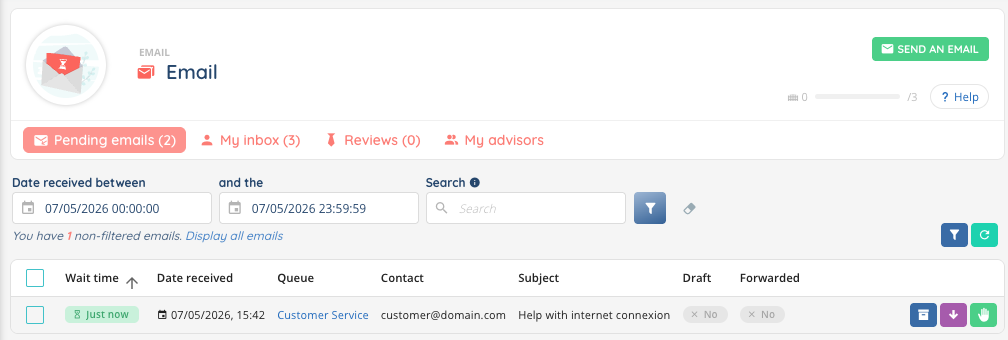
- The email becomes visible in the Pending emails tab of the email pool, for every agent whose profile is allowed to handle that queue.
The email row in the pool shows the queue it has been dispatched to.
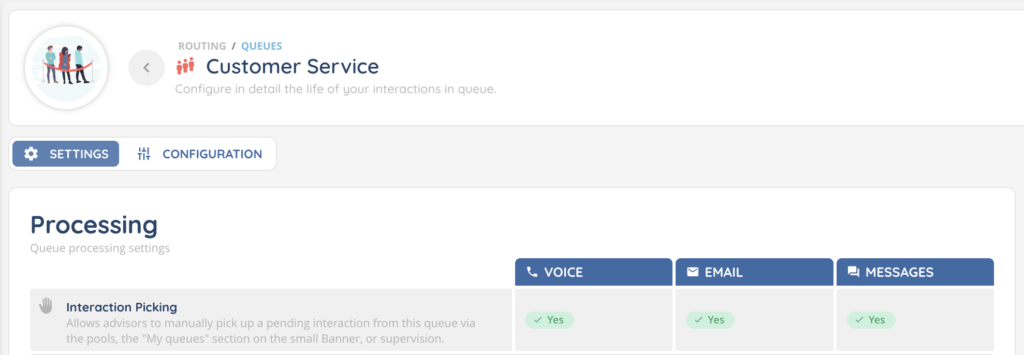
Note: Pending emails can also be accessed from the small Banner. This right can be enabled/disabled in the queue.
1.2. Direct routing
An email can also be routed directly to a specific agent (for example via the Distribute to user action of a Smart Routing, or because the agent is the customer’s favourite agent). In that case, the email lands in the agent’s personal inbox rather than in a queue, and is visible only to that agent.
2. Pick up an email from the pool
Emails wait in the pool until an agent picks one up.
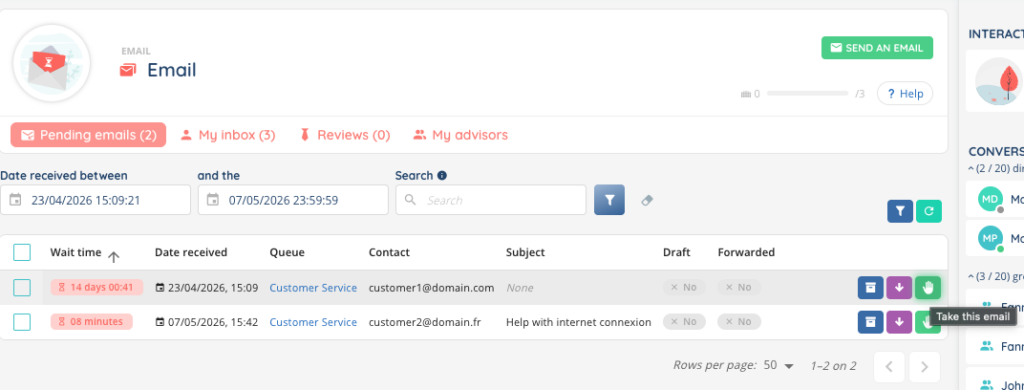
- Open the Pending emails tab of the email pool.
- Identify the email you want to handle. Each row shows the reception date, the queue, the sender, the subject and (in supervision pools) the agent currently handling it.
- Click Take this email on the row to move the email to your My inbox tab and open it in the central panel.
You can also pick up several emails at once using the Put these emails in my inbox bulk action — the selected emails are moved to your personal inbox and you can then process them one by one.
An email can only be processed by one agent at a time. While you are handling an email, it is locked from the rest of the team.
3. The email interface
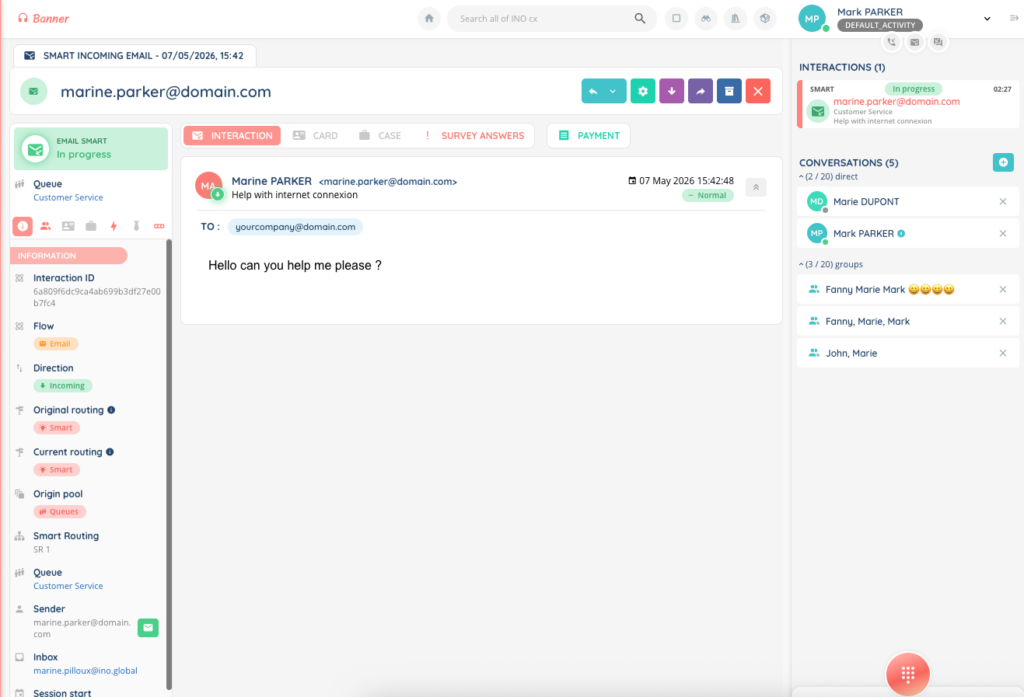
Once an email is opened, the central panel displays its full content as well as everything you need to reply.
3.1. Headers and metadata
At the top of the email, the following information is displayed:
| Field | Description |
|---|---|
| From (Sender) | Email address of the customer who sent the email |
| TO (Sent to) | Mailbox(es) the email was sent to |
| CC | Recipients in copy |
| BCC | Recipients in blind copy (only visible if the email was received on a mailbox that you operate) |
| Inbox | Mailbox of INO CX where the email was received |
| Subject | Subject of the email |
| Reception date | Date and time the email arrived |
3.2. Conversation history
The body of the customer email is displayed in full. If this email is part of an existing thread (a previous exchange between the customer and your team), the previous messages — incoming and outgoing — are shown chronologically below, so the agent has the full context of the conversation.
Drafts saved on previous interactions are also indicated.
3.3. Attachments
If the customer email contains attachments, they are listed at the bottom of the email with a download button per file. The accepted file types and the maximum size depend on your platform configuration.
3.4. SPAM flag
An email detected as spam (according to the configured rules) is marked with a SPAM tag in the pool list and in the email header. You can still open and process the email, but the visual cue lets you spot it before opening.
4. Reply to an email
4.1. Reply or Reply all
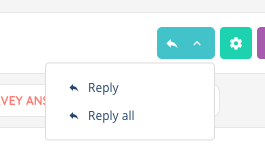
Two reply modes are available:
- Reply: replies only to the original sender.
- Reply all: replies to the original sender as well as every recipient in CC.
4.2. The reply form
The reply form contains the following fields:
| Field | Required | Description |
|---|---|---|
| Mail box | Yes | Mailbox of INO cx from which the reply will be sent. Pre-filled with the default mailbox of the queue, but the agent can pick another one among the mailboxes available on that queue. |
| Subject | Yes | Pre-filled with the original subject (max 1,000 characters). Editable. |
| To | Yes | Recipient email address(es). Pre-filled. At least one recipient is required, up to 50 in total across To, CC and BCC. |
| CC | No | Email addresses in copy. |
| BCC | No | Email addresses in blind copy. |
| Content | Yes | Rich-text editor (HTML) for the body of the email. The agent’s signature, if configured, is automatically inserted. |
| Attachments | No | Files to attach to the reply. Subject to the maximum size and accepted formats configured on the platform. |
4.3. Email templates and variables
Above the content editor, an Email template selector lets the agent insert a pre-defined message into the reply. Templates are configured at queue level in the Maker.

If the chosen template contains variables (placeholders such as {{firstname}}), the agent fills them in a side panel and clicks Replace the data to inject the values into the body. Templates can also include attachments, which are added to the reply automatically.
4.4. Drafts
An email reply can be saved as a draft and resumed later. Three actions are available on a draft:
- Modify the draft: re-open an existing draft to continue editing.
- Delete the draft: discard the current draft without sending.
- The presence of a draft is indicated by a Draft badge on the interaction.
4.5. Send
Click Send to dispatch the reply. The email is sent to the recipients, the conversation moves to the post-processing status and the agent is freed from the interaction.
5. Other actions on an email
5.1. Transfer (forward)
An email can be transferred to:
- Another user;
- A queue;
- An email address;
- A Smart Routing, to be re-qualified.
The subject of the transferred email is automatically prefixed with FW: The agent can also choose what to do with the in-progress draft (if any):
- Keep the draft: the draft remains attached to the interaction, the next agent can resume editing it.
- Erase the draft: the draft is discarded before transferring.
5.2. Process the email without replying
An email may not require a reply (information already provided, spam, internal notification, etc.). In that case, the agent can use the Process email without replying action to close the interaction without sending an answer. The email is marked as Archived in the history, with the name of the agent who archived it.
5.3. Reply again to a processed email
From the interaction history, an agent can re-open an email that was already processed (replied to or archived) and send another reply, using the Reply again to this interaction’s email action. This creates a new outgoing email attached to the same conversation.
5.4. Proofreading (supervision)
If the agent’s profile requires it, the reply can be sent for proofreading before going out: a supervisor reviews the draft and either validates it or sends it back for changes. The status of the request is visible on the interaction.
5.5. Tags, qualification and scripts
The same conditional actions available for chats also apply to emails when they are configured at queue level and allowed by the agent’s profile:
- Tags to label the interaction;
- Qualification form to capture structured information about the request;
- Scripts to guide the agent through a predefined dialogue.
6. Send an outbound email from the Banner
An agent can also initiate an outbound email directly from the small Banner, without waiting for an incoming customer message. The form is the same as the reply form, with one extra field at the top:
- Distribution queue: the outgoing queue used to send the email. The queue must have an outgoing mailbox configured, otherwise sending will be blocked. The mailbox the email will be sent from is automatically taken from the configuration of the selected queue.
The agent then fills in the recipient(s), subject, content and optional attachments, and clicks Send. The outbound email creates a new interaction that is tracked just like any reply.
7. Emails pending customer reply
An email already replied to may receive a follow-up answer from the customer hours or days later. While waiting, the conversation can sit in the Pending emails tab of the email pool. As soon as the customer replies, the email returns to the Pending emails tab so an agent can pick it up again.
Unlike chat, email does not have a reconnection timer or a freeze mode: the asynchronous nature of the channel makes these mechanisms unnecessary.
8. Notifications
Email notifications are configured in Maker > User > Notifications. The same notification types as for the other channels apply to emails, with sound and/or desktop notification options:
| Notification | Triggered when |
|---|---|
| Message arrives | A new email message arrives in an active conversation. |
| Message in a queue | An email lands in a queue the agent is monitoring. |
| Messaging ended | An email conversation is closed. |
| Message exits a queue | An email leaves a queue (picked up or transferred). |
Each notification can be enabled, disabled or restricted to a specific flow (voice, email, messaging) per agent.