

[Reading time: 4 minutes]
This article explains how to set how long recordings are kept on INO cx, what each of the four available retention times covers, and what happens once a retention time is reached.
Overview
The Data retention tab sits in the Maker, in the client account settings. Open your user capsule, click Client account settings, then Data retention in the left-hand menu.
For an overview of the client account settings and all of its tabs, see the Client account settings article.
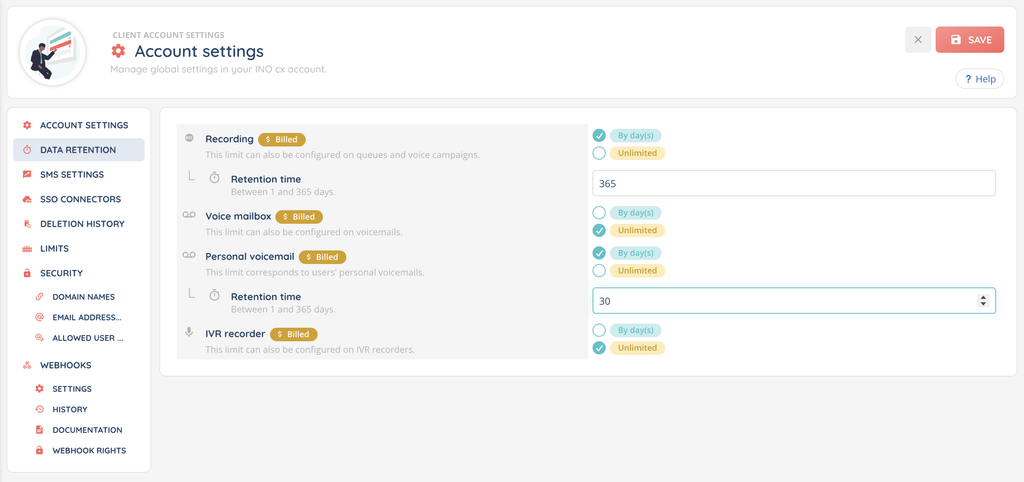
This tab gathers four retention times, one per type of recording: Recording, Voice mailbox, Personal voicemail and IVR recorder. For each one, you choose Unlimited or By day(s) with a number of days between 1 and 365. These values are the reference for the whole client account.

Warning: once the retention time is reached, the files concerned are deleted permanently. There is no bin and no way to restore them, , and any link to those recordings already shared with a third-party tool stops giving access to the audio.
1. Prerequisites
- The read right on Account settings must be enabled on your role for the tab to be visible.
- The edit right on that same item is required to change the retention times: without it, the Edit mode button does not appear and you can only consult the values in place.
2. Open the Data retention tab
- In the Maker, open your user capsule and click Client account settings.
- In the left-hand menu, click Data retention.
- The four retention times are listed one under the other, each with the value in place.
3. What each retention time covers
- Recording: call recordings. The sublabel reminds you that this limit can also be configured on queues and voice campaigns.
- Voice mailbox: messages left on the voice mailboxes created in the Toolbox, the ones your Smart Routing actions send callers to. The sublabel reminds you that this limit can also be configured on voicemails.
- Personal voicemail: messages left on your users’ personal voice mailboxes. The sublabel states that this limit corresponds to users’ personal voicemails.
- IVR recorder: the files captured by IVR recorders. The sublabel reminds you that this limit can also be configured on IVR recorders.
4. Choose a retention time
4.1. Switch to edit mode
Click Edit mode at the top of the page: the four retention times become editable. Adjust the ones you want, then click Save. The message “General settings have been successfully modified.” confirms the change. Cancel drops your changes and restores the values in place.
4.2. Unlimited
With Unlimited, no file of that type is deleted automatically. This is the value in place as long as you have never entered a retention time.
4.3. By day(s)
With By day(s), a Retention time field appears just below. Enter a whole number of days between 1 and 365. Outside that range, the message “The time must be between 1 and 365 days.” appears and saving is refused. The field is required as soon as you choose By day(s).
Note: each retention time carries a “Billed” tag, along with the message “Please note: this setting affects invoicing.”. The longer you keep files, the larger the stored volume. A retention time also applies to the files already on your account. If you switch from Unlimited to 30 days, every file older than 30 days will be deleted on the next pass.
5. Retention time set directly on a queue, a campaign, a voice mailbox or an IVR recorder
On a queue, a voice campaign, a voice mailbox or an IVR recorder, you will find the same Retention time field, with one extra choice:
- By default: the sublabel reads “Specified in the customer account settings.” The client account value therefore applies to that item.
- By day(s): a Number of days field appears. The value you enter there replaces the client account one, for that item only.
- Unlimited: this third choice is offered as well.
Personal voice mailboxes have no individual setting: only the retention time defined in the client account settings applies to them.
6. What happens once the retention time is reached
- An automatic process runs once a day and deletes the files whose start date is beyond the chosen retention time.
- The deletion is permanent: both the audio file and its entry disappear.
- These deletions are traced in the Deletion history tab of the client account settings. The User column shows “System”, the Entity column shows the type of recording concerned, and the Number of items deleted column shows how many files were removed during the pass. Expanding the row shows the period the deletion covered.
Note: deletion results are available on D+1 in the deletion history.
6.1. Links shared with a third-party tool
Some connectors do not send the audio file itself: they send a link to the recording, which stays hosted on INO cx. This is the case, for example, of a CRM connector that writes the recording link into the ticket it creates or updates.
Once the retention time is reached and the file is deleted, that link no longer gives access to the recording. The link stays where it was written, in the ticket or the record, but the audio behind it is gone. Nothing is sent back to the third-party tool to update or remove the link, and the tool has no way of knowing the recording was deleted.
A repository connector works differently: the audio file itself is copied to the destination you set up, outside INO cx. The retention time only deletes the INO cx copy, the one on the destination stays available and is not affected.
Before you set a retention time, check the tools where recording links have already been shared: after the retention time, those recordings will no longer be reachable from them. If you need the audio to stay available beyond that time, a repository connector is the way to keep a copy outside INO cx.