
[Reading time: 5 minutes]
If you’re new to INO, we recommend you first read the article ‘Banner, Maker, Reporter: an overview‘.
If you need to make the settings before you start using the Banner, have a look at the article ‘Maker: an overview’.
What, why, who, where ?
The Banner is one of INO’s 3 applications (Banner, Maker, Reporter) which is used by advisors, managers and supervisors for interactions, collaboration, monitoring, quality, campaigns, invoices…
What is displayed on the screen (= which modules are accessible) will depend on what has been set for the active profile, in the Maker.
When you log on to INO, you access the Banner directly. You will only be able to open one Banner page at a time. Exception: You may be able to open Supervision (until 5 supervision pages) in new tabs and keep the Banner page open at the same time.
To do it, simply click on ‘open in another tab’.

To access each module, the user must have a profile that grants the necessary permissions. If they don’t have access, they might not see certain modules at all.
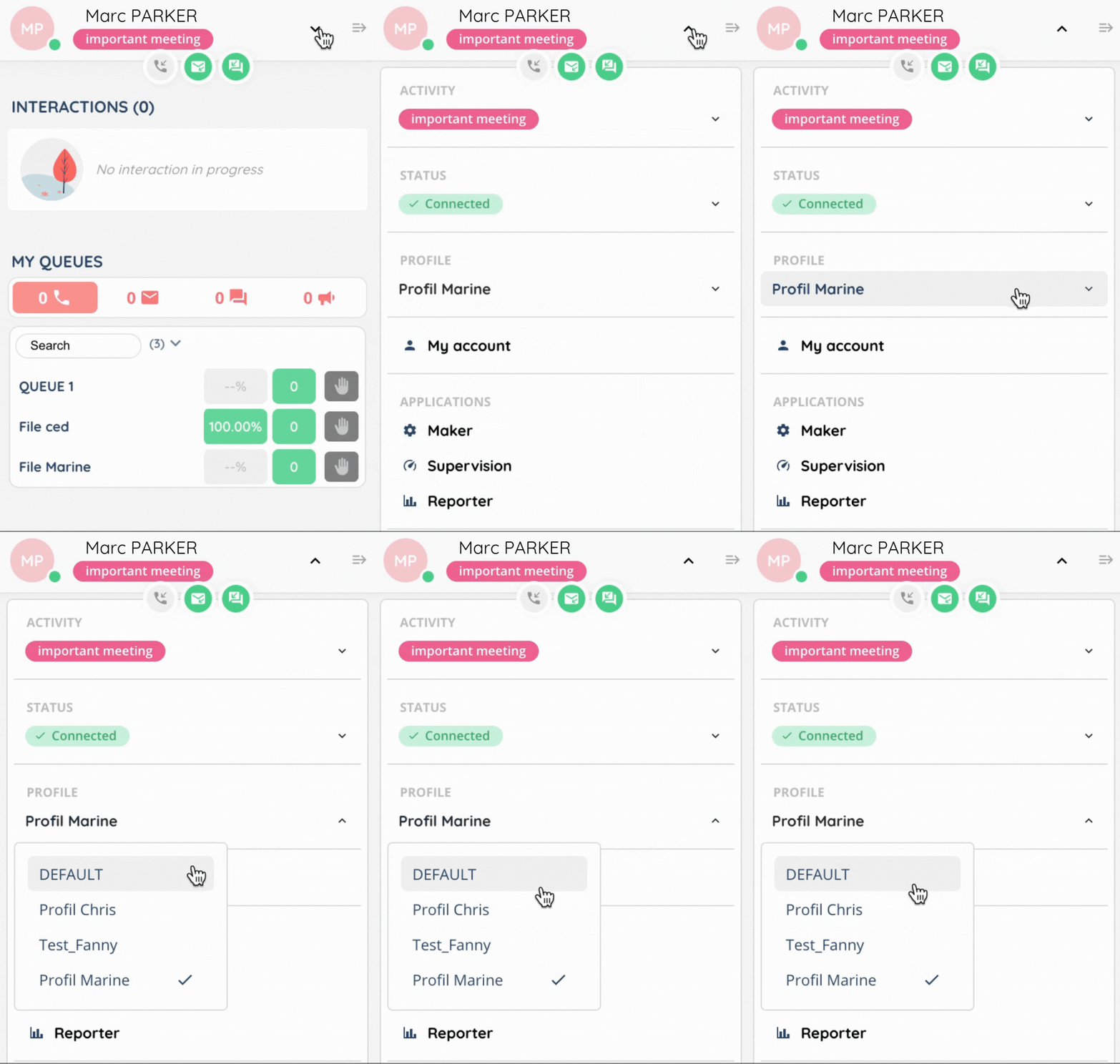
You can change your active profile in the user capsule, like this:
Display
Home page
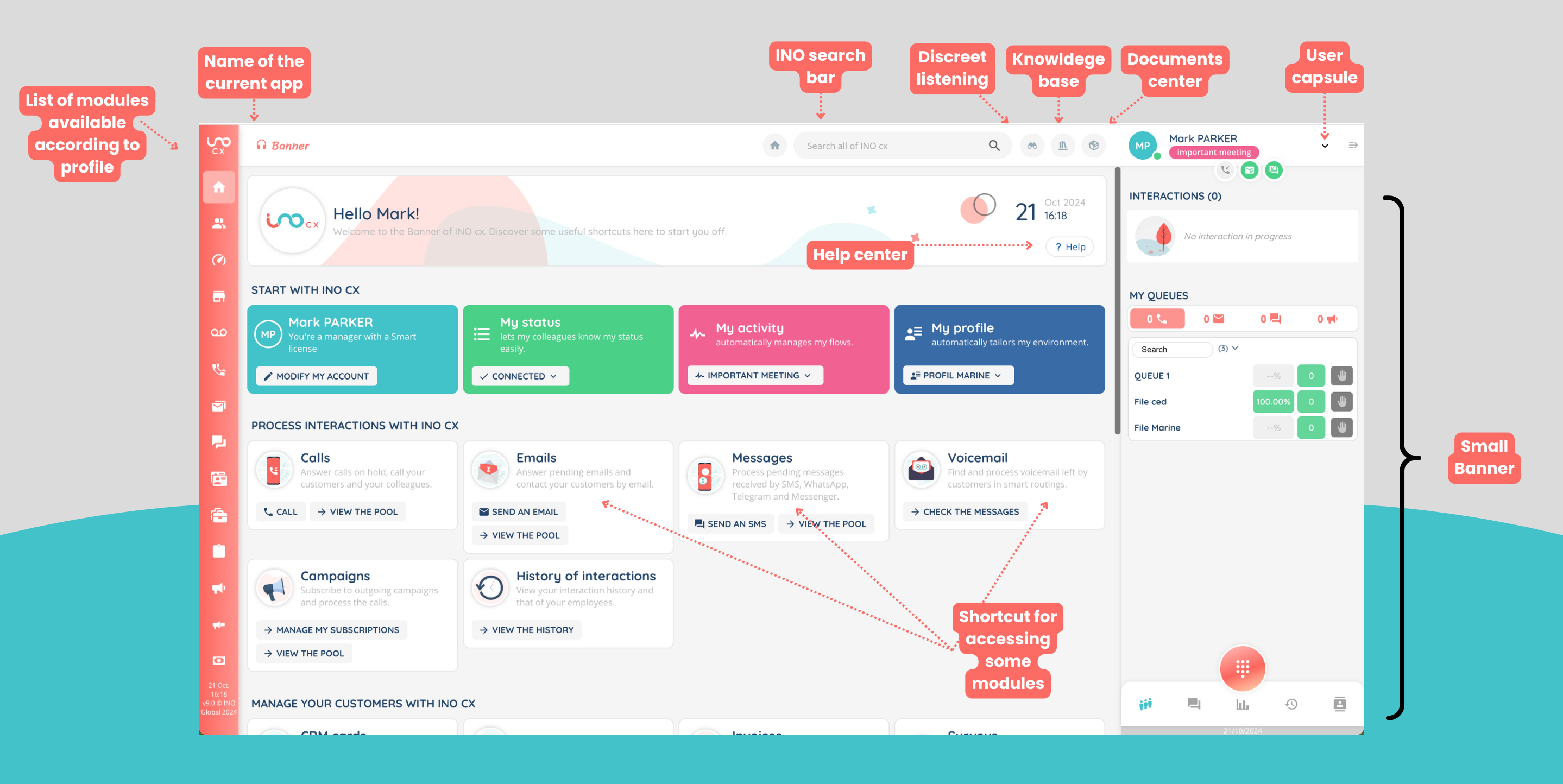
By default, the Banner consists of a menu on the left with all the modules accessible according to profile.
On the right, the small banner is displayed.
In the middle, there are shortcuts to the various modules.
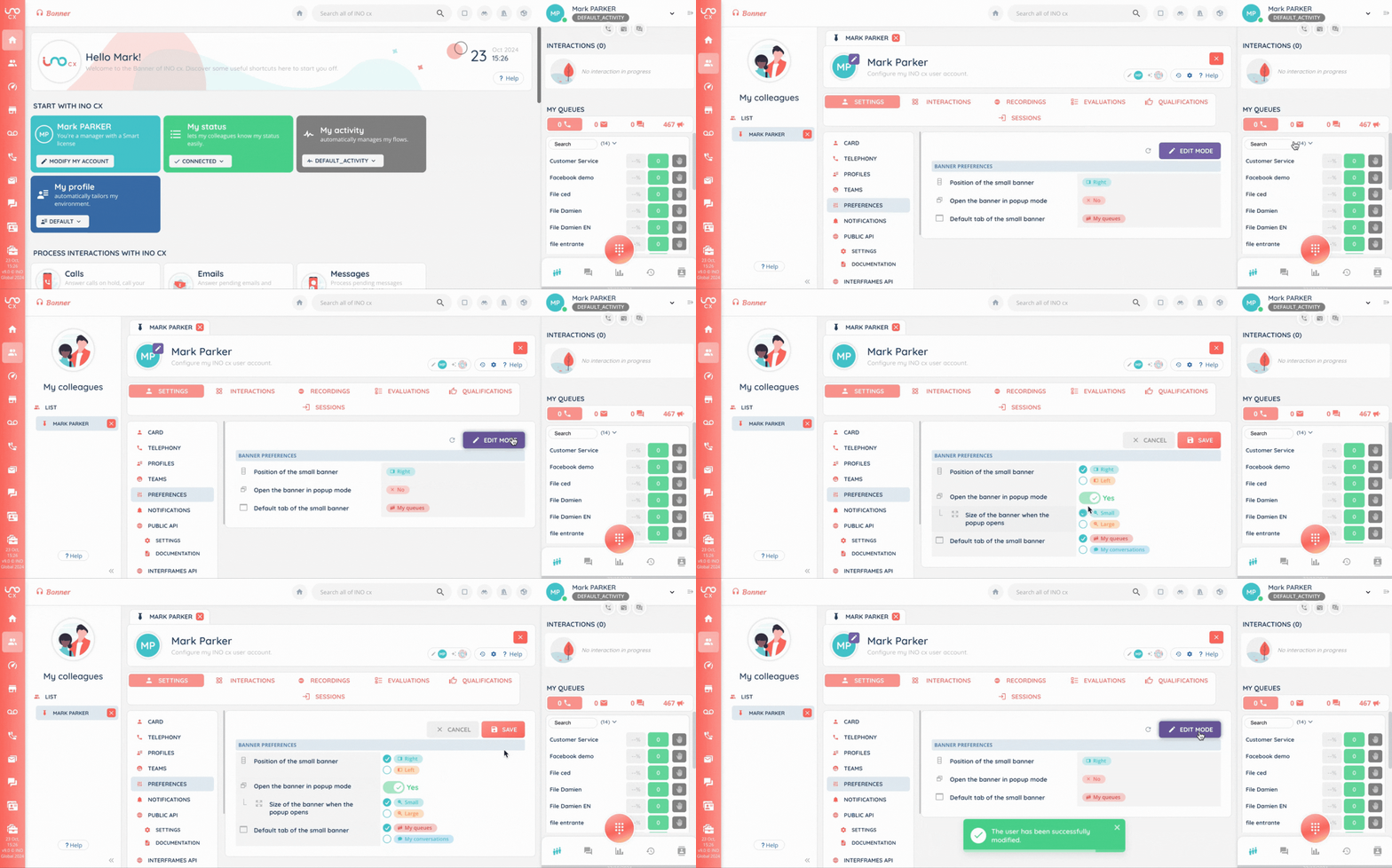
At the top right, you’ll find the “user capsule” drop-down menu. If you click on ‘my account’, you’ll be able to change your Banner display preferences:
- open the small banner on the right or left
- open the banner in pop-up mode (+ choose small or large)
- choose the default tab of the small banner (queue or conversations)
For each module, you will find a button ? Help to access the dedicated help centre article (depending on the module: sometimes top right, sometimes bottom left).
User capsule

The user capsule on the Banner contains:
- The user’s initials by default (or an avatar if they change it), then first name and last name.
- Flow buttons: flow buttons activate the different flows for smart interaction (voice, email, messaging).
- Activity, status & profile: the user can change them if he has the rights.
- My account: configuration of INO cx user account.
- Direct link to the “Maker”, “Supervision” and “Reporter” applications.
- Disconnect. Note: you will be automatically logged out of all other applications if you log out of the Banner.
Small Banner

The small Banner lets you manage all your interactions: access the queues for all channels, campaigns, internal conversations, daily statistics, interaction history and the directory.
To read the article dedicated to the small Banner, please click here.
Modules
If some modules are not displayed, this may be due to a missing right in the profile, which should be configured in the Maker, in ‘Profile’ sub-module.
Here is the list of modules available in the Banner:

➡️ Welcome page
➡️ My colleagues: according to your rights, consult and modify ‘my account’ information and/or see your colleagues information.
Read the detailed article here!
➡️ Supervision: enables the supervisor to manage and monitor the activity of his team(s).
Read the detailed article here!
➡️ Quality management: according to your rights, consult your or your teams’ recordings, evaluations, qualifications questionnaires, surveys and scripts.
Read the detailed article here!
➡️ Voicemail: find and process voicemail left by customers in smart routings.
Read the detailed article here! (WIP)
➡️ Voice
Read the detailed article here! (WIP)
Read the detailed article here! (WIP)
➡️ Messaging
Read the detailed article here! (WIP)
➡️ CRM cards
Read the detailed article here! (WIP)
➡️ Cases: according to your rights, create, consult, modify and delete cases. You may also consult CRM card and interactions linked to it.
Read the detailed article here!
➡️ Tasks: according to your rights, create, consult, modify and delete tasks. You may also consult CRM card linked to it.
Read the detailed article here!
➡️ My voice campaigns: consult the list of your active profile voice campaigns. Change the status of a campaign if you manage it, and choose to subscribe or not. Consult and manage in the other tab the pending targets.
Read the detailed article here!
➡️ My SMS campaigns: consult the list of your active profile SMS campaigns. Change the status if you manage it,
Read the detailed article here!
➡️ Invoices
Read the detailed article here! (WIP)
➡️ History of interactions: consult your interactions, and if you are a manager, your teams’ interaction.
Read the detailed article here!
➡️ Statistics: view statistical data about you, your teams and your queues.
Read the detailed article here! (WIP)