

[Reading time: 4 minutes]
Overview
The WhatsApp numbers module in the Maker allows you to configure the WhatsApp numbers used in INO cx, both for incoming and outgoing interactions.
Note: you can reuse a number that is used for voice calls for WhatsApp interactions. However, you cannot use the same number for both incoming and outgoing WhatsApp numbers.
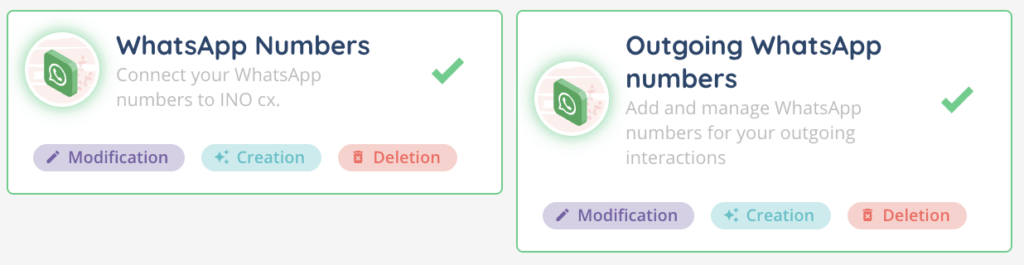
The WhatsApp numbers module is divided into two tabs:
- WhatsApp numbers (for incoming numbers)
- Outgoing WhatsApp numbers (for outgoing numbers)
Each tab has its own setup process and specific permissions.
1. Access and permissions
To access and configure WhatsApp numbers, the user’s role must include the appropriate rights in the Maker:
- WhatsApp numbers: access, creation, modification, deletion
- Outgoing WhatsApp numbers: access, creation, modification, deletion
These permissions are managed in the Roles module of the Maker.
2. WhatsApp numbers (incoming)
This tab lists all the incoming WhatsApp numbers already configured in your environment. Each line includes the following columns:
- Phone number
- Name
- WhatsApp provider
- Time zone
- Language
- Account ID
- Session time
- Smart routing
- End-of-interaction smart routing
At the end of each row, you’ll find three action buttons:
- ⚙️ Settings – view history and manage tags
- ✏️ Edit – modify the number’s configuration
- 🗑️ Delete – remove the number
A search bar lets you quickly find a number by its name or phone number. You can also search using tags.
1) Add an incoming WhatsApp number
Click Create to add a new incoming number.
- Fill in the required fields:
- Name – internal label to identify the number
- Phone number – the number registered with the WhatsApp provider
- WhatsApp provider – select Meta if you’re using a Meta-managed number
- Time zone – ‘Default’ will correspond to the time zone set in the customer account settings
- Language – language that the smart routing actions will use
- Account ID – ID of the number available on the Meta WhatsApp application
- Token – access token generated from the system user, from Meta (see below)
- Session time – duration of an active WhatsApp session (from 10 seconds to 72 hours).
- Smart routing – choose the routing for handling conversations
- End-of-interaction smart routing – define routing when the conversation ends
- Save the configuration.
The number will appear in the list once successfully added.
2) Configure the WhatsApp number with Meta
To integrate a WhatsApp number from Meta, follow these steps (based on Meta’s requirements):
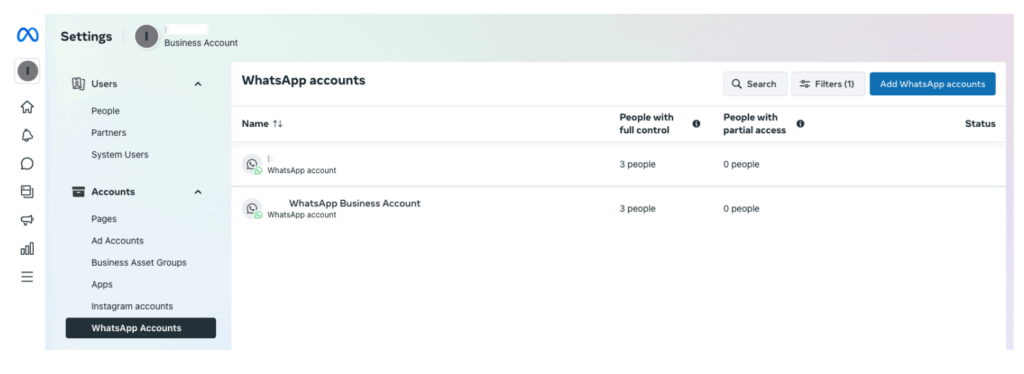
- Create a WhatsApp account under Business Settings > Accounts > WhatsApp Accounts.
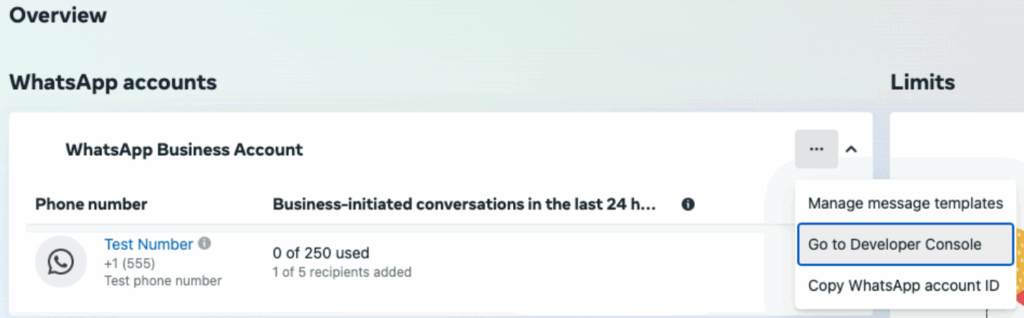
- Create a new application in the Meta for Developers console. (WhatsApp Manager > Overview > Go to developers console) then Create an app > Other > Select Business type)
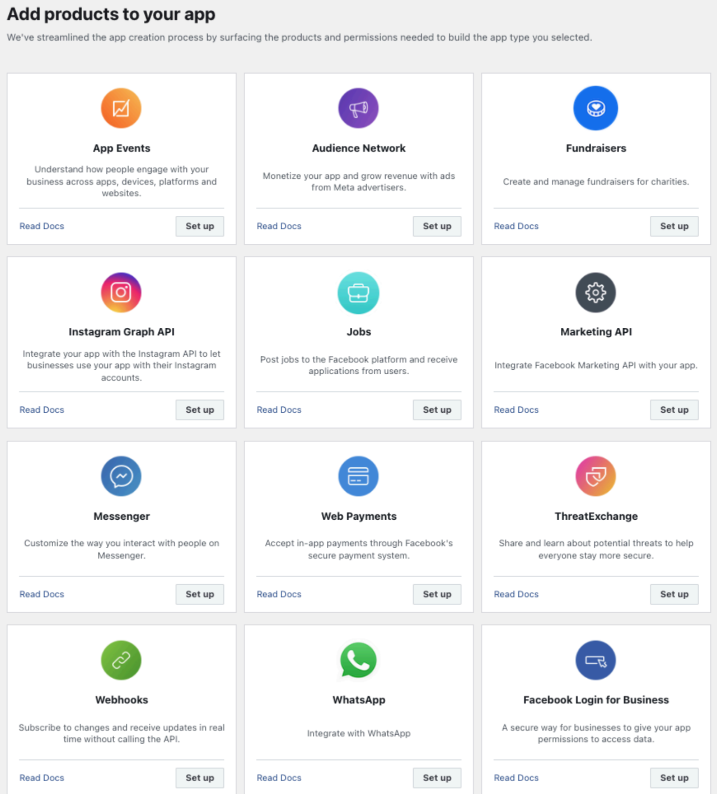
- Add the following products: Webhooks and WhatsApp.
- Configure the webhook:
Enter the webhook URL where messages sent to the WhatsApp number will be processed. You will also need to enter the verification token.
➡️ For clients in Europe:
URL Webhook: https://v-prod-metawawh.ino.cx/webhook
Token: dBLbBvg207?Uwcj9l5p=iOXq3GZ1WgaD0LxASLvatTdcpzI/EKpHu4Vbjn9Vsqs4WKmZL3YV0jFbWCuj2M!PehG1Lph1fStOA97PwwWHBo3?WbpMB!GasxRtaYv!VWlubTVqP4-4qCv1aYD05vO35Hodclh!SAWVJsbMRrqNqfcAWrp9UFvFr4ODVNmeUXWY!qwD?a2hcUxeY5B905yE9WYTJ/aS8dxf1HfB5KPNCbqxGwB3ZSsjJx4zUEp?QdSg
➡️For clients in US:
URL Webhook: https://v-prod-metawawh.us-west-2.ino.cx/webhook
Token: dBLbBvg207?Uwcj9l5p=iOXq3GZ1WgaD0LxASLvatTdcpzI/EKpHu4Vbjn9Vsqs4WKmZL3YV0jFbWCuj2M!PehG1Lph1fStOA97PwwWHBo3?WbpMB!GasxRtaYv!VWlubTVqP4-4qCv1aYD05vO35Hodclh!SAWVJsbMRrqNqfcAWrp9UFvFr4ODVNmeUXWY!qwD?a2hcUxeY5B905yE9WYTJ/aS8dxf1HfB5KPNCbqxGwB3ZSsjJx4zUEp?QdSg
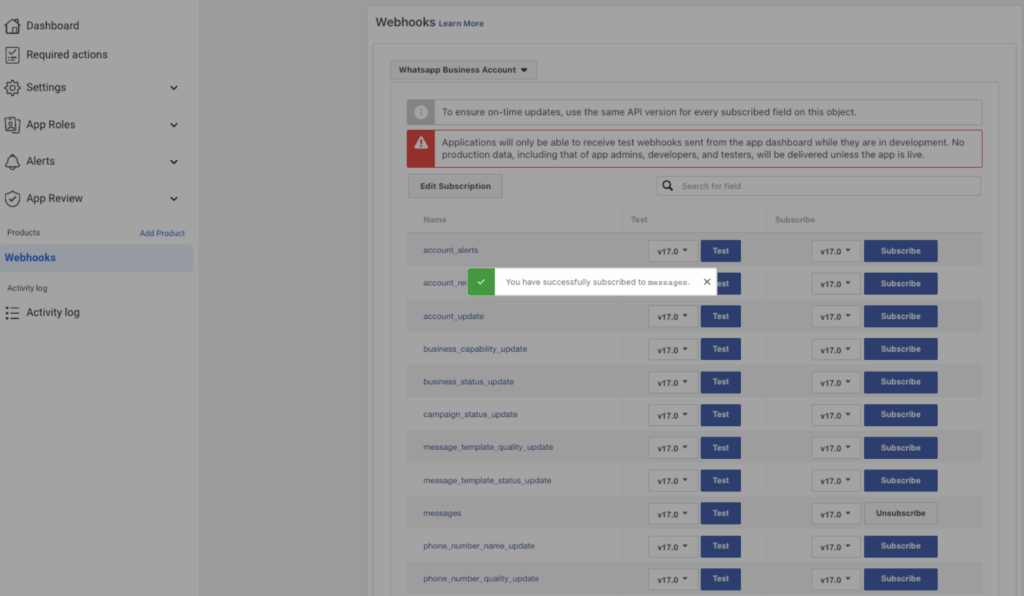
- In Meta Webhook menu, choose WhatsApp Business Account from the dropdown list and subscribe to the messages webhook.
- Add your phone number in the WhatsApp Manager.
⚠️ Each client must absolutely own any number they wish to add.
In the API Setup menu, click on Add a number.
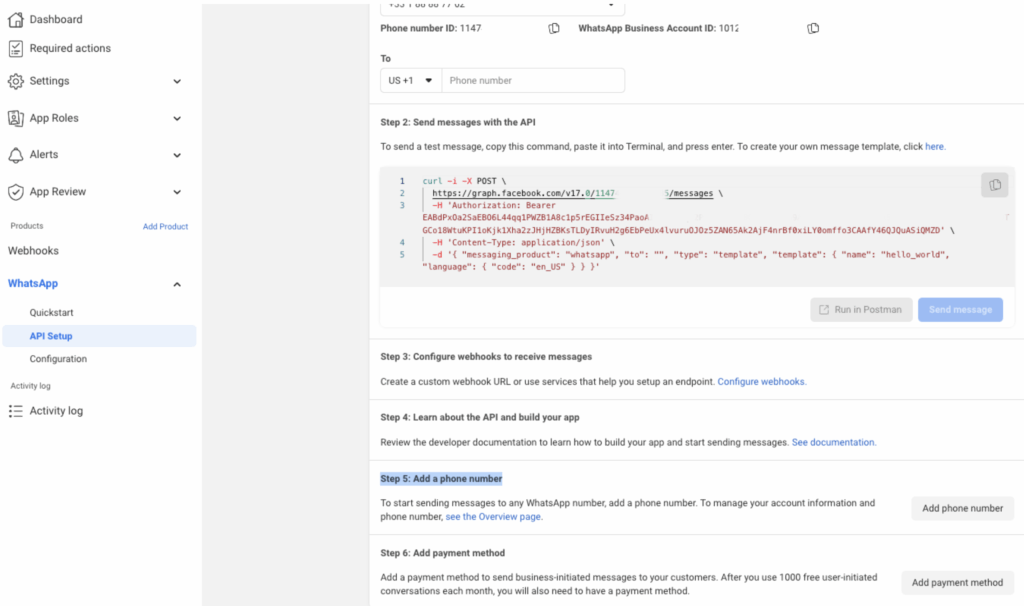

A verification code will be sent by SMS or voice call.
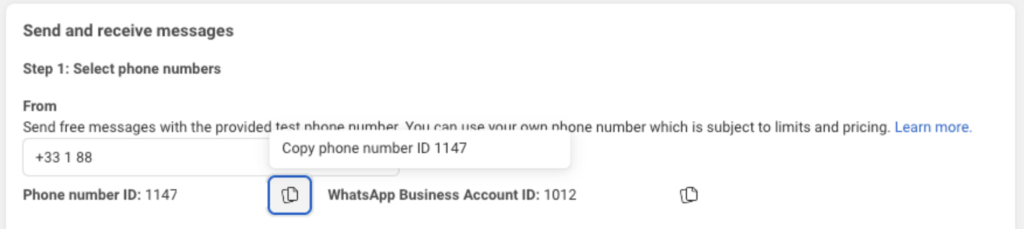
Keep the Phone Number ID — it will be required in INO cx.
Note: if your company is not verified, you can only add two numbers per application.
- Once the application and number are created, create a system user in Meta to generate a permanent access token:
➡️ Select the created WhatsApp application.
➡️ Set the token expiration to Never
➡️ Grant the ‘ whatsapp_*** ‘ permissions
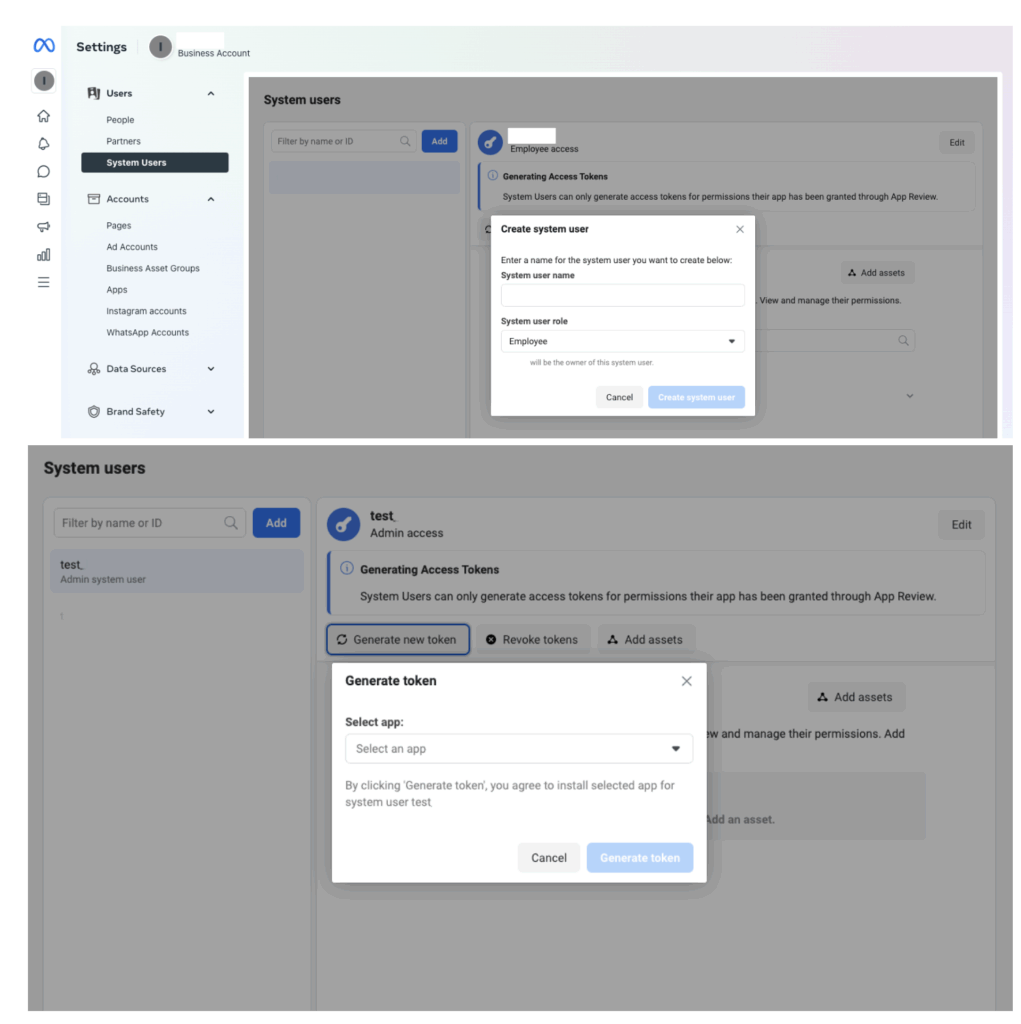
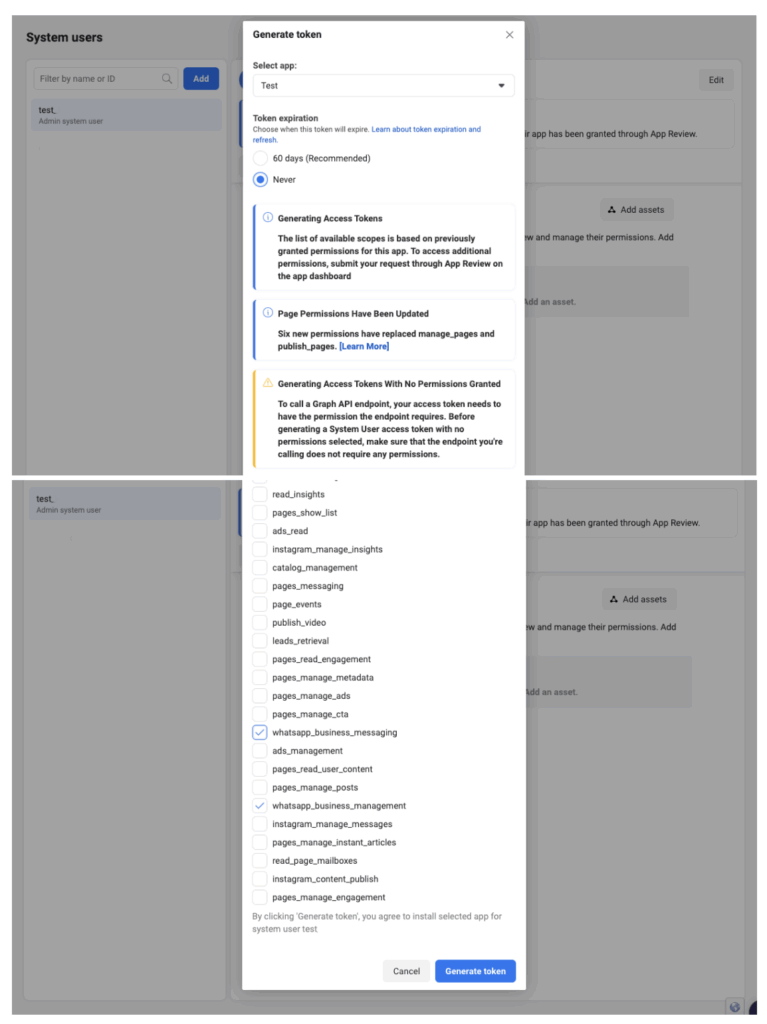
Assign the application as a resource to the system user. Once done, the user will be added to the application’s Roles as an administrator.
Once done, save the token — Meta does not store it.
This token must be entered in INO cx when adding the number.
⚠️ The client (end-user) must always initiate the WhatsApp conversation.
Additional costs apply if the company initiates the conversation.
See Meta billing terms.
3. Outgoing WhatsApp numbers
The Outgoing WhatsApp numbers tab allows you to add and manage the numbers used by your agents to send outgoing WhatsApp messages.
Unlike incoming numbers, the setup process is simplified and directly connected to Meta.
There is no form to fill out — the connection and authorization are handled automatically during the creation process.
Once created, the outgoing numbers appear in the list and can be edited or deleted.
1) Message templates on Meta
To contact a person who has never been contacted or has not been contacted for more than 24 hours, it is necessary to use message templates approved by Meta.
Templates can be created from the WhatsApp Business account interface.
There are three types of templates:
- Marketing
Flexible template to contact a client for brand awareness, sales, retargeting, app promotion, or customer relationship development.
⚠️ ForMarketingtemplates, a campaign opt-out button must be added. - Authentication
Used to authenticate a user, for example with an authentication code. - Utility
Triggered by a client action or request, for example to provide information about an ongoing order.
Note: incorrect template typing may result in rejection by Meta.
Once created, a template must be validated by Meta. Approval can take up to 24 hours. Possible statuses are:
- ✅ Approved (green check)
- 🟡 Pending review (yellow check)
- ❌ Rejected (red check)
Note: these statuses will appear when you create your WhatsApp campaign. See the article on campaigns for more information.
2) List of templates in INO cx
Each outgoing WhatsApp number can have one of the following statuses: enabled, disabled
This status will appear in the list of outgoing WhatsApp numbers.

3) Pricing
WhatsApp fees are applied per conversation, not per individual message sent or received.
- Conversations are 24-hour chat threads between your business and your customers.
- Conversations are opened and billed when messages sent to customers are delivered.
- Pricing depends on the type of conversation (Marketing, Utility, Authentication) and the country.
For detailed pricing information, please contact Meta.