
Overview
The scripts help the agent to guide the conversation and counter objections, with ordered and prioritized questions organized in a decision tree.
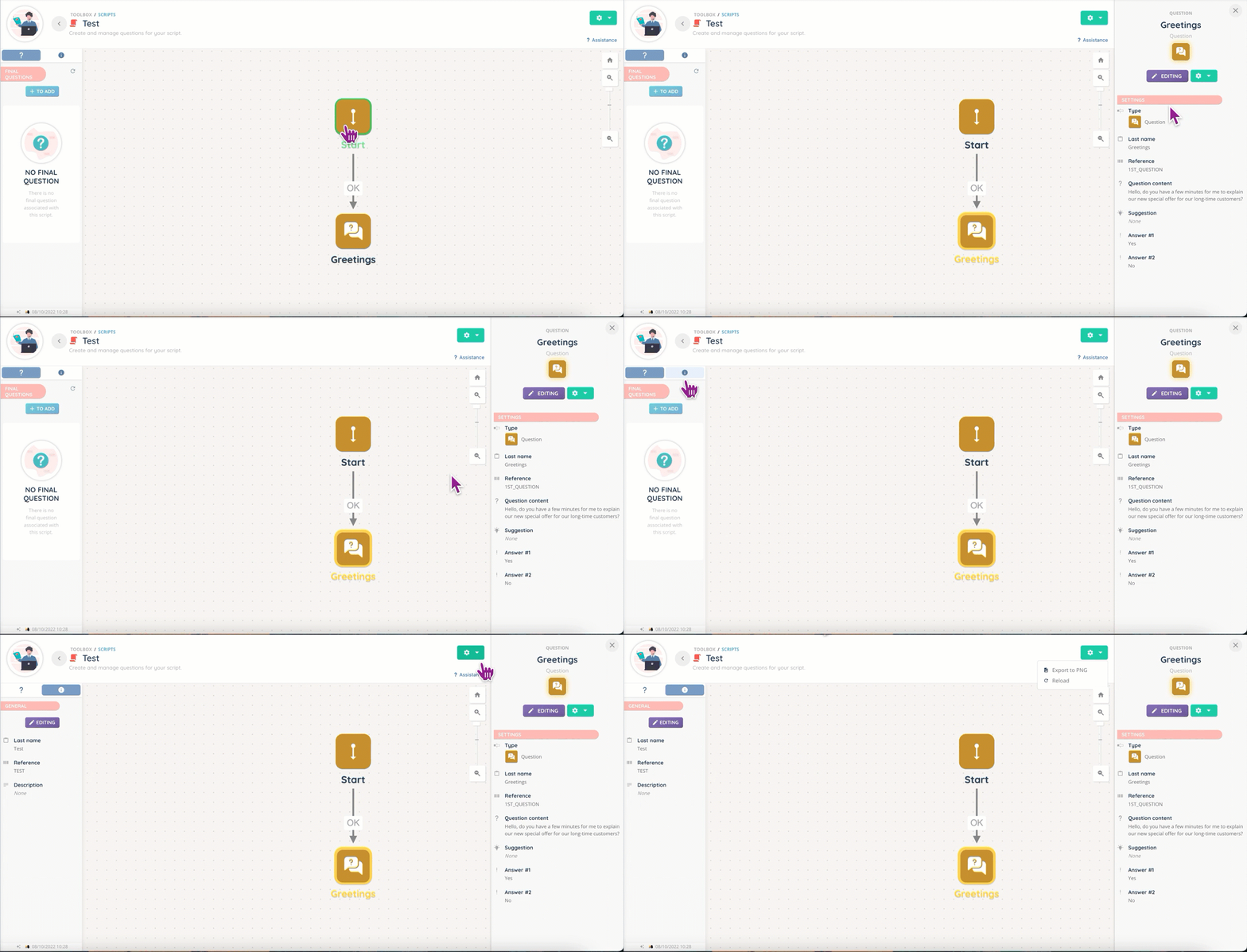
Surveys also operate on this model.
Prerequisites
- None.
Configuring
Please note that the options button allows you to export the question tree as an external image (.png format).
Questions and tree
If the tree resembles that of a Smart routing, the actions are however much less numerous:
- Start: it is always first, and cannot then be placed elsewhere.
- Question: after entering a name and a reference, you can write a question, a suggestion (how to present it to the customer, for example) and add up to 10 answers, which will be as many output branches.
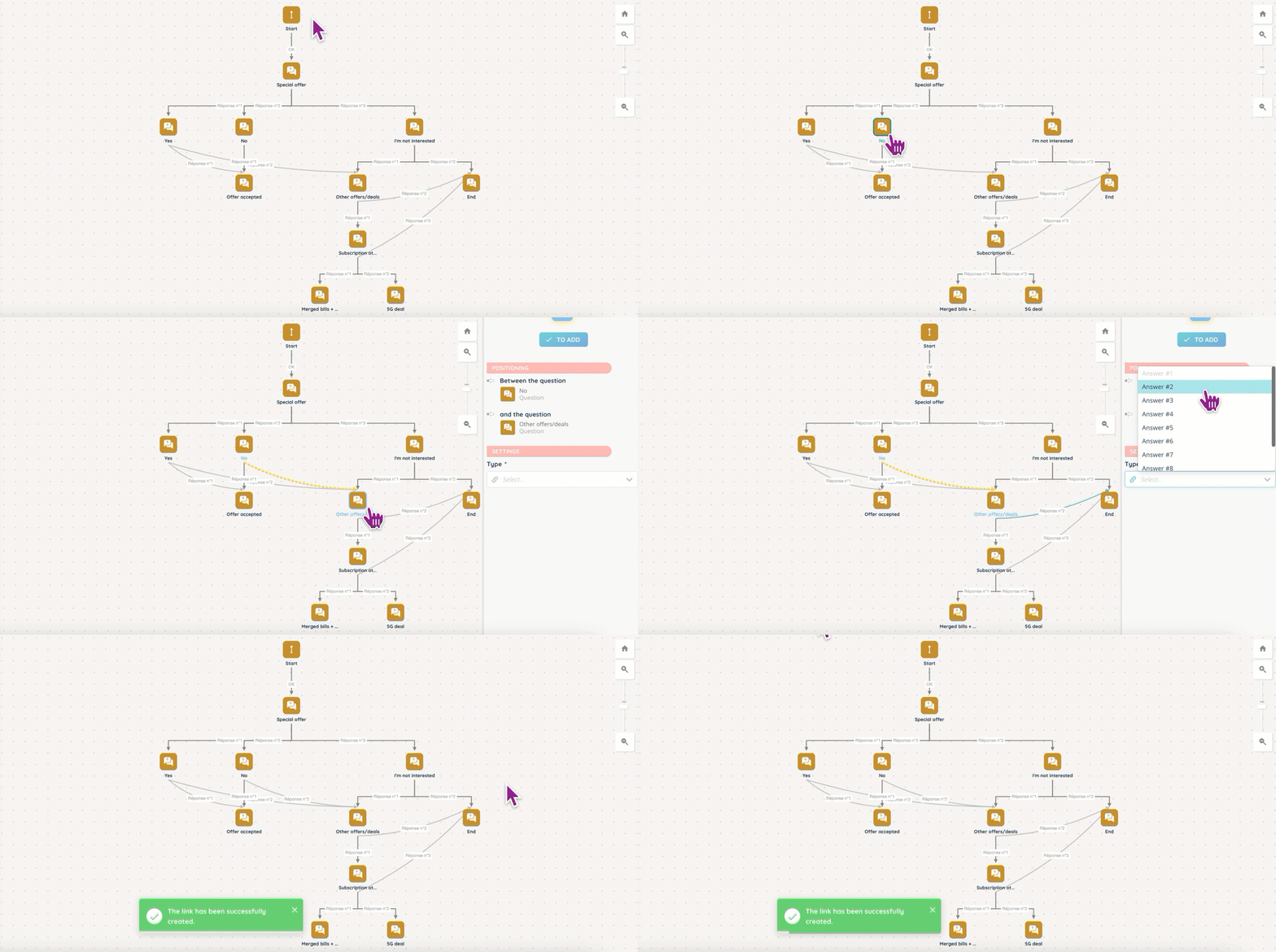
Links
The links allow to send several branches to a single action.
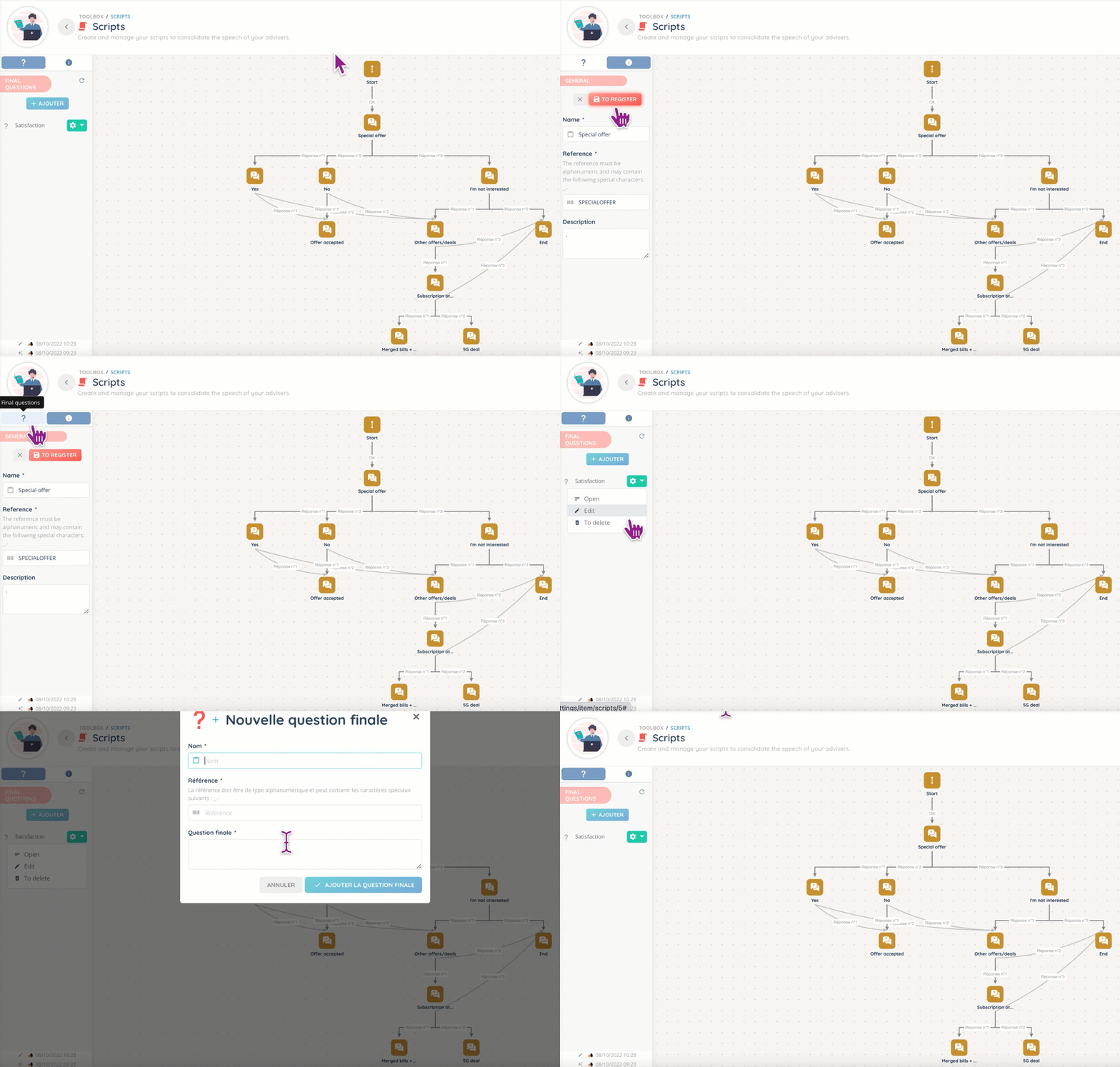
Final question & information tab
The panel on the left of the tree is used to:
- modify the information entered when creating the script
- add a final question that will be presented last on the Banner
Queues
Once the script is created, it must be associated with a queue to be usable:

It is not possible to put more than one script per queue.
Preview
This is what a completed tree looks like, with a first question that then opens three branches.

Here, the first question is “Do you know that you are eligible for our current special offer?”. From there, we anticipated three possible answers from the caller:
- Yes.
- No.
- Not interested.
We have foreseen the following cases:
- the customer has not heard about the offer, and is interested.
- the customer has heard about the current offer, but is not interested in it. However, they would like to know more about other current promotions.
- the customer is not interested in anything, and the conversation ends.
We created an end-of-conversation question and, rather than replicate it in each branch, included links back to it.
Use case
Issue: we have junior agents joining us next month, and we’re planning a major telemarketing operation soon. We need scripts to guide the conversations.
Step-by-step process:
- Open the Maker.
- Go to “Toolbox”, then “Scripts”.
- Create your script with your name and reference of choice.
- Open it.
- Add the necessary questions, branches and links to create the script tree.
- Don’t forget the final question!
- Open the queue that your agents will use and associate the script with it (in the “Options” category).
- Your script will now appear during calls 🎉!
Frequently asked questions
WIP