

[Reading time: 2 minutes]
Overview
Tasks helps agents manage their workload by centralizing tasks in a dashboard, allowing for creation, organization, and prioritization, boosting productivity and preventing oversights.
It’s especially useful in multi-channel environments (calls, emails, SMS) and provides a clear view of progress for immediate or planned actions.
Tasks are set up in the Maker and used from the Banner.
Configuring (Maker)
Categories
Task categories group similar tasks by purpose, nature, or activity. They help organize and filter tasks into broad groups like “Calls to process,” “Ticket follow-up,” or “Administrative tasks,” providing structure for an overall view.
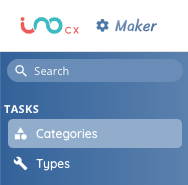
Create all your categories in Maker’s “Categories” sub-module.
⚠️ Every type you create will be available in the Banner by default, for all Profiles.
Types
Task type defines the nature of a task and how it’s performed, such as “Call,” “email,” “Meeting,” or “Support Ticket.” It highlights the method or format of the task, helping differentiate the required intervention.
Note: Types can be system (set up by INO) or custom (set up by you), and each of them can be linked to a specific channel (voice, email, text message) or none.
Categories VS types
To sum up, categories are general groupings that help structure work, while types describe the form or content of each task. A specific task can belong to a category (e.g. “Incoming calls”) and have a type (e.g. “Phone call”).
Giving access (Maker)
Each task right is managed in the Profile (Maker): access, creation, edition and deletion. If the access is revoked, the dedicated module won’t appear in your Banner at all.
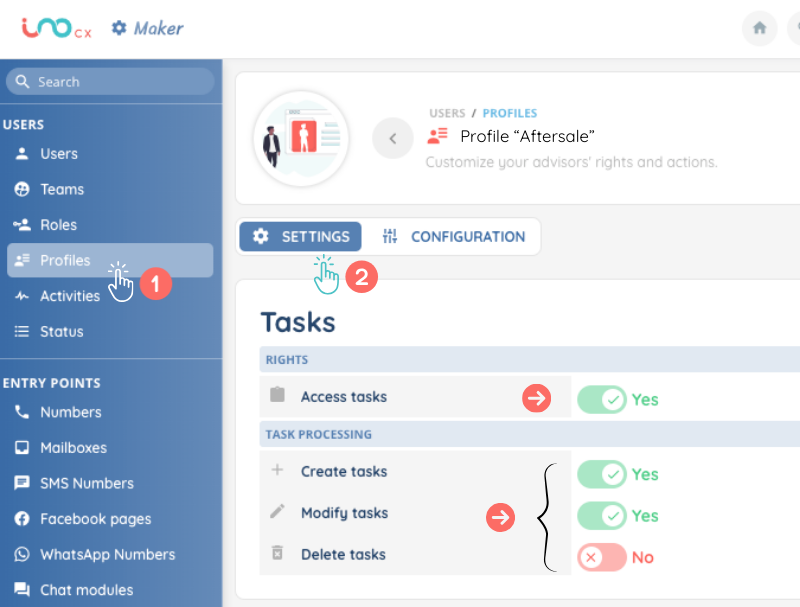
Then, you will have to associate one or more categories to the profile via the “Configuration” tab. Otherwise, agents won’t be able to create new tasks in the Banner.
Congratulations! Now agents can use tasks in the Banner 👍🏼