[Reading time: 2 minutes]
Overview
Once you’ve set up the tasks and associated profile accesses, agents can start using them in the Banner.
If you need help to set them up first, please click here.

Use tasks (Banner)
Go to the Banner, then click on the ‘task’ module.
Access tasks list
Depending on the active profile and associated rights, the agent can access the list of tasks in the Banner.
You will need to select a period (up to 3 months), then display the chronological list of tasks. You also can use the search bar.
Create a task
If he has the right, the agent can create a new task, either for himself (‘private’) or for everyone (those who share the same profile as him).
Actions of a task
Once created, a task can also be modified, duplicated, deleted (if the agent has the rights).
Assign a CRM card to a task
You can assign to a task a CRM card.
Open the task, click on the cogwheel, then ‘assign a CRM card’. Note: remember to previously open the CRM card!
A task can only be linked with one CRM card, but a CRM card can have many tasks. If a CRM card is linked to a task, an icon will appear in the tasks list.
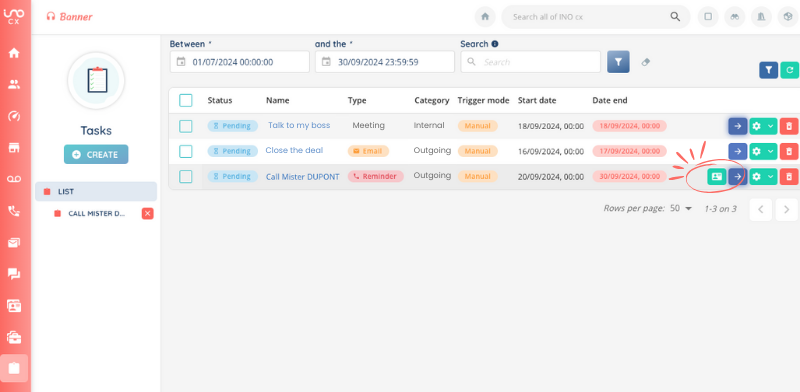
Once the task is linked to a CRM card, the agent will be able to open it in a second tab, to manage the customer relationship. Simply click on the dedicated button.