

[Reading time: 4 minutes]
Overview
The Surveys module is part of the Quality Management features in the Banner. It allows you to collect structured feedback from customers during or after an interaction, using automated questionnaires.

Surveys support two question types: digit questions (numeric responses from 0 to 9) and binary questions (yes or no). They work across voice (DTMF keypad or voice recognition) and messaging (text responses in chat) channels.
Surveys are triggered automatically within smart routing flows. As an agent, you can view survey results directly from the Banner — on the dedicated survey answers screen, on interaction cards, customer contact cards, or CRM cards.
Note: Surveys are created and configured in the Maker, and triggered through smart routing. This article focuses on viewing and understanding survey results in the Banner. For survey configuration, see Surveys (Maker). For smart routing configuration, see Smart routing.
1. Prerequisites
To access survey answers in the Banner, the following conditions must be met:
- Smart licence — surveys require the Smart licence
- Access Surveys — the permission must be set to Yes on your active profile
- At least one survey must be associated with your active profile
If no survey is associated with your profile, the survey answers screen will return empty results.
2. How surveys work
Surveys are triggered automatically during an interaction, as part of a smart routing. When the routing reaches a survey step, the system presents questions to the customer and collects their responses.
2.1 Audio versions
For audio versions, two input methods are available (configured per question):
- Numeric keys — the customer responds by pressing keys on their phone keypad
- Speech recognition (ASR) — the customer responds by speaking, and their answer is transcribed automatically
Questions are played to the customer either as text-to-speech (TTS) or using a pre-recorded sound file.
If the customer does not respond within the configured timeout, or presses a skip key, the question is skipped and the survey moves to the next question. Questions can also be repeated if the customer presses the configured repeat key.
2.2 Text versions
For text versions, the question text is sent as a chat message. The customer replies by typing their answer:
- For digit questions: a number between 0 and 9
- For binary questions: “yes” or “no” (supported in French, English, German, Spanish, and Portuguese)
If the customer sends an invalid response, an error message is displayed and the question is asked again. If the maximum number of retries is reached, the question is skipped automatically.
2.3 Survey completion
A survey is marked as completed when the customer reaches the last question in the tree (a terminal node with no further branches). If the interaction ends before the survey is finished, the answers collected so far are saved as incomplete.
3. Viewing survey answers
3.1 Where to find them
Survey answers are accessible from multiple locations in the Banner:
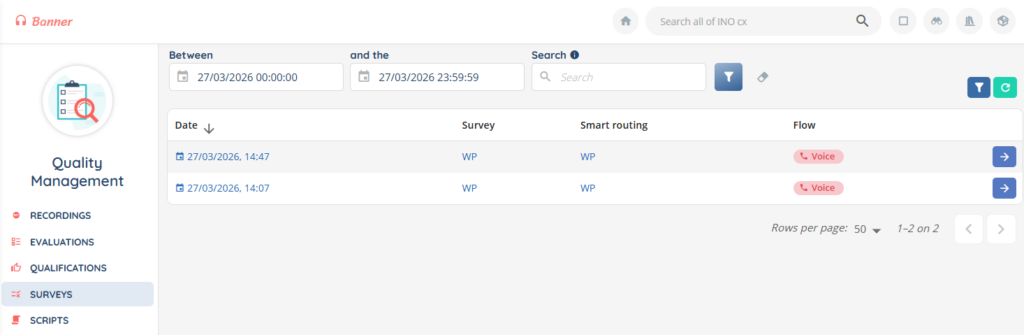
- Survey answers module — a dedicated screen listing all survey answers you have access to.
- Interaction history — view survey answers linked to a specific interaction.
- CRM card — view survey answers for all interactions linked to a CRM card.
3.2 Access and visibility
The surveys you can see depend on your profile configuration:
- You can only view answers for surveys associated with your active profile.
- You can only view answers for the flows (voice, messaging) that you have access to.
- Answers are also filtered by the smart routings linked to your profile’s surveys
If you switch your active profile, the visible survey answers may change accordingly.
3.3 Filters
You can refine the survey answers list using the following filters:
- Survey — filter by survey name.
- Smart routing — filter by associated smart routing.
- Flow type — filter by voice or messaging.
- Interaction IDs — you can find it in the interaction history module, for example.
3.4 Answer details
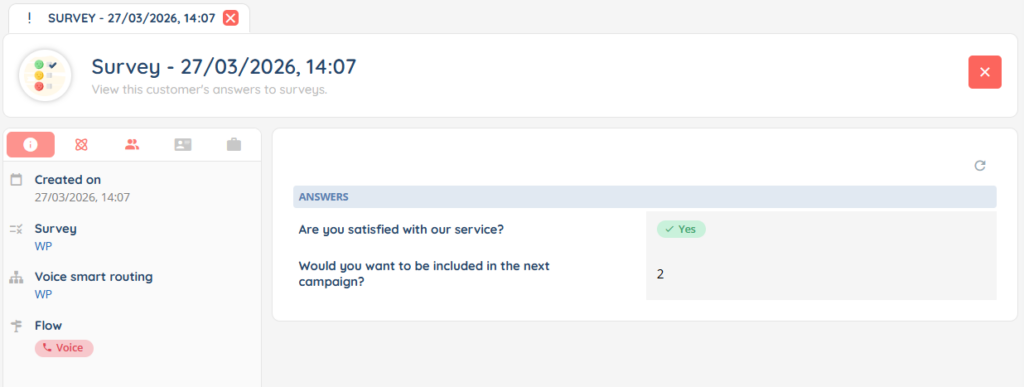
Click on a survey answer to view its full details, including:
- The survey name and associated smart routing.
- The interaction flow (voice or messaging).
- Whether the survey was completed or not.
- Each question with the customer’s response.
4. Understanding question types
4.1 Digit questions
Digit questions allow customers to respond with a number from 0 to 9. They are typically used for satisfaction scores or rating scales.
In the answer details, the response is displayed as a numeric value.
4.2 Binary questions
Binary questions allow customers to respond with yes or no. They are typically used for simple confirmation or approval questions.
For voice interactions using DTMF, key 1 corresponds to “yes” and key 2 corresponds to “no”.
In the answer details, the response is displayed as a boolean value (yes/no).
5. Survey answers and reporting
Survey answers are stored and available for advanced analysis in the Reporter module. When creating a data source of type Survey, the Reporter dynamically generates one column per question in the selected survey, allowing you to build detailed reports and dashboards on customer feedback.
For more information on creating data sources and reports, see Reporter: an overview.