

[Reading time: 2 minutes]
Overview
If you need help setting up Supervision, check out this article Supervision – Set it up.
Partitioning principle
What you see on the supervision screen depends on your active profile.
You will only see:
- the queues associated with your active profile in the Maker,
- the advisors of the teams you manage (only you if you don’t manage any teams),
- the interactions associated with the queues of your active profile,
- the campaigns of your active profile.
If you are an administrator, you can see the special partitioning here “Administrator (Admin) – Banner“.
Accessing Supervision
To access Supervision, navigate to the Banner and open the Supervision module.

Reminder: You can open up to five supervisions’ tabs simultaneously. The module can also be opened in a new browser tab from the supervision module using a dedicated button or from the user capsule while you are in Banner.


The module is organized into five tabs:
1. Queues
You only see the queues associated with your active profile. If you change profile, you’ll see the queues associated with the new profile.
This tab includes three sub-tabs for each channel: Voice, Email, and Messaging. Each channel is further divided into incoming and outgoing flow.
For incoming flows (regardless of the channel), several columns are displayed.
Note: For more information on KPIs, see the article “Terms and vocabulary“.
- Quality:
- QS: Quality of service (in percentage)
- SLA: Service level agreement (in percentage)
- Wait:
- NO.: Number of interaction waiting
- D MAX: Maximum daily wait time
- MAX: Maximum current wait time
- AVG: Average wait time for processed calls
- Processing:
- NO.: Number of interaction being processed
- ATT: Average talk time
- APT: Average processing time
- ACW: After-call work time
- Advisors:
- NO.: Total number of competent advisors
- Zzzzz: Number of inactive advisors (flow not enabled)
- In Processing: Number of advisors currently processing
- Activities:
- Green: Advisors engaged in “processing” activities
- Purple: Advisors in “productive unavailability”
- Blue: Advisors in “non-productive unavailability”
- Performances:
- Received: Number of interaction received
- Processed: Number of interaction processed
- Processed in SLA: Number of interaction processed within SLA
- Aborted: Number of interaction aborted
- Missed: Number of missed interaction
- Refused: Number of interaction refused
For outgoing flows, the displayed columns are:
- Processing:
- NO.: Number of interaction being processed
- ATT: Average talk time
- APT: Average processing time
- ACW: After-call work time
- Performances:
- Made: Number of calls made
The “hand” button allows you to take the next incoming interaction, similar to the small Banner.
2. Advisors
If you are a manager, you see all advisors in the teams you manage. If you are a collaborator, you see only yourself in this tab.
This tab is divided into three channels and further subdivided into incoming and outgoing flows. Supervisors can:
- Change an advisor’s activity or profile
- Disconnect advisors
- Enable/disable advisor flows
- Use the cogwheel to send a flash message
- Subscribe to discreet listening
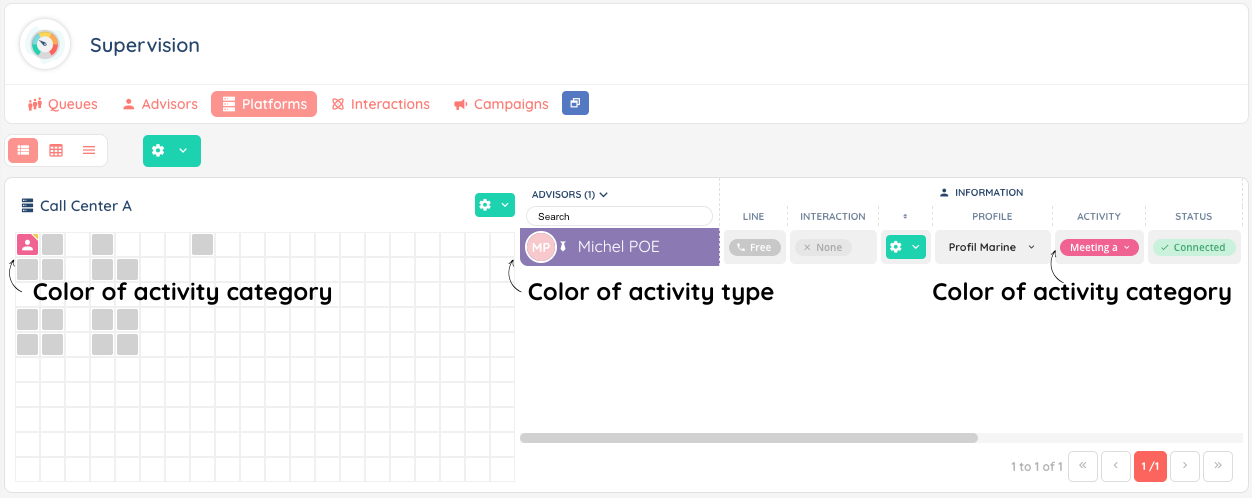
3. Platform
Once configured in the Maker, the Platform tab allows supervisors to:
- Monitor the type of advisor activity:
- Green: Ready to take an interaction (“processing”)
- Purple: Working on non-interaction tasks (“productive unavailability”)
- Blue: Not engaged in productive tasks (“non-productive unavailability”)
- View customizable activity categories (set in Maker)
- Change profiles, check statuses, and use the cogwheel to open user cards, send flash messages, listen discreetly, or disconnect advisors.
4. Interactions
For each queue in your active profile, you can see which interactions are pending / in progress.
This tab displays all data related to interactions and queues for each authorized channel and direction. Like the Queues tab, the “hand” button lets you take the next incoming interaction.
5. Campaigns
This tab is dedicated to managing voice campaigns. Supervisors can:
- Launch new sessions
- Stop sessions
- View target data.