

[Reading time: 2 minutes]
Overview
The status enables agents to inform their colleagues of their availability or current situation. They are for purely informative and internal use, with no direct impact on flows or processes. Unlike activities, which influence the flows activated for the agent, statuses are only used to communicate a presence or status update.

Are you in training, on call, on coffee break? Let your team know!
Configuring (Maker)
Statuses are created in the Maker, in ‘Users’ module.
You will find the status in a list. It can be filtered using Tags. You can also use the search function. Some statuses are created by default by INO (called ‘system’). If you wish to add others, click on ‘create’.
You will be able to choose one of the four basic types: connected, absent, busy, in a call. If the user is not logged in, their status will be set to Offline (grey).

Note: The statuses you create can be modified, deleted and duplicated, and you can view their history and add tags. However, you will not be able to take any action on ‘System’ statuses.
⚠️ To be able to act on statuses, users must have a role that allows them to modify, create or delete statuses. This role can be configured in the Maker.
You won’t need to give access to the statuses you’ve created. They will be accessible to everyone, as a collaborative tool.
Using (Banner)
Changing your status
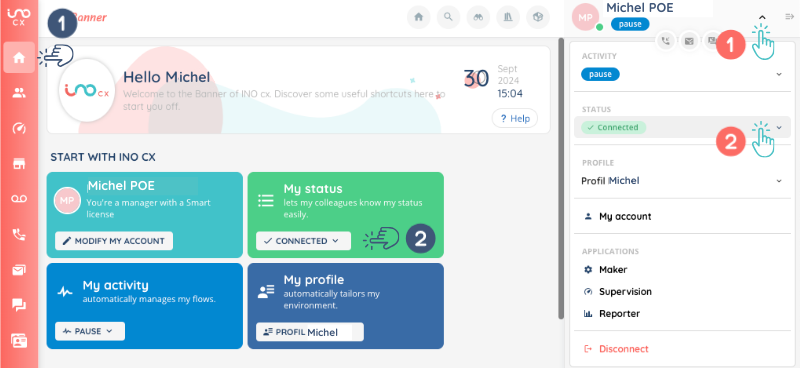
You can change your status in 2 places in the Banner:
- option 1: by clicking on your name and then on the drop-down menu
- option 2: directly on the Home page
Here is the result as it appears in the Banner.
Note: only the user can change their status. The supervisor cannot modify the agent’s status.
Seeing others statuses
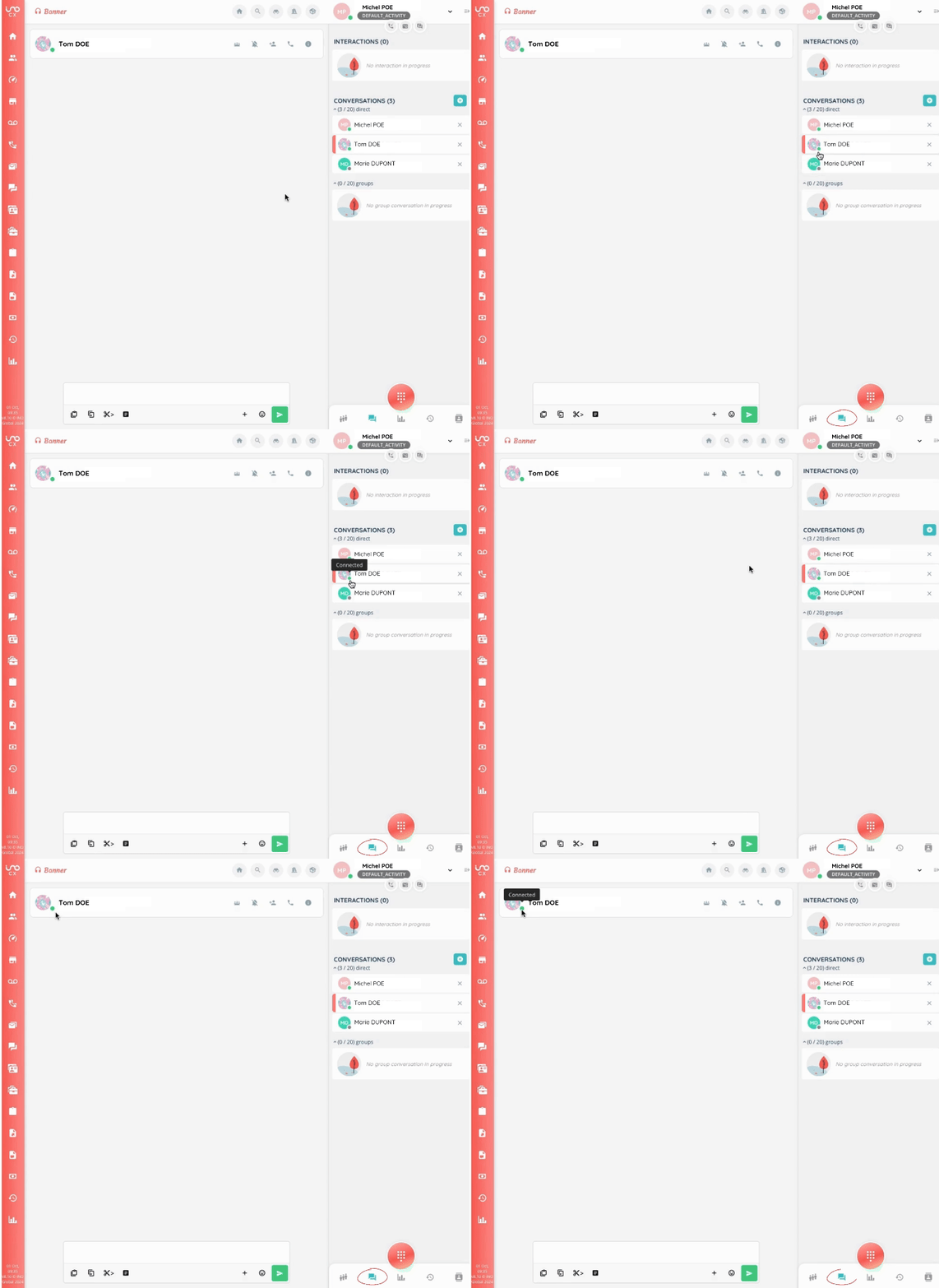
You can find the status of your colleagues in the small Banner.
Click on the conversations tab and move your mouse over the small coloured circle to find the status selected by your colleague. You can also find it directly in the conversation with this colleague.
Note: anyone can see your status, even if they’re not in your team.