

[Reading time: 6 minutes]
This article explains how to create speech recognition dictionaries in the Maker and how to use them in a voice smart routing to route a call according to the word your customer says. For the full list of actions available in a voice smart routing, see Voice smart routing actions.
Overview
Speech recognition lets you ask a question over the phone and understand the spoken answer, instead of asking your customer to press a key.

You first prepare a dictionary, meaning the list of words you accept as an answer (for example: invoice, delivery, repair). Then, in a voice smart routing, you add the Speech recognition (ASR) action and select that dictionary. During the call your customer speaks, the reference of the recognized word is stored in a variable, and you use it for the rest of the journey.
Configuration is done in the Maker, under Toolbox > Speech recognition.
Note: Only available in France.
1. Prerequisites
To create and use dictionaries you need:
- a Smart licence;
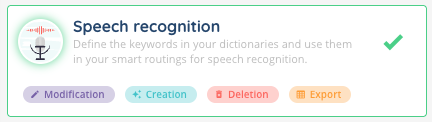
- the Speech recognition rights enabled on your role. They are set on the role, not on the user profile: open the role, go to the Toolbox part and look for Speech recognition in the list. The on/off button grants read access, then you tick the rights you want: Modification, Creation, Deletion and Export;
- a voice smart routing, since the Speech recognition (ASR) action only exists on that type of smart routing.
2. Creating a dictionary and its keywords
2.1. The dictionary
- Go to Toolbox > Speech recognition.
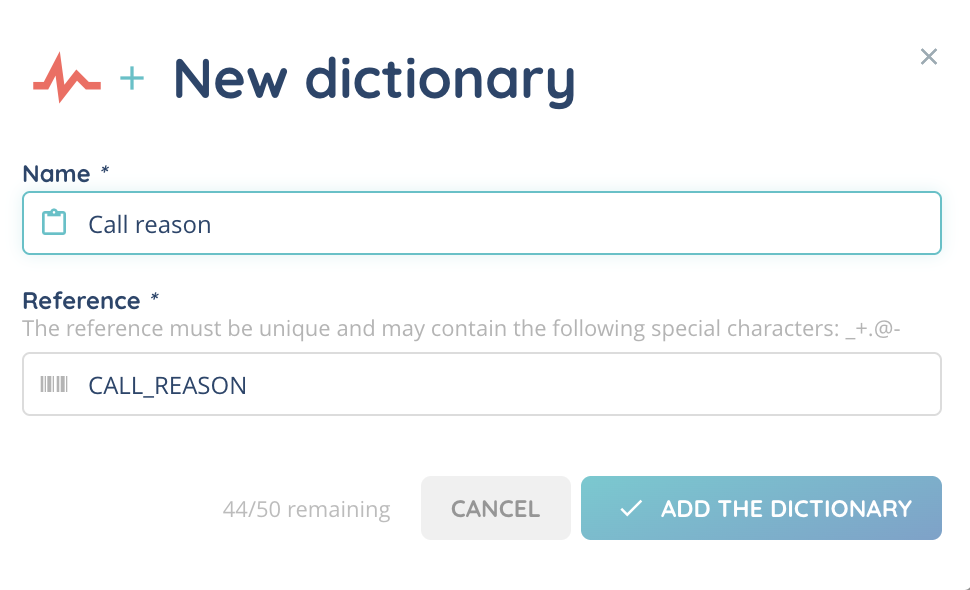
- Click Create: the New dictionary form opens.
- Fill in the fields, then save with Add the dictionary. The message “The dictionary has been successfully created.” confirms it.
The available fields are:
- Name: the dictionary name (required, 255 characters maximum).
- Reference: required, 45 characters maximum. It fills in on its own from the name, in capitals and without accents, and you can change it. It must be unique and contain only letters, digits and the characters _ + . @ –.
2.2. The keywords
An empty dictionary cannot work: it needs at least one keyword.
- Click the dictionary name to open it.
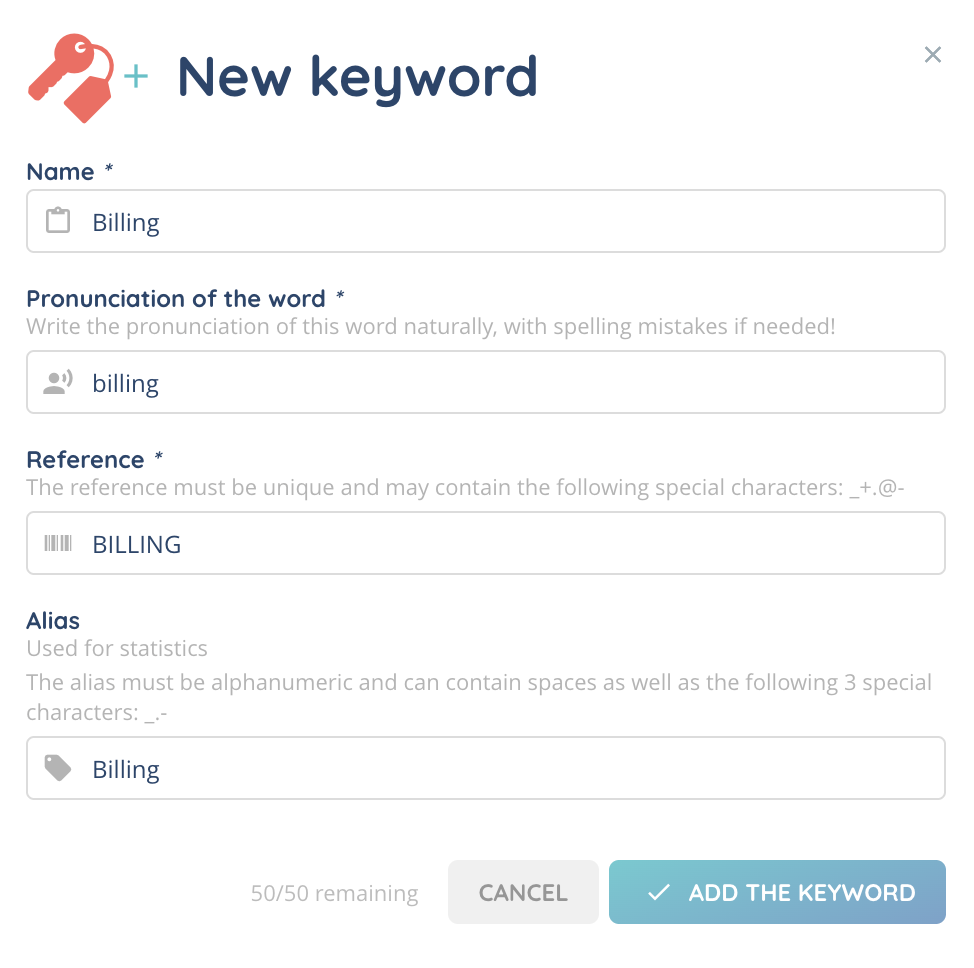
- Click Create: the New keyword form opens.
- Fill in the fields, then save with Add the keyword.
The available fields are:
- Name: the keyword name, so you can find it in the list (required, 255 characters maximum).
- Pronunciation of the word: this is what is listened for during the call (required, 45 characters maximum). Write the word the way it sounds, with spelling mistakes if needed. Unaccented letters and spaces only.
- Reference: this is the value stored in your variable when the word is recognized (required, 45 characters maximum). It fills in on its own from the name and stays editable.
- Alias: optional, used for statistics (45 characters maximum). Letters, digits, spaces and the 3 characters _ . –.
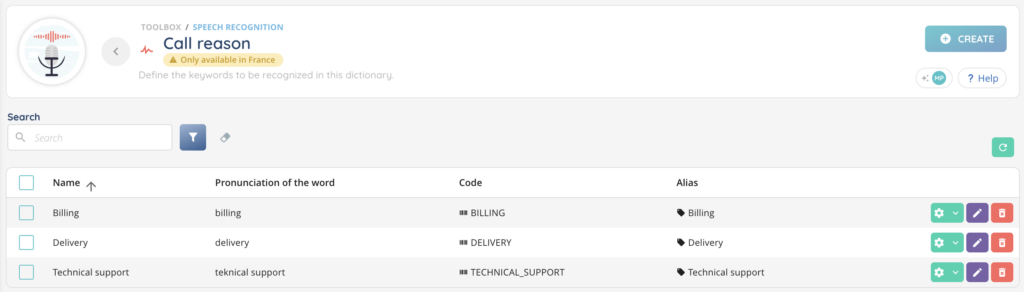
The keyword list then shows the columns Name, Pronunciation of the word, Code (the keyword reference) and Alias.
Note: the Pronunciation of the word is used to listen, the Reference is used to decide. For a keyword named “Invoice”, you can write invoice as the pronunciation and keep INVOICE as the reference: INVOICE is what you will test later in your smart routing.
3. Using a dictionary in a smart routing
3.1. Adding the action and choosing what to recognize
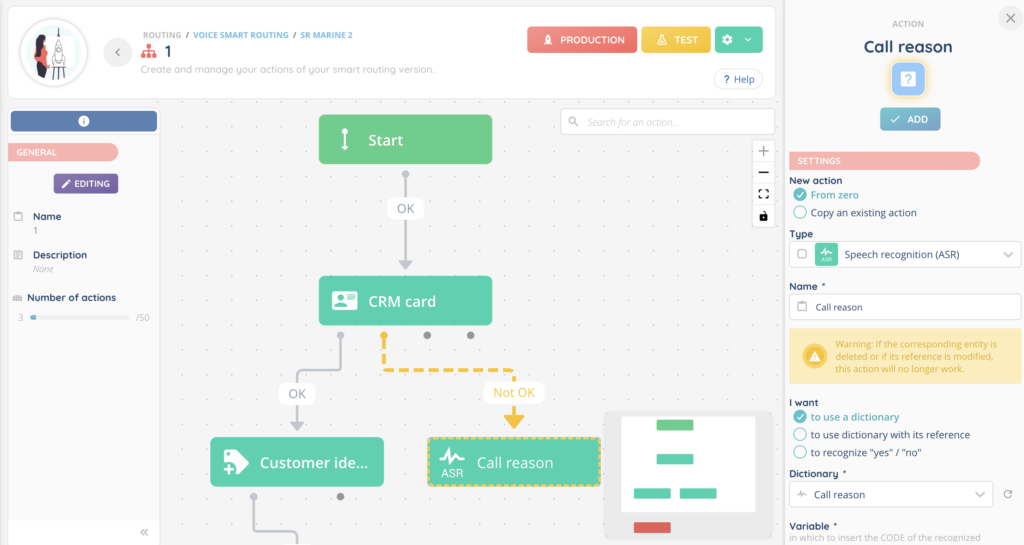
In your voice smart routing version, add the Speech recognition (ASR) action, then fill in its form. The I want field offers three possibilities:
- to use a dictionary: you pick the dictionary from the list, in the Dictionary field;
- to use dictionary with its reference: you type the Dictionary reference, handy when the reference comes from a variable;
- to recognize “yes” / “no”: there is no dictionary to prepare. Recognition is done on yes and no in the language of the interaction, and the variable receives the matching value, for example yes or no for a call in English.
Note: the form displays this warning, which applies here too: “Warning: If the corresponding entity is deleted or if its reference is modified, this action will no longer work.”
3.2. Storing the result in a variable
Choose the Variable and the Field that will receive the result. The form spells it out: “in which to insert the CODE of the recognized dictionary word”. So it is the reference of the recognized keyword that is stored, not the spoken word.
3.3. What the person on the phone experiences
When the call reaches the action, a beep is played to signal that your customer can speak. The recording stops on its own after 2 seconds of silence, and lasts 5 seconds at most.
3.4. The action output branches
The action offers four output branches to connect in your smart routing:
| Output branch | When it is taken |
|---|---|
| Recognized | A keyword from the dictionary was recognized. Its reference is stored in the chosen variable. |
| Unrecognized | The person spoke, but the word was not recognized with enough certainty. |
| Error | The recognition could not be completed. |
| Reference not found | The requested dictionary cannot be found, for example because it was deleted or because the reference does not exist. |
Always plan what happens on Unrecognized, for instance a second attempt or a transfer to an advisor.
4. Speech recognition in surveys
You can also collect a spoken answer in a survey, without creating a dictionary.
On a Multiple choice question or a Yes/no question, the Input type field offers:
- Numeric keys: the person presses a key;
- Speech recognition: the person answers out loud. On a multiple choice question, recognition is done by a number from 0 to 9; on a yes/no question, it is done by Yes/No.
5. Managing your dictionaries
5.1. Searching and duplicating
The list search is carried out on the name and the reference of the dictionary. From the Options menu on a row, Duplicate saves you from typing an existing dictionary or keyword again.
5.2. Deleting
Deleting a dictionary also deletes all of its keywords, and nothing can be retrieved. You can also select several rows and delete them at once.
5.3. Exporting
Export dictionaries launches an export containing the name, the reference and the creation and modification dates. A message confirms the launch, and the file appears in your Exports.
5.4. Limits
Depending on your offer, the number of dictionaries and the number of keywords per dictionary can be limited. The counter is displayed on the page.
6. Good practices
In the rest of your smart routing, test the keyword reference, since that is what is stored in the variable.
Add at least one keyword before using a dictionary in a smart routing: an empty dictionary cannot work.
Do not change the reference of a dictionary already used in a to use dictionary with its reference action: the action would no longer find it.
Write the pronunciation without accents and the way it sounds, one word per keyword, to avoid confusion between two words that are too close.