

[Reading time: 4 minutes]
Overview
Whether it’s to inform a caller of your annual closure or to change the waiting music, sounds and playlists are a key part of all user experience. You will learn where and how to upload an audio file, create a voice announcement, and configure playlists for your queues.
Prerequisites
If you want to use an audio file, please check that it is adequate.
⚠️ Please keep in mind that it is illegal to play copyrighted music or live radio as hold/waiting music without having the proper license.
Configuring (Maker)
Sound & text-to-speech
If you want to use a sound file or create a playlist with audio files, you must upload them first. Open the Maker, head to the “Media” section, and click on “Sounds”.
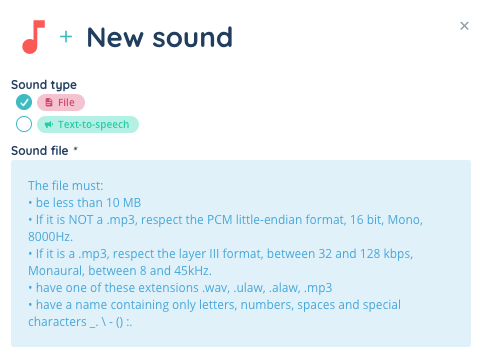
Upon adding a new element, you will be presented with 2 choices : upload a file, or enter a text for an automatic reading (also called “text-to-speech“) after selecting a voice.
Though it is possible, we do not recommend giving multiple sound files/text readings the same name.
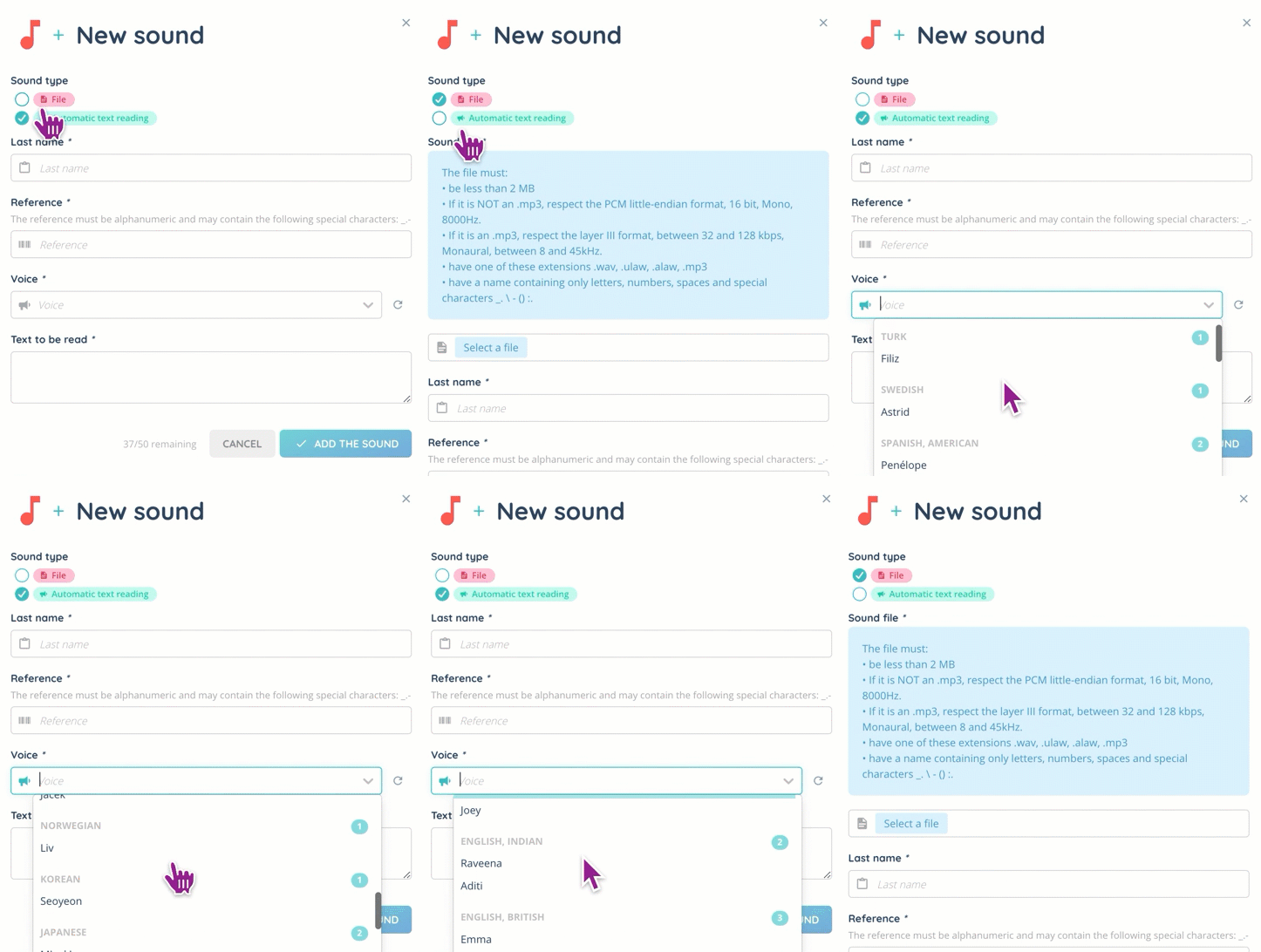
Note : Some languages have several voices available. Try them!
Playlists
Once the upload is done, you will be able to use your files as is, or in a playlist. Example : when a caller is waiting, a selection of 5 tracks will be played on repeat.
A playlist can be composed of sounds only, or a mix of sounds and text-to-speech.
In the “Playlist” menu, click on the “Add” button and enter your name of choice. Once it’s done, you can open it and add sound(s).

Note : You can always modify the order afterwards, and add/remove a file.
From the general menu, you can see where and what for a playlist is used via the “Settings” button. If the dustbin symbol is grayed out, it means that the playlist is in use elsewhere, and cannot be deleted. Click on the cogwheel to find out where!

Preview
Once a playlist is properly set up, you should be able to use it in a queue or in a smart routing. Consult the dedicated articles to find out how to set them up.
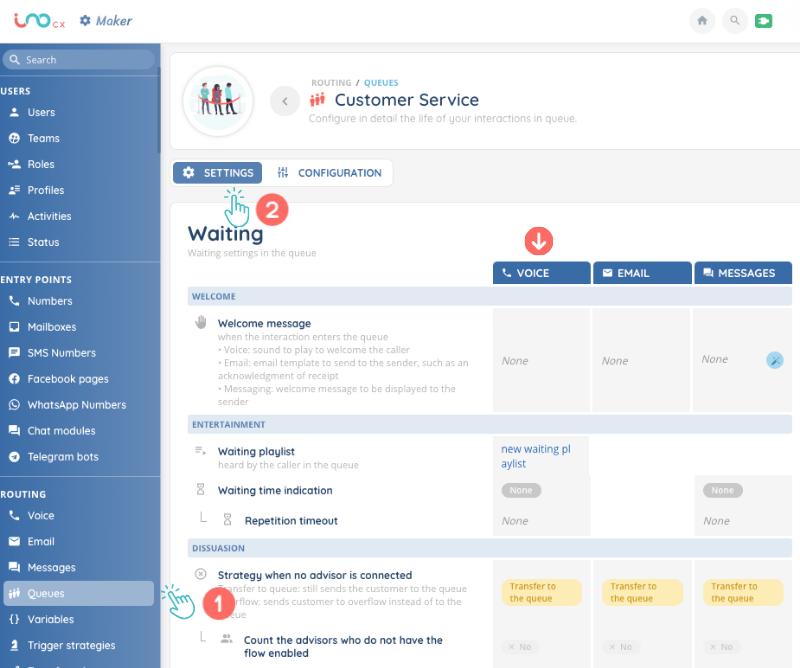
If used in a queue, it will appear in the “Voice” column…
… And a sound file can appear in a Smart Routing if you choose to do so.
