

[Reading time: 3 minutes]
Overview
SMS templates allow you to predefine text messages that can be reused in different parts of INO cx.

They save time, ensure consistency, and allow you to insert variables dynamically when sending SMS.
SMS templates can be used in:
- SMS campaigns
- smart routing actions
- profiles
- queues
- workflows
- payment modules
Once added to a profile, SMS templates can also be used directly from the Banner by agents.
1. Access and rights
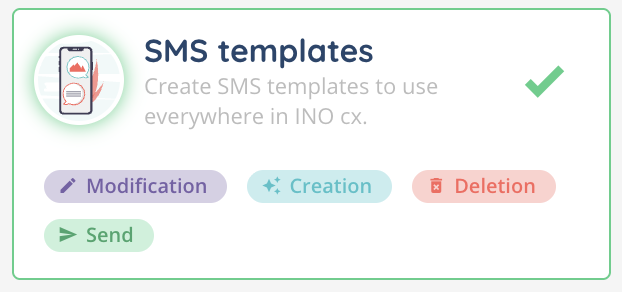
Rights to create, modify, send or delete SMS templates are managed in the role configuration in the Maker.
2. Accessing the module
In the Maker, go to the SMS templates module.
The page displays all existing SMS templates. At the top, you will find:
- a search bar to search by name or reference
- a tag filter to refine results by tag
Below, the list table contains two columns:
- name
- reference
For each SMS template, the following actions are available on the right:
- arrow icon: open the template
- cogwheel: duplicate, view history, see dependencies, manage tags
- pencil: edit
- trash: delete (disabled if the template is used elsewhere)
- send SMS: send a message using this template
- description: view the optional description (if filled)
3. Creating a new SMS template
A maximum of 50 SMS templates per instance can be created.
To create a new template, click create in the top right.
The following fields are available:
- name (mandatory)
- reference (mandatory, must be unique; allowed special characters:
_+.@-) - description (optional, informative only)
Click add the SMS template to save.
4. Editing a template
Open a template with the arrow icon.
By clicking the pencil icon in the top right, you can edit the name, reference, description, and content.
The SMS content has the following properties:
- maximum of 160 characters
- line breaks are supported
- purple magic wand can be used to insert text, INO cx variables, and custom variables
🔗 Learn more about magic fields and variables
If variables are inserted, they must be filled in at send time, otherwise the SMS cannot be sent.
5. Adding templates to profiles
To make a template available for users, it must be added to a profile.
- In the Maker, go to the profiles module > configuration tab.
- Click add and select one or more SMS templates (up to 50 per profile).
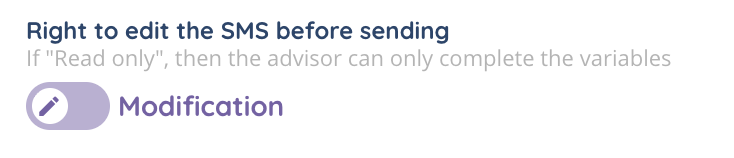
- At the bottom, toggle the right for each template:
- modification: the user can modify the entire SMS before sending
- read only: the user can only modify the variables, not the predefined text
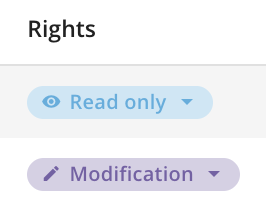
The list of SMS templates added to the profile is displayed in three columns:
- name
- reference
- rights (read only / modification)
A cross icon allows you to remove the template from the profile.
6. Using SMS templates in the Banner
Once a template is added to a profile, it becomes available in the Banner.
When selecting an SMS template:
- the predefined content is automatically filled in
- variables must be replaced manually by the user
- the entire text can be edited if the template right is “modification”
7. Dependencies and deletion
The see dependencies option in the cogwheel shows where the SMS template is used (smart routing actions, SMS campaigns, profiles, queues, workflows, payment modules).
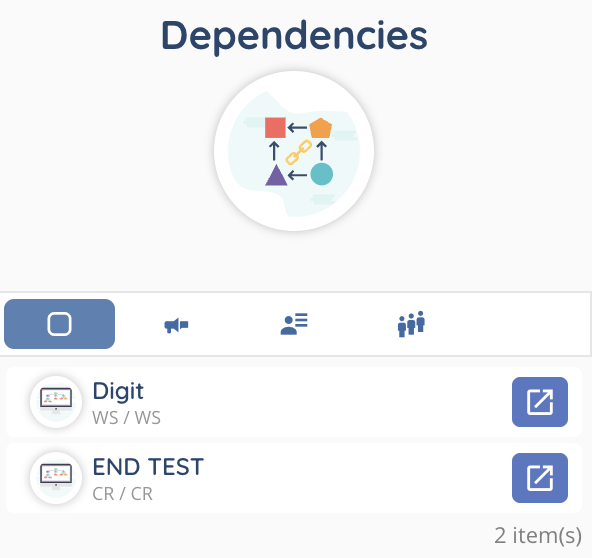
If a template is in use, the trash icon is disabled and the template cannot be deleted until it is removed from all dependencies.