

[Reading time: 3 minutes]
Overview
SIP endpoints allow you to connect external telephony systems to INO cx. They are used when calls must be routed through a specific telephony server instead of the default telephony infrastructure.
This feature is particularly useful if you need to:
• Connect your own telephony infrastructure
• Route calls through a dedicated or private SIP trunk
• Connect to internal or secured phone networks
• Use different trunks depending on your routing strategy
Once configured, a SIP endpoint can be used in voice smart routing scenarios to send calls to an external telephony system.
Note: In most cases, SIP trunks are already configured during the initial platform setup. You usually do not need to create additional SIP endpoints.
1. Accessing the SIP endpoints module
To manage SIP endpoints:
- Open the Maker
- Go to the SIP endpoints module
The page displays all existing SIP endpoints. You can:
• Search for an endpoint using the search bar
• Create a new endpoint
• Edit or delete existing endpoints
• Duplicate configurations to save time
2. Creating a SIP endpoint
To create a new SIP endpoint:
- Click Create
- Fill in the required information
- Click Add SIP endpoint
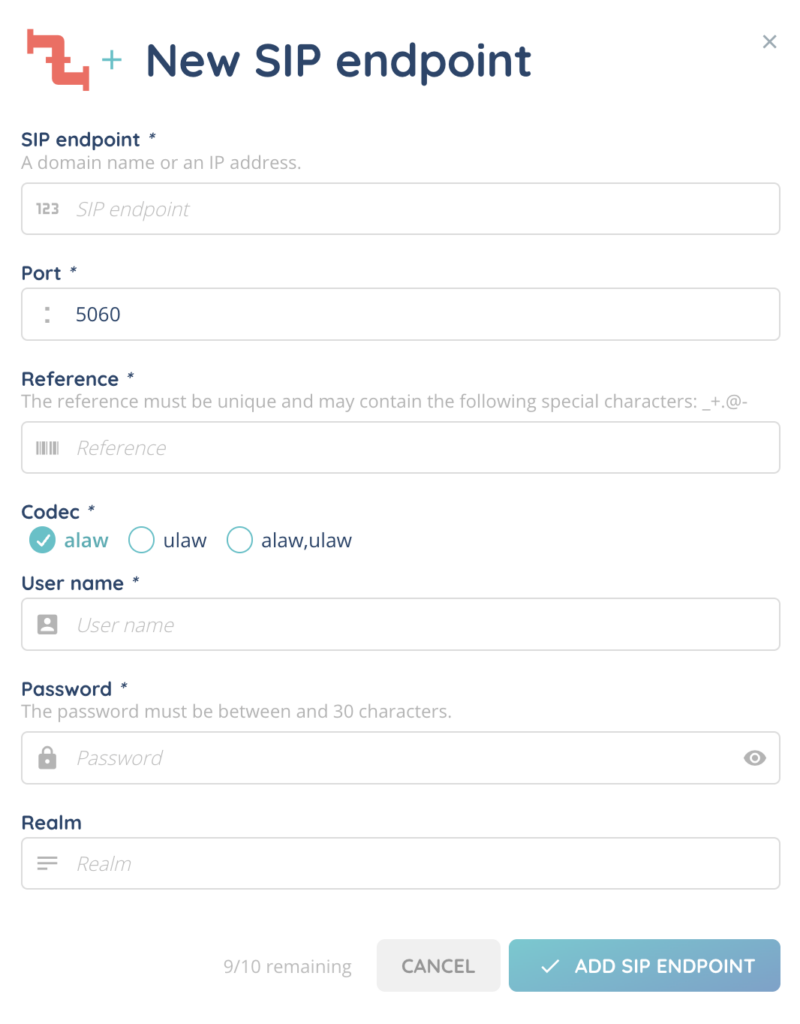
2.1. SIP endpoint
Enter the destination telephony server.
You can use either:
• A domain name
• An IP address
This corresponds to the SIP trunk that INO cx will use to route calls.
2.2. Port
Defines the SIP communication port.
The default value is 5060, which is commonly used for SIP communications. You should only modify this value if your telephony provider requires a different port.
2.3. Reference
The reference is a unique name used to identify the SIP endpoint in your configuration.
It can include the following special characters:
_ . @ –
Choose a clear and meaningful reference to make future maintenance easier.
2.4. Codec
Defines the audio format used during calls.
Available options:
• alaw
• ulaw
• alaw and ulaw
The codec must be compatible with the connected telephony infrastructure. If you are unsure, check with your telephony provider.
2.5. User name
Authentication username used to connect to the SIP server.
2.6. Password
Password associated with the SIP authentication.
2.7. Realm
Optional parameter used for SIP authentication. When configured, this value is transmitted during the authentication process. You usually only need to fill in this field if your telephony provider specifically asks for it.
3. Managing SIP endpoints
Once created, SIP endpoints are displayed in a list showing:
• SIP endpoint
• Port
• Reference
• Codec
• User name
You can manage each endpoint using the action buttons available at the end of the row.
3.1. Cogged wheel
Allows you to:
• Duplicate the endpoint configuration
• View configuration history
• Manage tags
3.2. Edit
Allows you to modify the SIP endpoint configuration.
3.3. Delete
Permanently removes the SIP endpoint.
4. Using a SIP endpoint in voice smart routing
After creating a SIP endpoint, you can use it in routing scenarios.
To do it:
- Open your voice smart routing scenario
- Add the action Distribution to SIP endpoint
- Select the SIP endpoint you want to use
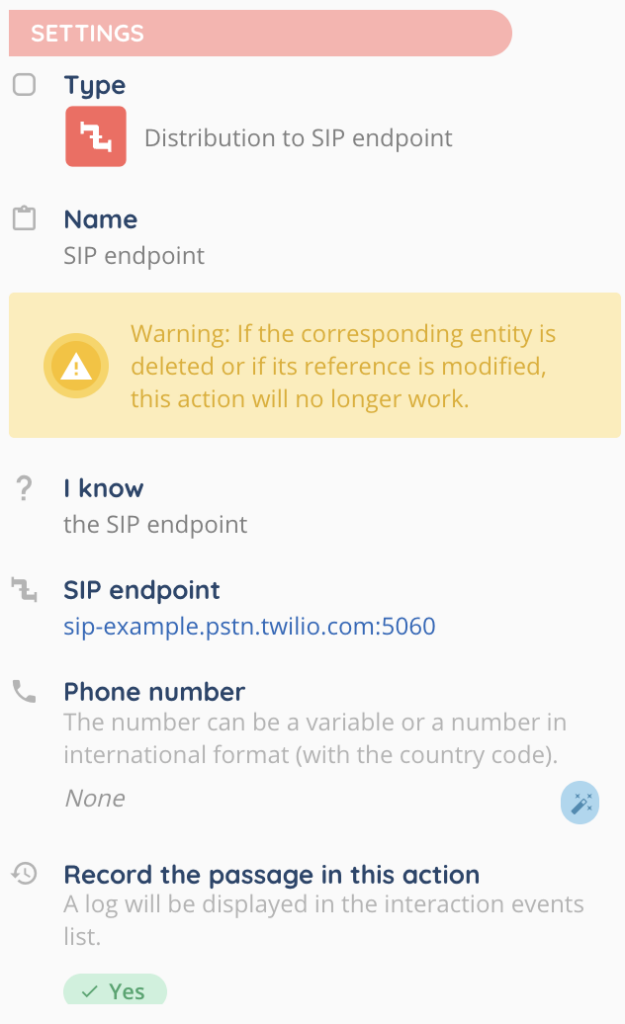
Calls matching the routing conditions will then be sent to the selected telephony server.