

[Reading time: 5 minutes]
Overview
Silent monitoring (also called discreet listening) lets a manager listen to advisors’ live voice calls without taking part in them. You subscribe from the Supervision, and a dedicated Silent monitoring panel — opened from the Users being silently monitored button in the top bar — keeps track of everything you are currently listening to.
You can subscribe at three levels: an individual advisor, a whole queue, or a voice campaign. If your rights allow it, you can also whisper advice to the advisor during the call. The feature applies to the voice flow only.
This article covers how to use silent monitoring. Enabling the rights and options that make it available is done in the Maker — see Supervision – Set it up.

Prerequisites
- A Smart license.
- Being a manager, with access to the voice flow.
- On your user profile, under Discrete listening, the right matching what you want to do:
- Listen to employees discreetly — individual advisors.
- Silent monitoring to queue calls — queues.
- Silent monitoring to voice campaign calls — voice campaigns.
- Whisper during silent monitoring — to whisper advice to the advisor (optional).
- For queues and voice campaigns, only those whose Supervision option is set to Yes can be listened to.
Note: whether the monitored advisor is notified (sound and/or visual) and whether monitoring is accepted automatically depend on that advisor’s profile settings (Automatically accept silent monitoring and the notification timer; available for webRTC).
1. How silent monitoring works
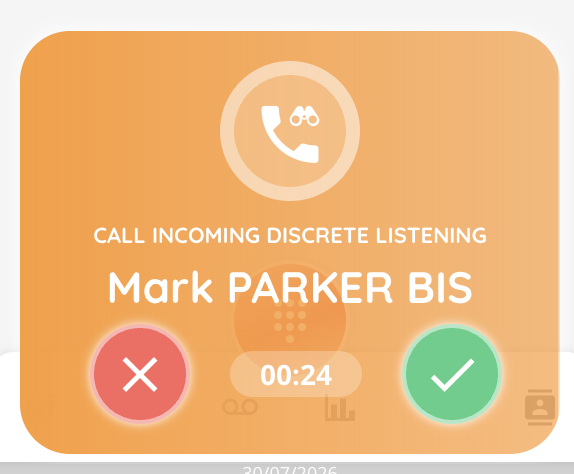
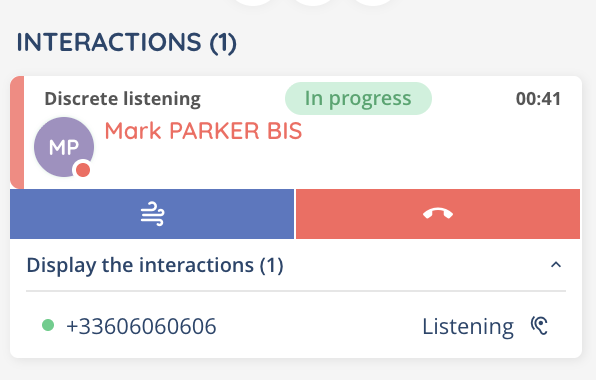
When you subscribe to an advisor, a queue or a campaign, you are connected silently to the matching voice calls: the one currently in progress (you join it automatically) and the next ones, for as long as the subscription stays active. The monitored call opens in your banner as a listening call, and an indicator reminds you that “You are currently silently monitoring.”
By default you only listen, you do not take part in the conversation. If you have the whisper right, you can additionally speak to the advisor (see section 5).
Whether the advisor realises they are being monitored depends on their own profile (configured in the Maker, see Supervision – Set it up):
- Automatically accept silent monitoring (available for webRTC) — when enabled, the advisor’s client accepts the listening automatically.
- Time before automatic acceptance — the delay during which a sound and/or visual notification is presented to the advisor before acceptance. Set to 0, no notification is played and listening starts silently.
During whisper, the advisor is always notified (“A supervisor whispers advice to you.”).
2. Listening to an advisor
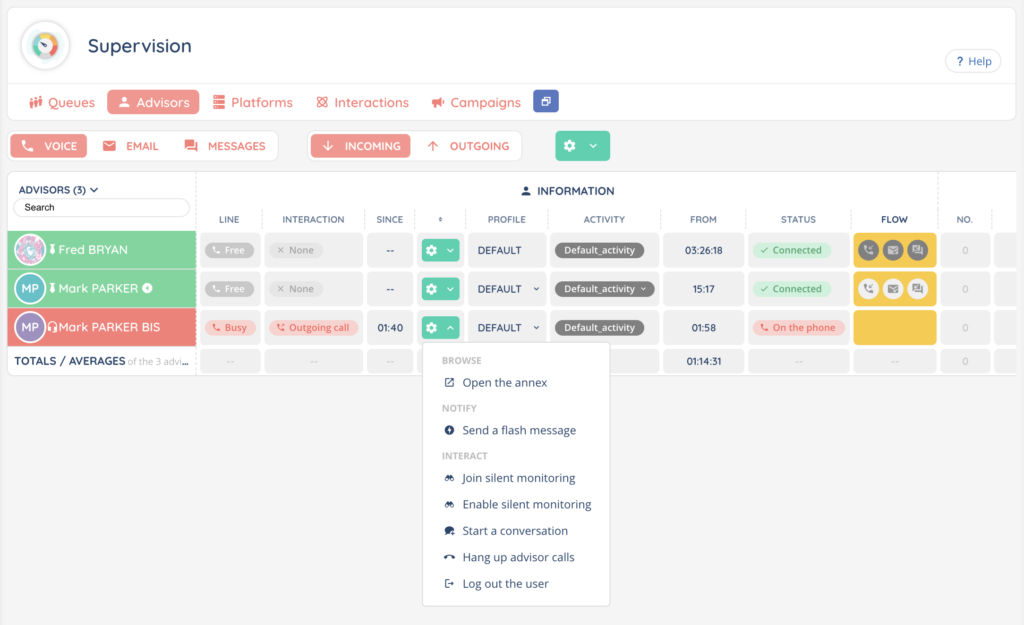
- Open the Supervision and go to the Advisors tab (the Platform tab works the same way).
- Open the advisor’s options (the cogwheel).
- Click Enable silent monitoring.
You are then connected silently to the advisor’s current and future voice calls. To stop, open the options again and click Disable silent monitoring.
Note: you cannot listen to yourself (“You cannot listen to yourself.”) nor to another manager (“You cannot listen to other managers.”).
3. Listening to a queue or a voice campaign
To follow an activity as a whole rather than a single advisor:
- In the Supervision, open the options of the queue (Queues tab) or of the voice campaign (Campaigns tab).
- Click Enable silent monitoring.
You then follow the voice calls of that queue or campaign as they happen. A voice campaign that is disabled cannot be listened to (“You cannot enable silent monitoring on a disabled campaign.”).
4. Joining a call in progress
To start listening immediately to a call that is already underway, without waiting for the next one, use Join silent monitoring. It is available from the options of an advisor, a queue or a campaign, and directly on a call in the Interactions tab. If there is no call to listen to, the action is unavailable (“No interactions in progress.”).
5. Whispering to the advisor
If your profile has the Whisper during silent monitoring right, you can whisper advice to the advisor during a call you are monitoring, to coach them live.
- While silently monitoring a call in progress, open the monitored call in your banner.
- Click Whisper. The advisor is notified that you are coaching them (“A supervisor whispers advice to you.”).
- Click Stop whisper to go back to silent listening.
Note: whisper is available on voice calls only, and only while the call is in progress.

6. The Silent monitoring panel
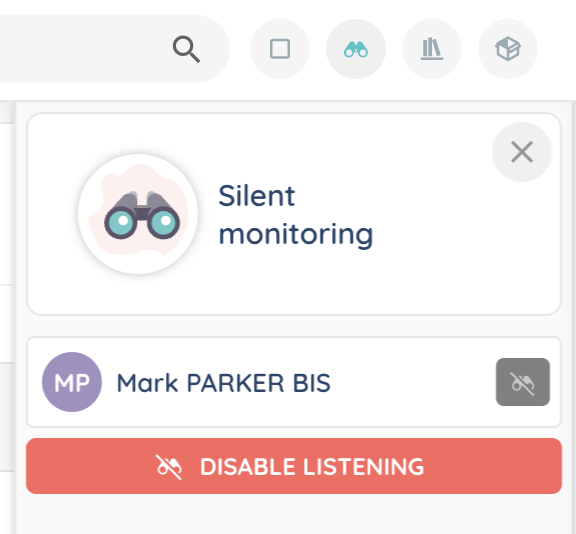
From the top bar, click Users being silently monitored to open the Silent monitoring panel. It lists everything you are currently subscribed to, grouped into advisors, queues and voice campaigns.
- Each row lets you stop that subscription individually with Disable silent monitoring.
- To stop everything at once, click Disable listening at the bottom of the panel, then confirm.
- When you have no subscription, the panel shows: “You haven’t enabled any silent monitoring. To enable silent monitoring, go to Supervision and select the users, the queues and/or the voice campaigns you wish to listen to.”
7. Stopping silent monitoring
- One subscription: click Disable silent monitoring on the advisor, queue or campaign (in the Supervision or from the panel).
- Everything at once: click Disable listening in the Silent monitoring panel.
Note: you cannot disable a subscription while its listening call is actually in progress (“You cannot disable silent monitoring that’s in progress.”). Wait for the call to end, then disable it.