

[Reading time: 2 minutes]
Overview
This article explains how to use the Recordings sub-module in the Quality Management module. You will learn how to search and filter recordings, browse the recordings list, listen to or download a recording, and access detailed information such as interaction data, participants, CRM cards, and linked cases.
If you need information about configuring recordings in the Maker, refer to the Recordings – set them up article.
1. Accessing the Recordings sub-module
Recordings is the first section of the Quality Management module. The recordings you can see, and the actions you can perform on them, depend on your permissions.

2. Search and filters
2.1. Search by date
You can search recordings using a date range of up to three rolling months. Use the date picker to define your start and end dates.
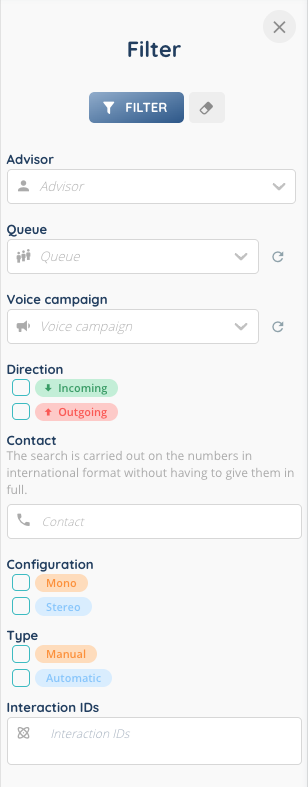
2.2. Additional filters
The filter button allows you to refine your search using additional parameters such as direction, advisor, queue, voice campaign, type, configuration, and more.
3. Recordings list
3.1. Table of recordings
The table displays all recordings you are allowed to access. The available columns are:
Date (DD/MM/YYYY HH:MM)
Duration
Direction (incoming or outgoing)
Type (automatic or manual)
Configuration (stereo or mono)
Advisor
Contact
Call and SMS buttons (SMS available when the number is a mobile line)
Queue (clickable when the interaction comes from a queue)
Voice campaign (clickable when the interaction comes from a voice campaign)
Listen (available when the recording is not stored exclusively on a repository connector)
Download (available when the recording is not stored only on a repository connector)
Open in another tab (available when public link generation is enabled in the Maker)
Open
Evaluation
Delete
The Evaluation feature is covered in a dedicated article.
3.2. Opening a recording
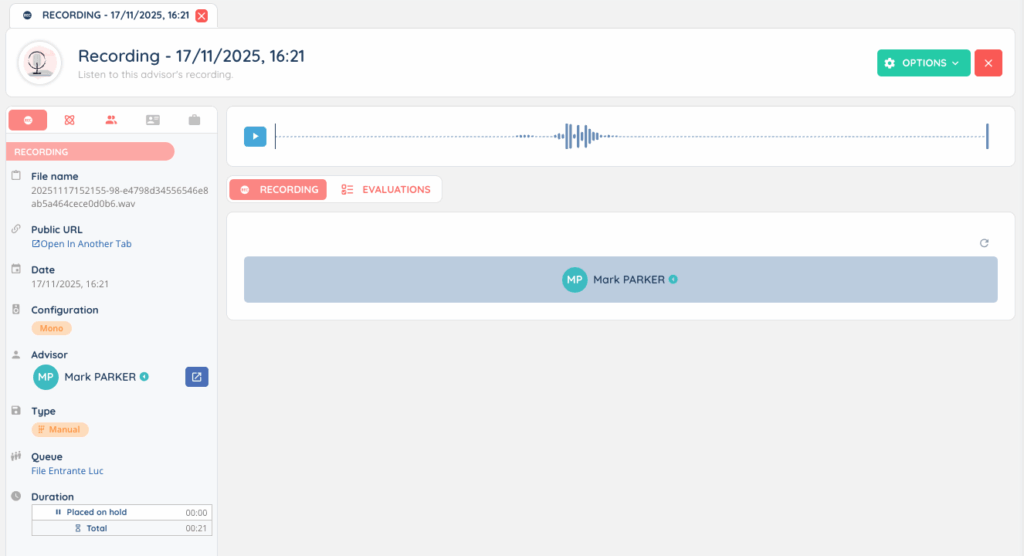
Selecting Open displays the recording details view.
3.2.1. Left panel
The left panel includes several tabs providing contextual information.
Recording tab
File name
Public URL
Date
Configuration
Advisor
Type
Voice campaign or queue
Duration (placed on hold time and total duration)
Interaction tab
Button to open the interaction in a side panel
Interaction ID
Flow
Direction
Original routing
Current routing
Original pool
Queue
Called number
Session start
Session end
Times (waiting, processing, placed on hold, post-interaction)
Participants tab
Displays the list of participants involved in the interaction.
CRM card tab
Displayed when a CRM card is linked to the interaction.
Case tab
Displayed when a case is linked to the interaction.
3.2.2. Central panel
The central area contains:
- The audio player to listen to the recording
- The list of evaluations linked to this recording, with filtering options
3.2.3. Options menu
At the top of the screen, the options menu gives access to:
- Create a new evaluation
- Download the recording
- Delete the recording