

[Reading time: 2 minutes]
Overview
If you need help setting up your qualifications, see the article qualifications – Set them up.
The answers provided by agents to qualification questionnaires can be accessed directly from the Quality Management module in the Banner, under the Qualifications tab.
1. Accessing qualifications
- In the Banner, open the Quality Management module.
- Select the Qualifications tab.
You will see a list of all qualifications completed within the last three rolling months.
2. List view
By default, the list displays all qualifications.
Each row corresponds to one qualification and contains several information columns.
Filters
Two levels of filters are available:
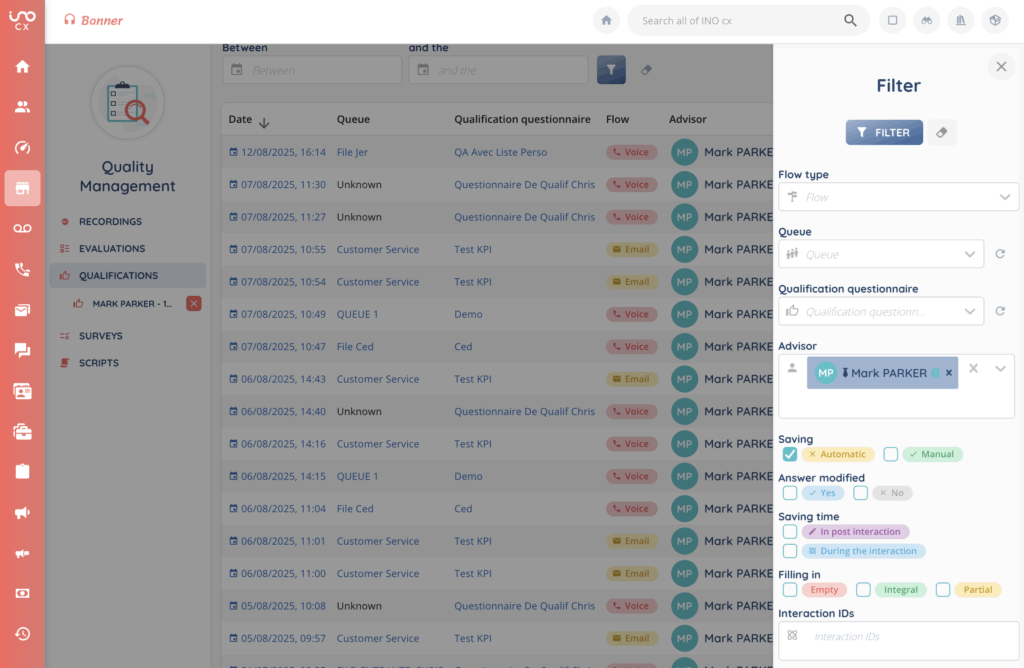
- Date filter – Located at the top left, it allows you to set the period (up to 3 rolling months).
- Advanced filters – Accessed via the filter button on the right, which opens a pop-up panel on the side of the screen.
These filters correspond to all available columns, as well as the interaction ID.
You can combine multiple filters.
Available columns
- Date – Date and time of the qualification.
- Queue – The interaction queue concerned.
- Qualification questionnaire – Name of the questionnaire.
- Flow – Interaction channel (Voice, Email, Messages).
- Advisor – The advisor who completed the qualification.
- Saving – How the qualification was saved (automatic or manual).
- Answer modified – Whether the answers were modified after the initial entry (Yes or No).
- Saving time – When the qualification was saved (in post interaction or during the interaction).
- Filling in – Completion status (empty: no answers, partial: partially completed, integral: fully completed).
3. Qualification details
Click a row to open a qualification.
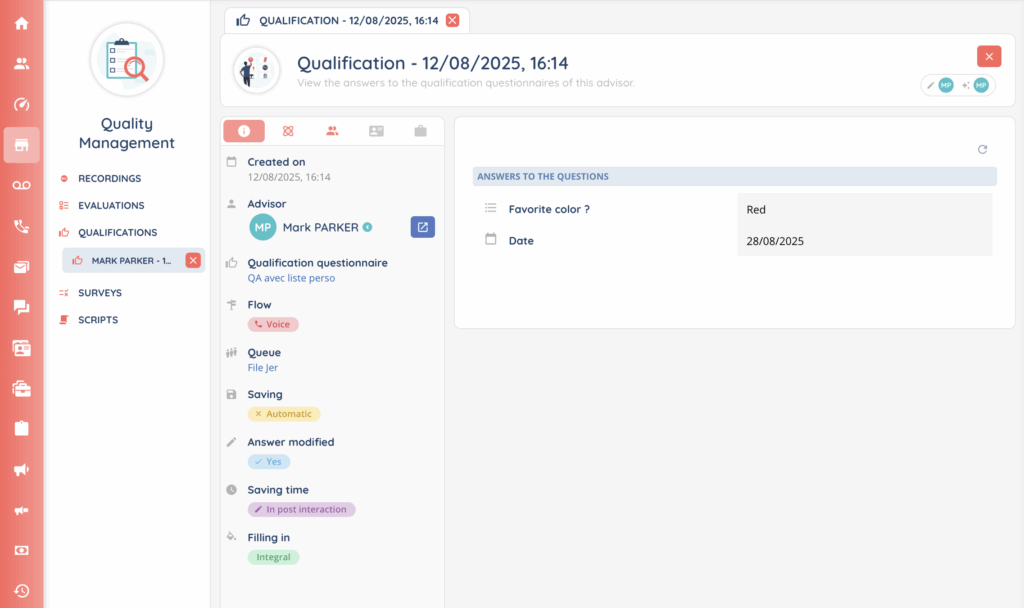
The screen is split into two main areas:
- Right panel – Displays all answers to the questionnaire.
- Left panel – A fixed side panel containing several tabs.
Side panel tabs
- Information – Shows the main data (from the list view columns).
A button allows you to open the advisor’s record in a new tab (without closing the current qualification). - Interaction – Lets you open the interaction history in a new tab. Additional interaction details are also displayed here.
- Participants – Lists all advisors who participated in the interaction.
- CRM card – Displays the linked CRM card, if available. If no card is linked, the tab appears greyed out.
- Case – Displays the linked case, if available. If no case is linked, the tab appears greyed out.