
Overview
The payment modules allow you to set up transactions before, after and during your interactions with your customers. Depending on the banking contract type and your country, payment can also be spread over several months, with SMS and/or email reminders.
Today, we will see how to create a payment module and then use it.
Prerequisites
- A payment module.
- Depending on your settings: an SMS/email template.
Configuring
Creation
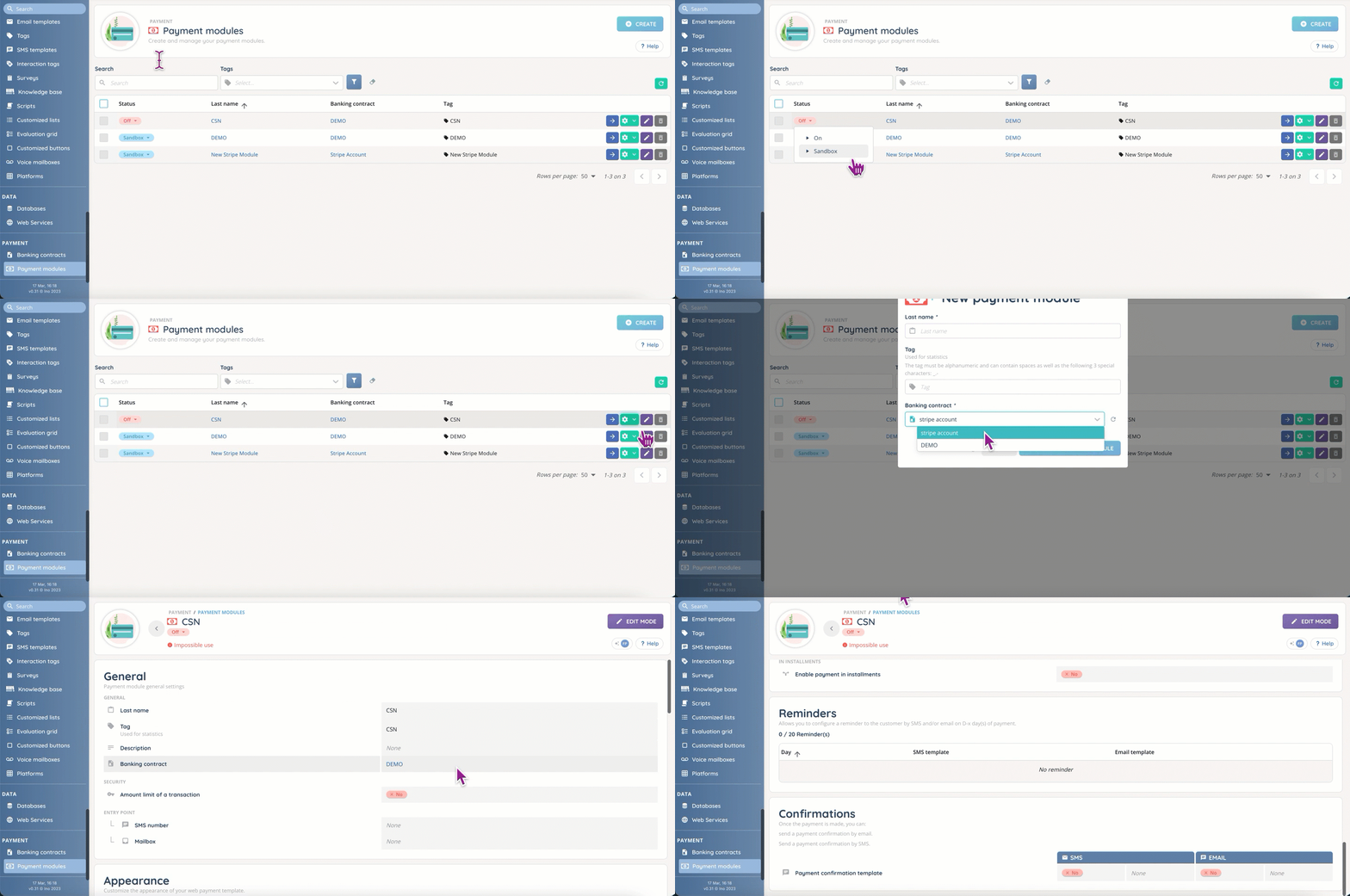
The creation of a payment module is quite simple: open the Maker, go to the “Payment” section, click on “Payment module” and then on the “Create” button. Once this step is completed, you will be able to open your module and access all its customization options.

When you open your newly created module, you will have access to different sections depending on the type of banking contract.
For example: scheduled payment are not available for Stripe contracts.
Sandbox mode & activation
Just like bank contracts, payment modules have different statuses: activated (ready for use), deactivated (unavailable/error) and sandbox (for testing purposes). This status is indicated in the list of modules, but it can only be changed by opening the desired payment module.
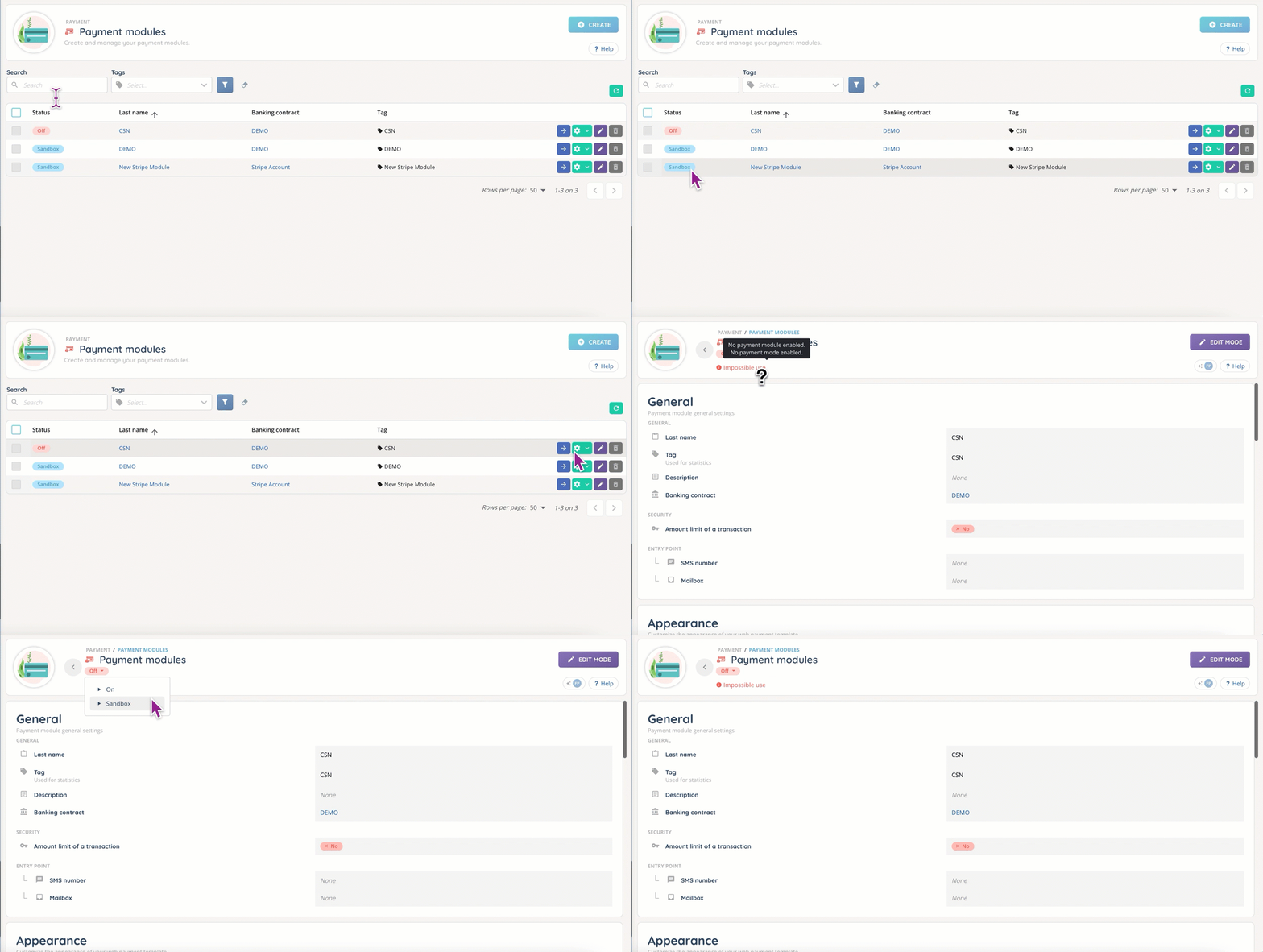
If a payment module can’t be activated, an explanatory message will always be displayed in the configuration page.

The “Sandbox” mode is useful for tests and demonstrations, and can be activated/deactivated at will.
Customization
Each payment module can be customized in various ways: here, we will see the different sections.
General

This section allows you to enrich the information entered during creation, and to change everything (except the associated bank contract). You can also configure the following parameters:
- add a description.
- define a maximum amount for a transaction.
- add an entry point for the module: SMS, email, or both (requires an SMS number and/or a mailbox previously created).
Appearance

As the name implies, this is where you will customize your module’s appearance: language/title, color, favicon and logo.
You can’t add more title+language combinations than the number of languages currently available (if you have 5 languages available, you’ll be able to add 5 titles, 1 for each language).
Payment form

This section will help you to set up additional information fields for your invoices: invoice ID and customer ID.
Confirmations
This is where you will choose (or not) an SMS/email template to send a confirmation message to your client.

As usual, your templates can include variables from the magical field.
Payment Channel
This section is dedicated to the channels through which you want to offer payment to your customers: SMS, email, call, IVR or web integration.
Each channel comes with its own options.

Payment terms (banks only)
This section is dedicated to the payment’s settings: in one or several times? With fees? Automatic or manual date setting?

Once the first offer has been added, this is what it will look like:

Integration (banks only)
This button will bring up an informative and interactive pop-up, which you will use to determine what you want to retrieve from the bill ID.
Reminders (banks only)
This is where you will configure the reminders you wish to send to your customers (automatically). You can add up to 20 SMS and/or email reminders.

Tips
- As with other Maker modules, you can use the tagging system to your advantage to group your payment modules and find them easily.
Preview
This is what the web interface looks like for a successful payment.

Use case
My request: I want to send an SMS payment link to my customers.
Step-by-step process:
- In the Maker, create or update your SMS template (in the “Toolbox” module).
- Create or update your SMS template (in the “Toolbox” module).
- Create or update the banking contract you intend to use with your payment module.
- Go to “Payment”, then “Payment modules”. Create your Payment module and open it.
- Configure it to suit your needs: visual aspect, payment form, confirmations, etc.
- Add your module to the profile(s) you want your agents to use.
- Go to “Routing”, then “Voice”, and create your Smart routing. In the screenshot below, the payment option is linked to the “4” key.


- Put your Smart routing in test mode, try it, and if it’s working as intended, put it in production mode.
- Your payment module is now ready to be used 🎉!
Frequently asked questions
- Will INOPAY be available worldwide?
- Not at the moment (France exclusive).