

[Reading time: 4 minutes]
Overview
Agents can send outbound SMS directly from the Banner.

Two modes are available:
- Direct SMS: a one-off message sent to a phone number, with no conversation tracking or queue management.
- Smart SMS: a full interaction routed through a distribution queue, with conversation tracking and reply management.
This article covers how to initiate and send outbound SMS in both modes.
Prerequisites
- The agent’s profile must have outgoing Messaging permissions enabled
- For Direct mode: Direct permissions required
- For Smart mode: Smart permissions required
- The agent’s maximum number of simultaneous interactions must not be reached
- An external SMS provider must be configured on the account (see SMS provider – Set it up article)
1. Initiating an outbound SMS
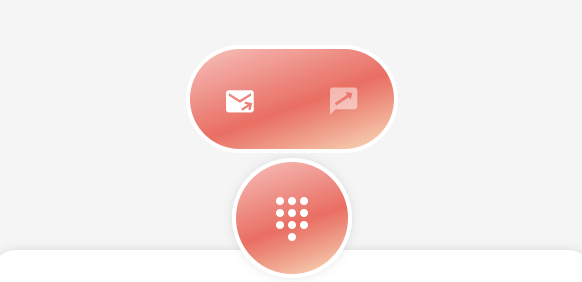
- In the Banner, click the New button
- Select the SMS channel
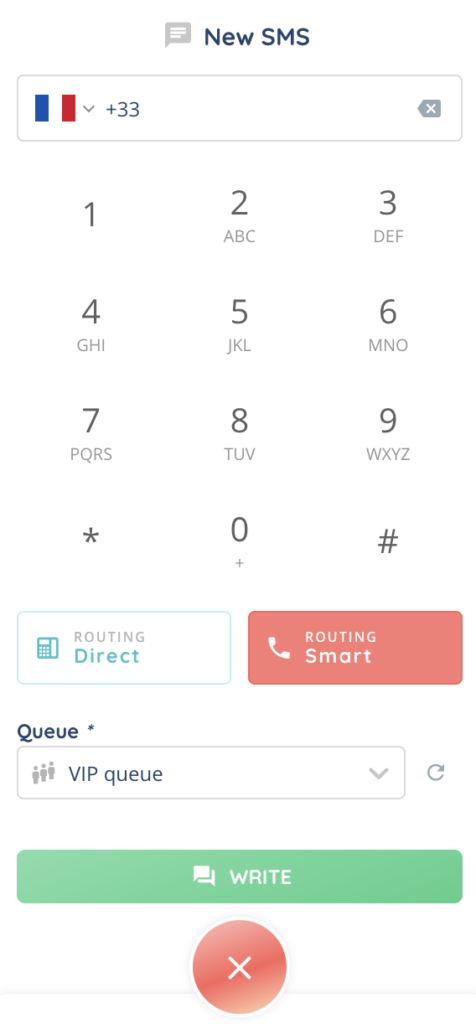
- Enter the recipient phone number (international format, mobile only — landline numbers are not accepted)
The system then displays the appropriate form depending on the agent’s permissions:
| Permissions | Behavior |
|---|---|
| Direct and Smart | A routing selector is displayed — the agent chooses the mode |
| Smart only | Smart mode is used directly |
| Direct only | Direct mode is used directly |
2. Direct SMS
Direct SMS is a one-off send with no conversation created and no reply tracking.
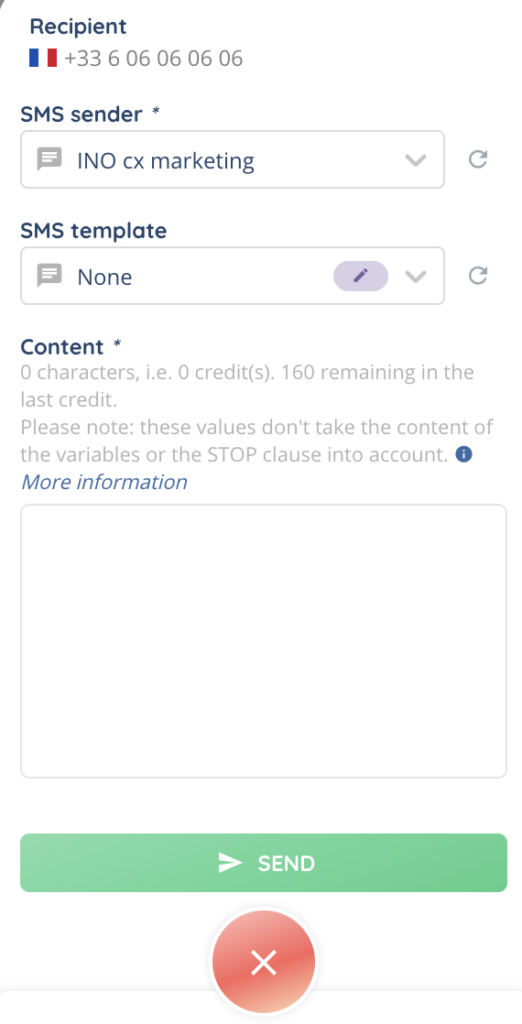
2.1. Form fields
| Field | Required | Description |
|---|---|---|
| Recipient number | Yes | Pre-filled from the dial pad (read-only) |
| Sender number | Yes | List of SMS numbers assigned to the agent’s profile |
| SMS template | No | Optional selection of a pre-configured template |
| Message content | Yes | Free text, 1,224 characters maximum (8 SMS credits) |
2.2. Sending
Click Send. A success notification is displayed and the form closes automatically. No conversation is created.
3. Smart SMS
Smart SMS creates a full interaction with conversation tracking and reply management.
3.1. Initiation
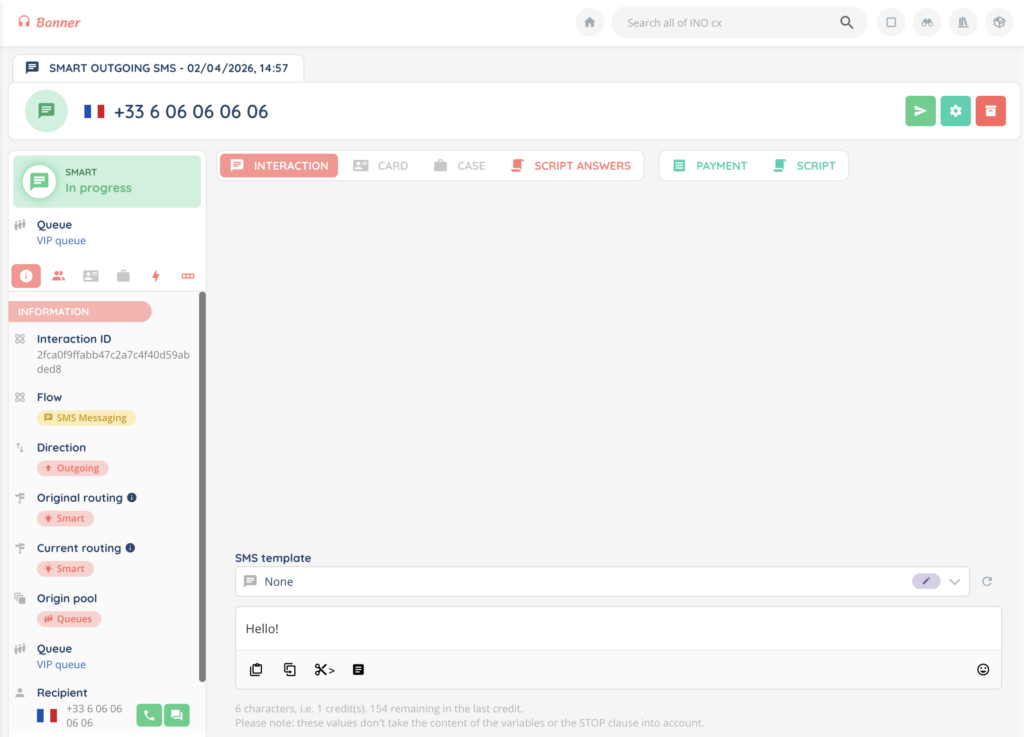
After selecting Smart mode and entering the recipient number, the agent selects a distribution queue. The system creates an interaction and opens the conversation window in the Banner.
3.2. Message form
The message form is available in the conversation panel (while the interaction is in progressing status):
| Field | Required | Description |
|---|---|---|
| Distribution queue | Yes | Queue assigned to the interaction (selected during initiation) |
| SMS template | No | Templates associated with the selected queue. Select “(none)” for free text |
| Variables | Conditional | If the template contains variables (e.g. $firstname), input fields appear automatically for each variable. Click Replace variables to insert them into the text |
| Message content | Yes | Free text or from a template, 1,224 characters maximum (8 SMS credits) |
3.3. SMS credit counter
Below the text field, the following information is displayed in real time:
- Number of characters entered
- Number of SMS credits used
- An orange warning if the message contains Unicode characters (which reduce the capacity to 70 characters per credit instead of 160)
- An error if the 8-credit limit is exceeded
3.4. Send confirmation
Clicking Send opens a confirmation dialog. Once confirmed, the message is sent and appears in the conversation thread. The form is cleared and the agent can compose a new message.
3.5. Continuing the conversation
After the first SMS is sent, the interaction remains in progressing status. If the recipient replies, the incoming message appears in the conversation thread and the agent can respond. The agent manually closes the conversation when the exchange is complete.
3.6. Available actions
| Action | Available |
|---|---|
| Send a message | Yes (progressing status only) |
| Receive and read replies | Yes |
| Close / Archive | Yes |
| Transfer to another agent | No |
| Private message | No |
| File attachments | No |
| Video call | No |
4. Sending an SMS from an active voice call
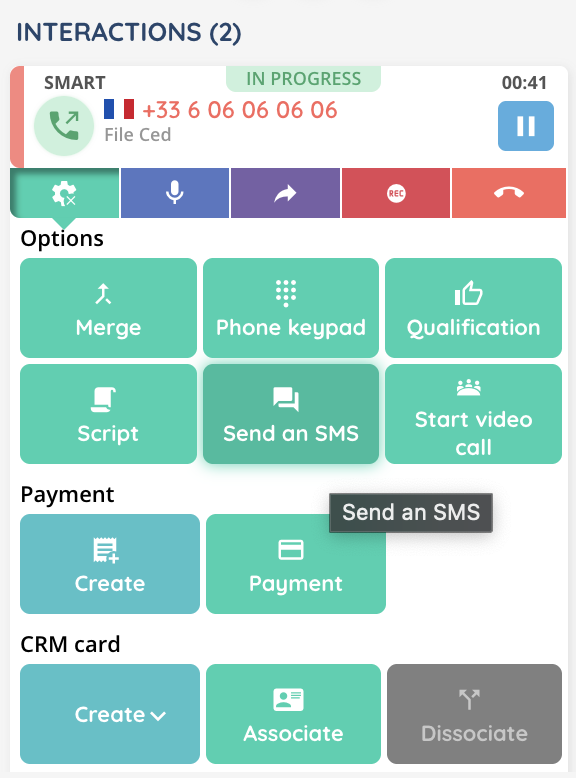
An agent can send an SMS directly from an active voice interaction. An SMS button is available in the voice interaction options. The send form opens with the caller’s phone number pre-filled.
Note: the SMS and the voice call are two separate interactions.
5. Errors
| Error | Cause |
|---|---|
| Country not authorized | The recipient’s country is not in the authorized list on the agent’s profile |
| Invalid number | Incorrect format or landline number (mobile only) |
| Insufficient credits | The account has no remaining SMS credits |
| Credit limit exceeded | The message exceeds 8 credits (1,224 characters) |
| Invalid template | The selected template is empty or not found |
| No sender number | No SMS number is assigned to the agent’s profile (Direct mode) |
| No queue configured | The selected queue has no SMS number configured |