

[Reading time: 1 minute]
Overview
The My Voicemail tab in the small banner allows you to access and manage your personal voicemail messages directly from INO cx.
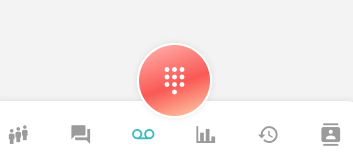
This feature is not enabled by default and must first be configured in the Maker.
1. Enabling personal voicemail
- In the Maker, click on your username and select My account.
- Go to the Telephony tab.
- Enable the Personal voicemail option.
- Choose the welcome message:
- Default message: use the standard voicemail greeting.
- Custom message:
- Upload an audio file, or
- Use Text-to-Speech by selecting a voice available in the application and typing the text you want to be read.
- (Optional) Configure email notifications to receive an alert whenever a new voicemail is received. You can specify one or more recipients.
Once these settings are saved, the My voicemail tab becomes available in the small banner.
2. Using voicemail in the small banner
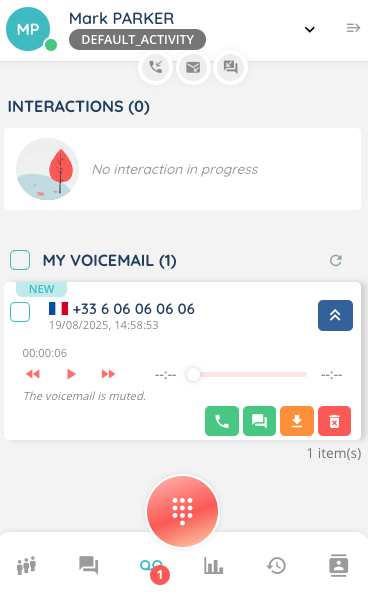
When a new voicemail is received, a red badge appears at the bottom of the small banner. Clicking it opens the voicemail list.
2.1. Voicemail list
- A checkbox allows you to select one or multiple messages to delete them in bulk.
- Each message displays:
- A flag showing the caller’s country of origin
- The caller’s phone number
- The date and time of the voicemail
2.2. Actions available for each voicemail
Expanding a voicemail gives access to the following options:
- Listen to the message
- Call back the number
- Send an SMS
- Download the message
- Delete the message