

[Reading time: 3 minutes]
Overview
The messaging pool centralizes all incoming interactions from SMS, WhatsApp, Telegram, Messenger, and the Chat module.
It allows agents to view, filter, and handle incoming messages directly from the Banner. Interactions can be picked up by an agent using the main button, replied to, transferred, archived, or assigned to CRM cards/cases as needed.

The pool is divided into two main tabs: Messages pending and Messages pending customers, each serving a specific purpose in managing interactions.
I – Global View

Tabs
Messages pending contains all interactions that an agent can process.
Messages pending customers contains interactions waiting for a customer reply. Once the customer responds, the interaction automatically returns to the Messages pending tab.
Filters and Search
Filter by date: Received between … and …. (3 rolling months)
Search by sender or queue.
Columns can be sorted by clicking on the column title.
Available Columns
Wait time: time the interaction has been waiting.
Source: origin channel of the interaction (WhatsApp, Messenger, SMS, etc.).
Sender: sender of the message.
From: date and time the message was received.
Queue: queue to which the interaction belongs.
Session time: time since the last message in the conversation was sent.
Forwarded: indicates whether the interaction has been forwarded to another agent (Yes / No).
Picking an Interaction
The hand button allows the agent to start handling the interaction.
An interaction can only be picked by one agent at a time.
II – Interaction Details

Info Panel
Located on the left, it provides detailed information about the interaction.
Central Tabs
Interaction: to manage interaction.
Card: visible if the interaction is assigned to a CRM card.
Case: visible if the interaction is assigned to a case.
Survey answers: survey responses linked to the interaction.
Script answers: responses from configured scripts.
Payment: payment-related information.
Script: scripts used to guide the conversation.
Response Area
Allows the agent to reply directly to the customer.
Buttons available: copy, paste, cut, select all, add a file, insert an emoji, send, send a private message.
Send: message visible to the customer.
Send a private message: message visible only to agents.
III – Action Buttons
Custom Buttons
Created in the Maker. See the dedicated article here.
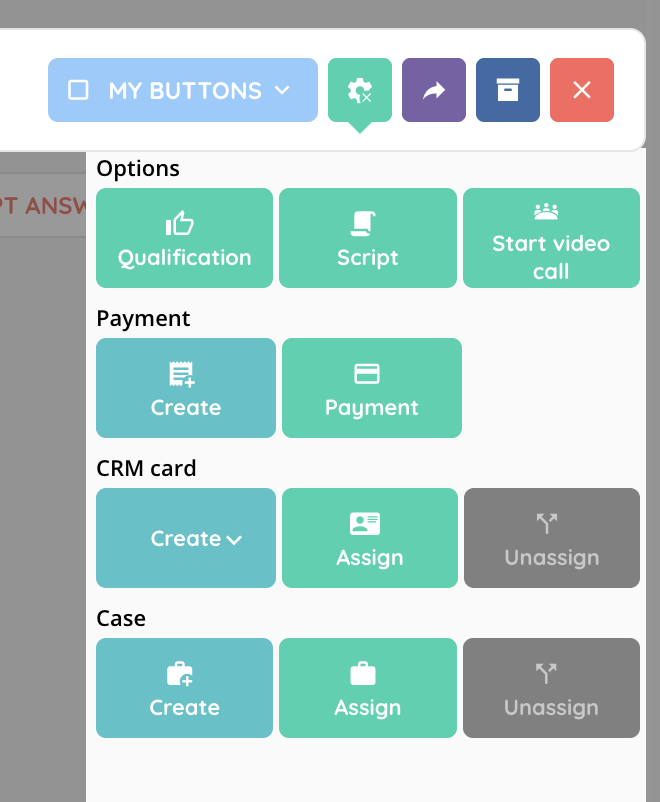
Cogged Wheel Button
Actions available for the current interaction: (if you have the rights)
Qualification
Script
Start video call
Create a payment / Payment
Create a CRM card / Assign a CRM card / Unassign a CRM card
Create a case / Assign a case / Unassign a case
Transfer Buttons
Transfer to a user, smart routing, or queue.
Transfer can only be done to one destination at a time.

Other Buttons
Archive: interaction disappears for all agents.
Close interaction: returns to the Messages pending tab for later handling.
IV – Notifications
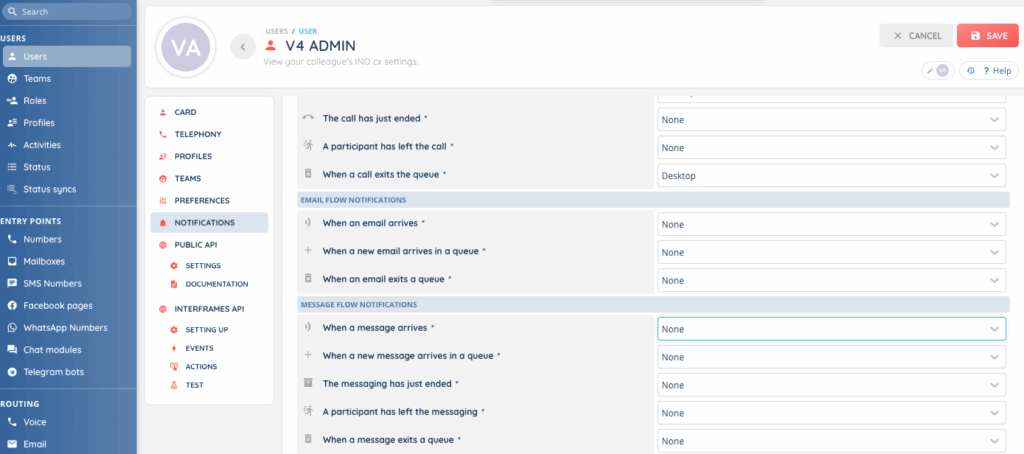
Sounds and notifications can be configured in Maker > User > Notifications.
Available options:
When a message arrives
When a message arrives in a queue
When messaging has just ended
When a participant leaves the messaging
When a message exits a queue