
[Reading time: 5 minutes]
Overview
This article explains how to configure Facebook pages in the Maker so their messages can be handled as Messenger interactions. For how advisors then handle those conversations in the Banner, see Messenger in the messaging pool.
Connecting a Facebook page lets your organisation receive the page’s Messenger private messages and route them through a Smart Routing, exactly like the other messaging channels. Configuration is done in the Maker, under Entry points > Facebook pages.
You do not enter tokens or IDs by hand. You sign in with Facebook, and the platform automatically retrieves every page your Facebook account manages. You then link each page to a Smart Routing and enable it.
1. Prerequisites
This section requires the Facebook pages right. Reading the list needs the read right; connecting pages needs the create right; enabling, disabling and editing a page needs the modify right (in the role).
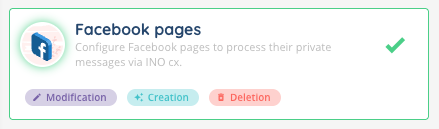
To connect a page you need:
- a Facebook account that manages the page(s) you want to connect;
- to accept the permissions requested during sign-in, in particular the permission to manage the page’s metadata. A page for which this permission is not granted cannot be connected;
- a messaging Smart Routing already created, to which each page will be linked (a page with no Smart Routing cannot be enabled).
Note: a customer account can connect up to 50 Facebook pages.
2. Connecting your pages
- Go to Entry points > Facebook pages.
- Click Sign in. A Facebook window opens.
- Log in with your Facebook account and authorise the requested permissions.
- The platform retrieves all the pages your account manages and adds them to the list. On success, you see “The Facebook page has been successfully configured.”
Newly connected pages are added disabled: they are listed, but they do not receive messages yet. You first link a Smart Routing, then enable them (see section 4).
Note: if some of the pages you manage already belong to another account, they are skipped and a warning is shown; only the pages you can actually claim are added.
3. The list of pages
Each connected page appears as a row. The columns are:
- Status: whether the page is Enabled or Disabled. This is also where you enable or disable a page.
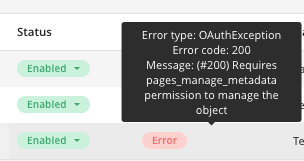
- Facebook status: the health of the connection to Facebook: OK, or Error (with a tooltip describing the problem, e.g. an expired token).
- Name: the Facebook page name.
- Facebook business account: the business account the page belongs to, if any.
- Session duration: the configured session window.
- Time zone: the page’s time zone, or By default (the customer account time zone).
- Language: the language used by the Smart Routing actions, or By default.
- Smart routing: the linked messaging Smart Routing, with a Production or Test tag.
- End-of-interaction Smart routing: the Smart Routing run when the interaction ends, if one is linked.
Row actions let you Open the page on Facebook, Edit it, Delete it, and, when the connection is in error, Regenerate the token. The list search is performed on the page name.
4. Managing a page
All the actions below are available from a page’s row in the list.
4.1. Editing the settings
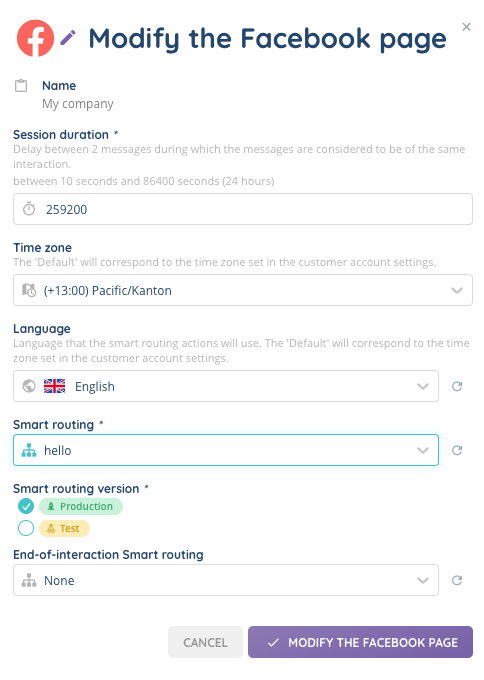
Click Edit on a page to open its settings. The following fields are available:
- Name: the display name of the page.
- Session duration: the delay between two messages during which they are considered to belong to the same interaction. It is entered in seconds and must be between 10 seconds and 259 200 seconds (72 hours / 3 days). Each new customer message resets this window; if the customer sends nothing before it expires, the interaction is closed and a later message starts a new one.
- Time zone: the time zone applied to the page, or By default (the customer account time zone).
- Language: the language used by the Smart Routing actions, or By default.
- Smart routing: the messaging Smart Routing that qualifies and distributes the page’s incoming messages. When one is selected, choose its Smart routing version: Production or Test. This link is required to enable the page.
- End-of-interaction Smart routing: an optional Smart Routing run at the end of the interaction, also with a Production / Test version.
Note: an enabled (active) page must be linked to a Smart Routing. If you try to save an active page without one, the form reports: “Active pages must be linked to a smart routing.”
4.2. History and tags
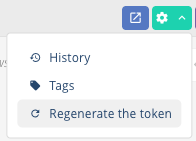
Each row has an Options menu (the cog icon) that gives access to:
- History: the record of changes made to the page, including who created it and who last modified it.
- Tags: a side panel to attach or detach tags on the page, to organise and filter your entries. Managing tags requires the modify right.
Note: a Dependencies entry also appears in this menu when the page is referenced by other elements.
4.3. Enabling and disabling a page
Use the Status column to switch a page between Enabled and Disabled; a confirmation is asked. Only an enabled page receives Messenger messages: enabling it subscribes the platform to the page’s messages on Facebook.
A page cannot be enabled until it is linked to a Smart Routing. In that case the status stays Disabled with the tooltip: “The Facebook page cannot be enabled because it is not linked to a smart routing.”
4.4. Regenerating the token
If the Facebook status of a page shows an Error (for example the access token has expired or was revoked), use the Regenerate the token row action. It reopens the Facebook sign-in window; once you authorise again, the connection is refreshed for that page.
4.5. Deleting a page
Use the Delete row action to remove a page. A confirmation is asked (“Are you sure you want to delete…? Warning, this action cannot be reversed.”). Deleting a page unsubscribes it from Facebook and removes it from the platform; it no longer receives messages. You can also select several pages and delete them together.