
Overview
The page link feature will allow you to manage ongoing discussions directly with INO.
Prerequisites
- Your Facebook page(s) with your logins/passwords
Configuring
The integration of Facebook pages is set up in the Maker, in the “Entry points” module.

Adding a page
The “Login” button opens a Facebook login page, from which you can link the page(s) to INO. Multiple Facebook pages can be added simultaneously (if associated with the same account).
Page activation
The Facebook page cannot be activated until it is associated with a Smart routing.
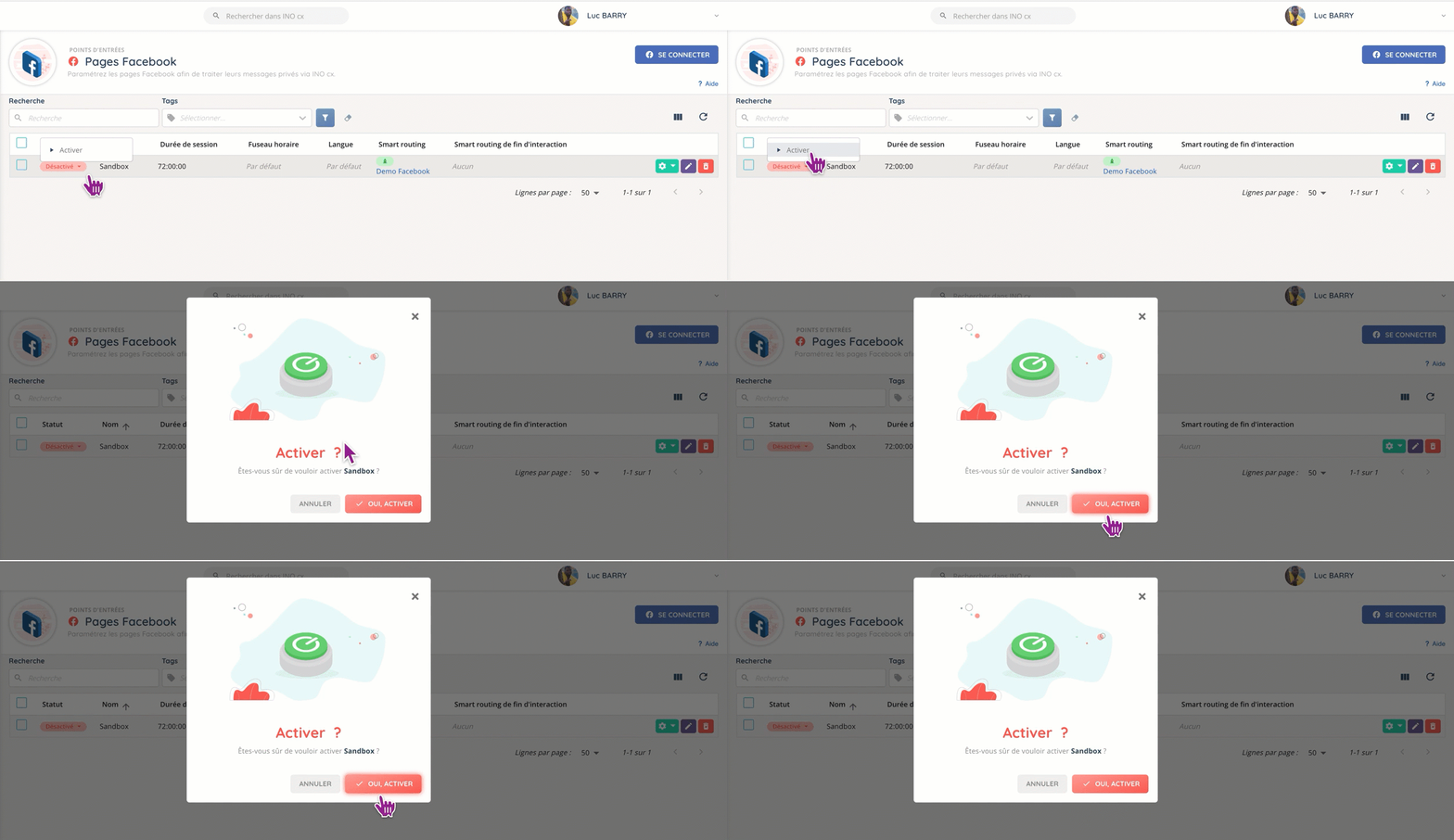
You can link several Facebook pages to a Smart routing.
When you link a page to INO, you are asked to set a session duration, after which the conversation will be considered closed if no participants contribute to it.

The maximum duration (72 hours) is set by Facebook.
Smart routings
Both types of smart routing (normal and end of interaction) can be connected to the Facebook page. Here are some examples of their use:
- First case: classic distribution of an agent in the action of a Smart routing.
- Second case : the agent completes the interaction and launches a survey or a satisfaction questionnaire which is on the Facebook page.
Tips
- You can manage multiple pages from a single account.
Preview
Once added, the page will be displayed like this in the Maker.

It can be activated and deactivated at any moment.
Use case
Issue: I want to create a smart routing that sends client(s) to a Facebook page for messaging.
Step-by-step process:
- Go to “Routing”, then “Queues”.
- Create a queue corresponding to the need (with the right permissions for messaging).
- Go to “Users”, then “Profile”.
- Associate your queue with the appropriate profile (or create a new one). Check that end users have access to this profile.
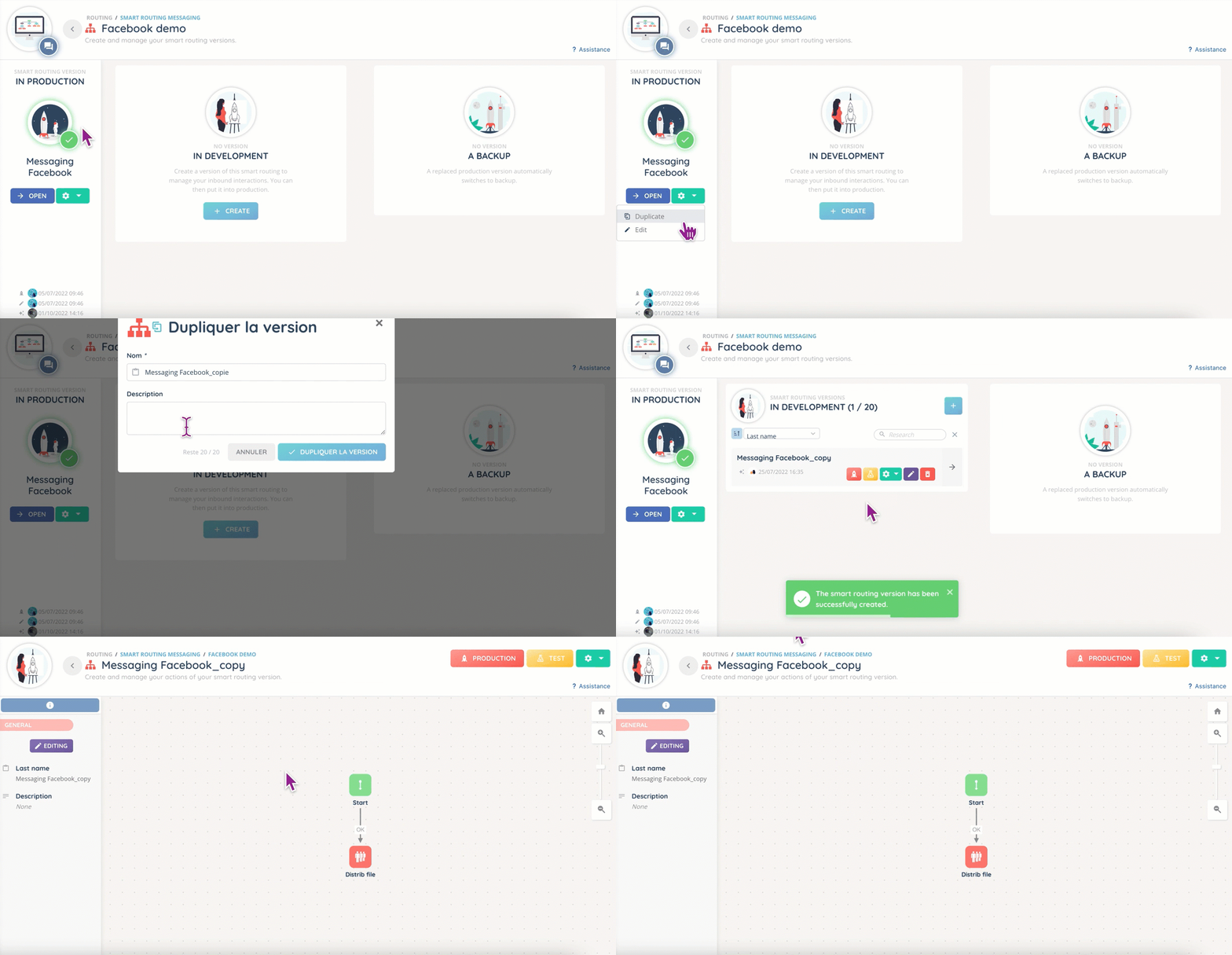
- Go to “Routing”, then “Messaging”.
- Create the smart routing with a distribution to the messaging queue.
- Put it into production and make a copy.
- Go to “Entry Points” then “Facebook Pages”.
- Connect the page(s).
- Associate your Smart routing with the page.
- Activate the page.
Congratulations 🎉!
Frequently asked questions
- Is there a limit to the number of pages I can add?
- Technically, it is not possible to add more than 50 elements in this sub-module. However, there is no limit to the number of pages linked to an account, and you can ask INO to extend the element limit beyond 50.