

[Reading time: 1 minute]
Overview
The INO CX Chrome Extension allows users to interact with phone numbers directly from web pages and connect seamlessly to the INO CX interface.

It can be configured to open in a popup or embedded as an iframe, and supports auto-login for faster access.
1. Prerequisites
- Google Chrome installed (latest version recommended)
- Access to INO cx with a valid username and password
- Permission to install Chrome extensions
2. Installation
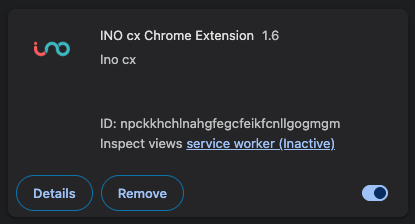
- Open the Chrome web store link: INO cx Chrome extension
- Click Add to Chrome.
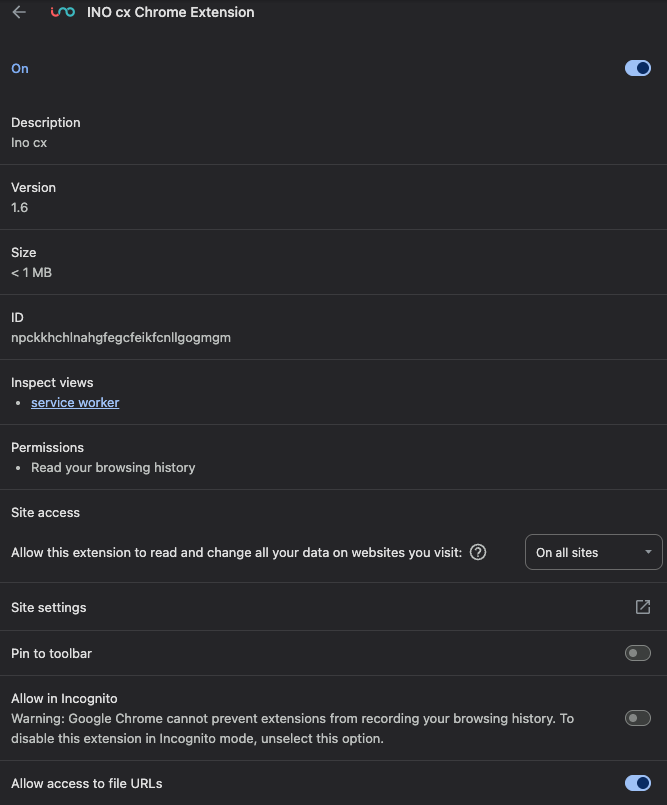
- Open Chrome extensions page by entering
chrome://extensions/ in the browser address bar. - Click Details and enable Allow access to file URLs.
3. Configuration
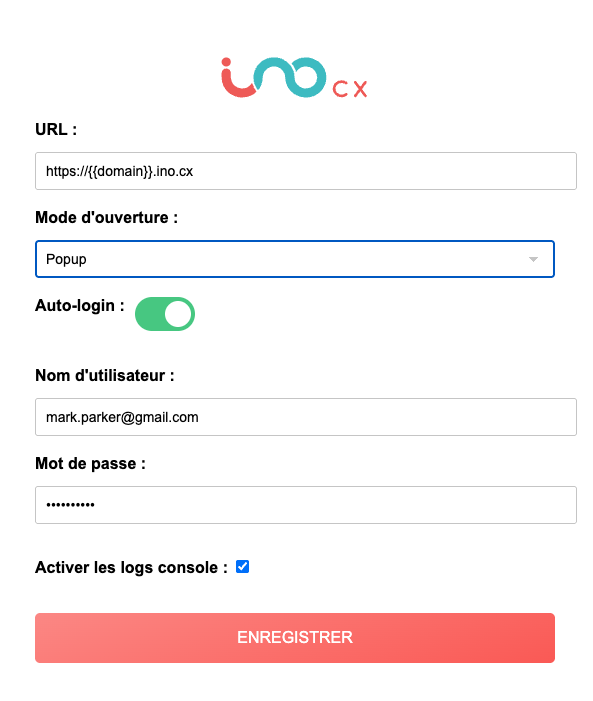
- On the same Details page, open the Extension options menu.
- Configure the following settings:
- Environment URL: Enter the URL of your INO cx environment.
- Open mode: Choose between Popup (opens in a separate movable window) or Iframe (embedded directly on the page).
- Auto-login: If enabled, enter your INO cx username and password to log in automatically.
- Enable console logs: Optional, useful for debugging.

4. Use it!
- Navigate to any web page containing phone numbers.
- Click the INO cx button located at the bottom right of the page.
- Depending on your configuration:
- In Popup mode, a movable login or interface window appears.
- In Iframe mode, the interface is integrated directly into the page.
- Click on a phone number to initiate a call directly through the INO cx interface.

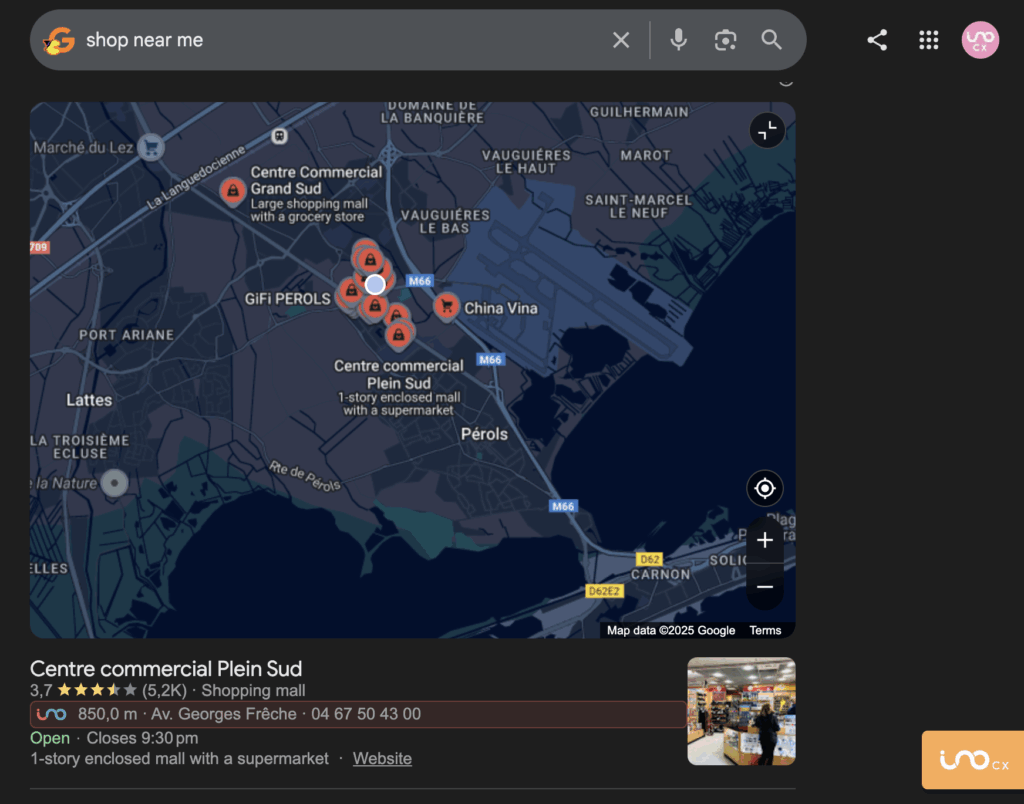
Moreover, in the case of an incoming interaction, the extension will automatically come to the foreground.