
Overview
Once your Maker is set up, the Smart routing allows you to use its elements (queues, databases, numbers, etc.) to automate and optimize some of your processes. Smart routings are now available for all three channels: voice, email and messaging, and today we will focus on . For more details on the philosophy of the Smart Routing, see the dedicated article.
Prerequisites
- Depending on what you want to do, the pre-set actions in the Maker.
Configuring
Adding actions
From the basic action (Start), you can add as many as you want, and use the branches of each to manage every eventuality.
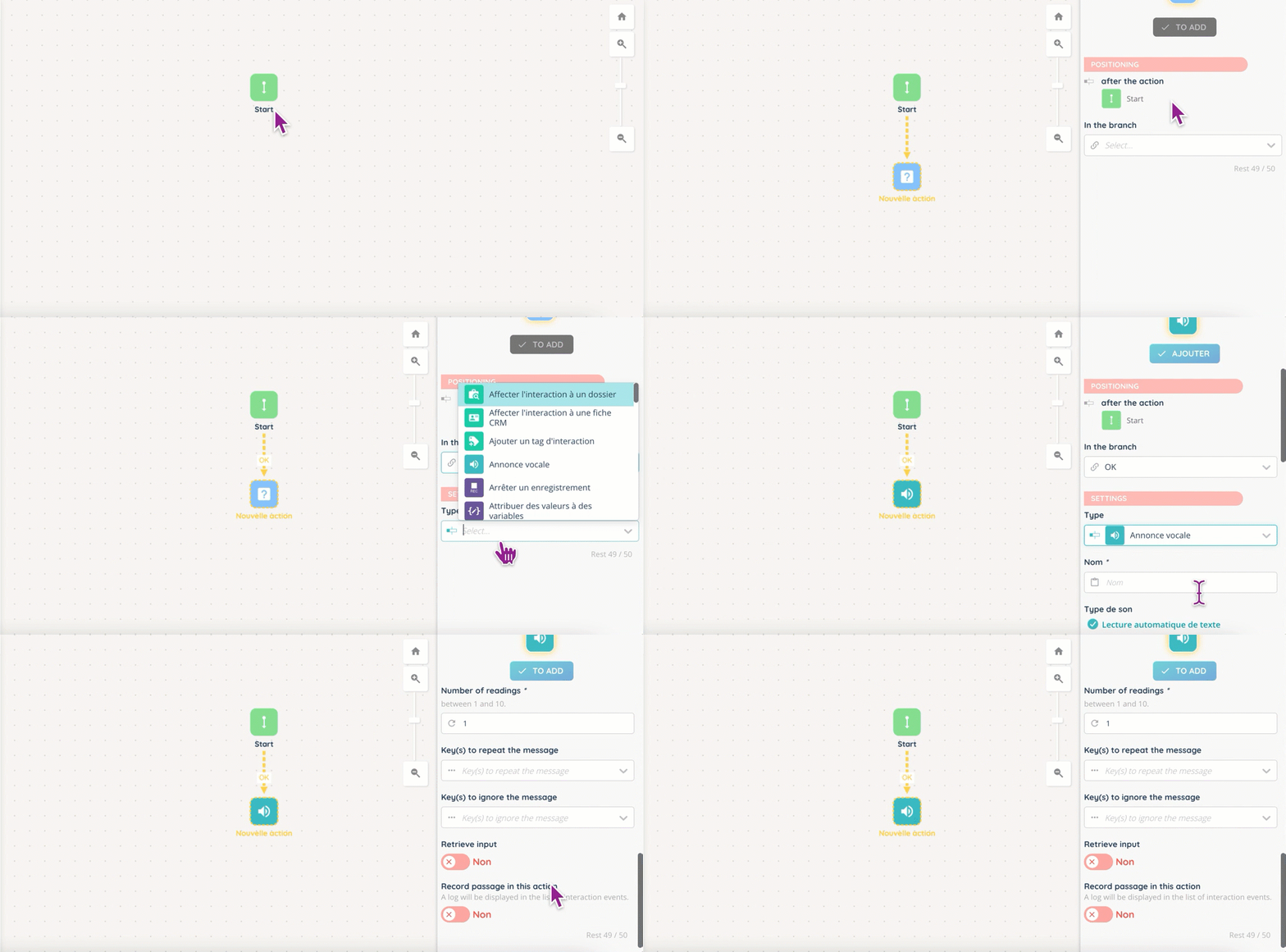
For example, a voice announcement can offer the caller to enter up to 10 different choices, each of which can direct them to a specific queue, user or number.
Once added, each action has specific branches and can be linked to others.
Actions: voice
In this section, we will review and explain all the actions you can use in a Smart routing. They will be presented in thematic categories.
Actions and action tree
- Start

The first action, you will find it in every Smart routing.
Its output branch is: “OK”.
- Load sharing

You may use this action to distribute a load between several actions (up to 10), to favour certain choices.

⚠️ Load sharing between several queues should not be confused with their respective weights ⚠️.
Its output branches are: link 1 to 10, no link.
- Node
Used with the links, the node allows you to combine several actions into one. For example: a single voice announcement for deterrence, overflow, busy agent, etc. The node also simplifies the visual aspect of a Smart routing with many links.
Its output branch is: OK.
- Pause
The pause works in a similar way to the node and allows actions to be redirected to it. This action also adds a delay: for example, between a voice announcement and entering a queue with a playlist.
Its output branch is: OK.
Announcements
- Vocal announcement
This action can take many forms: be an informative message, a menu with choices, or something else. For its content, you can choose a sound file in the Maker, or text-to-speech (TTS). You will also be able to adjust several user behaviors:
- give a longer or shorter delay to press a key.
- give the possibility to repeat or ignore the message.
- in addition to the recording of the passage in this action, you will be able to recover the input.
If your announcement is a menu, you will need to create a branch for each possible choice.
Its output branches are: key 0 to 10, key *, key #, end of input, no action, reference not found.
Automatic speech recognition
- Speech recognition (ASR).
The ASR can recognize one of the three following inputs: a keyword, a Yes/No answer, numbers. The choice is made when adding the action, with a variable, and the three choices are mutually exclusive

The output branches are: recognized, not recognized, error, reference not found.
Billing
- Pay a bill
You can use this action with a pre-existing invoice or generate one to be sent by SMS/email so that your customer can proceed with the payment. In order for it to work properly, you must have set up a payment module in the Maker.

The output branches are: payment stopped, direct debit error, invoice not found, fraudulent payment, failed payment, payment error, successful payment, reference not found.
Call tools
- Modify caller ID
This action can be useful and even necessary in some situations:
- for querying a Webservice (see dedicated section) with this new ID.
- the customer’s CRM does not recognize the number format.
The output branch is: OK.
Campaigns
- Insert a target into a voice campaign
This action allows to insert a target in a voice campaign, either by selecting it in the menu or its reference. It is also possible to check if the insertion creates (or not) a duplicate, to fill in another phone number (e.g. personal phone), to program a start date, a priority level and to choose a target template and fields.
This action depends on what you have configured in the campaigns.

The output branches are: OK, duplicate, reference not found, invalid reference, error.
- Insert a target into an SMS campaign
This action works in the same way as the insertion in a voice campaign. For more information on SMS campaigns, see the dedicated article.
The output branches are: OK, duplicate, reference not found, invalid reference, error.
- Check the number of attempts to the target
This action allows you to control the number of attempts and to assign them an output branch, from 1 to 10.
The output branches are: attempt 1 to 10, any attempt, no target.
- Check the result of the attempts to the target
Use this action to find out if the attempts were successful or not.
The output branches are: canceled, end, successful, reprogrammed, not found, no user, no answer, responder, no target, all keys.
- Reschedule an attempt
This action allows you to rebook an appointment with a client. Please note that it is not possible to schedule more than 10 attempts per target.
The output branches can be: OK, error, not found, duplicate.
Cases & CRM (INO)
- Assign the interaction to a case
With the case reference, you can assign a current interaction to it, just as it is possible to do it manually during or after a call from the Banner.
The output branches are: OK, not found.
- Assign the interaction to a CRM (INO)
For this action, the INO CRM parameters you have to take into account are more numerous, with the possibility of creating a new sheet (if it does not already exist), matching all or part of the assertions, the fields to be matched, etc.

The output branches are: OK, not OK, not found.
- Create a new case and assign it to the interaction
From the case type or its reference, you will be able to create a new one and assign it to the interaction, provided you also enter a title. This allows you to automate the action that can be done from the Banner during or after the call.
The output branches are: OK, not found.
- Deallocate the interaction case
Regardless of the reason (dispute closed, payment completed, etc.), you can de-assign the interaction case.
The output branch is: OK.
Checks and controls
- Test if the number is mobile
This binary control will then allow (or not) you to send SMS.

Its output branches are: OK, not OK.
- Control nth contact
This action allows you to prioritize a customer who calls back several times over a given period, to comply with the first contact resolution for example. You can adjust the criteria (have the calls been handled? Abandoned?), and the branches will then help you to send the caller to a priority queue or a specific agent.
The output branches are: link 1 to 10, no link.
- Check the number of loops
How many times was the caller sent in the various Smart routing actions (queues, distribution to agent, etc.)? This action makes it possible to check and, if necessary, stop the caller in order to send it elsewhere: priority queue, agent, another Smart Routing, etc. The counter can then be reset to zero, or not.
The output branches are: lower or equal, higher.
Data
- Assign values to variables
With this action, you will use the variables you have created in the dedicated module: this allows you to retrieve various information (such as a number on which the correspondent wishes to be called back) and/or to reuse them later, during a concatenation for example.
Once you have chosen the variable from the drop-down menu, you will need to select the field(s), and enter the new value to be retrieved, which can be in the form of an INO variable.
The output branches are: OK, error.
- Fill variables from a database
Again, it is a matter of using a database that you created earlier in Maker, with the degree of accuracy that you want: should all the conditions be met, or only one of them? The complexity will depend on the fields in the database.
The output branches are: OK, not found.
- Table of values
Once the table of values is loaded via the drop-down menu, you will need to enter the match reference (to link the interaction to the table), as well as the variable in which to store the corresponding value.
The output branches are: OK, reference not found, no value.
- Save values in a database
You may use this action to choose the database in which to save the data, then the field(s) and the associated value (with INO variable).
The output branches are: OK, not OK.
- Test one/several values
With this action you can perform simple or complex tests, depending on the variable and operator you use.
The output branches are: yes, no, error.
Distribution
- Distribute to a queue
This action allows you to select a queue or a distribution group that you have set up beforehand. It is also possible to do it either by their reference, as well as a playlist, but make sure that the queue does not already contain one.

Reminder: applicable strategies and thresholds can be changed at any time in the queue.
The output branches are: maximum number of waiting calls reached, no user, OK, deterrence by user, maximum estimated waiting time.
- Distribute to a user/agent
Here again, several options will be proposed to determine how the client will be connected with the agent: with his user (to be chosen from a drop-down menu), their reference, or by selecting the ” favorite agent ” option which is also present in the queues.
The output branches are: OK, error, no response, reference not found.
- Distribute to direct dial-in (DDI)
For this distribution type, you will be asked to choose between the directory card (created in the Maker), the card reference or the number, as well as an optional playlist and a ringing time before deterrence, which can be up to 3 minutes.
The output branches are: completed, failed, busy, no response, reference not found.
- Distribute to a Smart routing
If you want to direct a customer to another Smart Routing, you can select it here in a drop-down menu or enter its reference. Before distributing to a Smart Routing, make sure you have put the version of your choice into production.
The output branches are: OK, reference not found, error.
- Distribute to a voicemail
This action will help you to redirect to a personalized or standard voicemail you previously created in the Maker. With the voice mailbox or its reference, you can send the caller back to it if they call while your store is closed, for example.
The output branches are: OK, reference not found, error.
- Digitalization
Digitization allows you to redirect the caller to a chat module (to relieve a queue for example), for which you can adjust several parameters: the module itself, an audio file that can be played several times, a validation and refusal button, a delay for the choice, and finally, an SMS and its template.

The output branches are: OK, not OK, rejected, error.
Interconnection
- Web service
This action allows you to use a Web service that you have previously configured in the dedicated Maker module. A Web service is used for client recognition: for example, a caller can be recognized and sent to an agent instead of going through the queue. It is a way to use a client database to gain time and efficiency.
The output branches are: opened, not OK, reference not found.
Quality management
- Survey
With this action, you can direct a client to a survey that you have previously created in the Maker. Surveys work a bit like Smart routings, with multiple branches.

The output branches are: OK, reference not found, error.
Recording
- Start recording
This action allows you to use the IVR recorders you configured in the Maker to record up to 180 minutes of the interaction. Please note that unlike recordings initiated during the call or programmed in the queues, these are only accessible from the Maker.
The output branches are: OK, not OK.
- Stop recording
To end the recording, if necessary.
The output branch is: OK.
sending
- Send an email
With this action, you can send an email as an outbound or basic interaction, and in an email or omnichannel queue.
The output branches are: OK, reference not found, error.
- Send an SMS
This action works on the same principle as sending an SMS, with its queue.
The output branches are: OK, reference not found, error.
Time and dates
- Date and time (retrieval and calculation)
This action allows you to configure how you want to retrieve the date and time (from an action or a variable) and what you want to do with it: add it to another data, subtract it, modify it, nothing?
You will also have to choose in which variable to store the result.
The output branches are: OK, not OK.
- Test if the week is even or odd
In order to use your calendars according to the type of week.
The output branches are: odd, even.
- Test a calendar
Use this action to orient your customer in the best way. For example: play a message if they call outside of business hours.
The output branches are: open, not OK, reference not found.
Tips
- You can see the history of performed actions in the left panel.
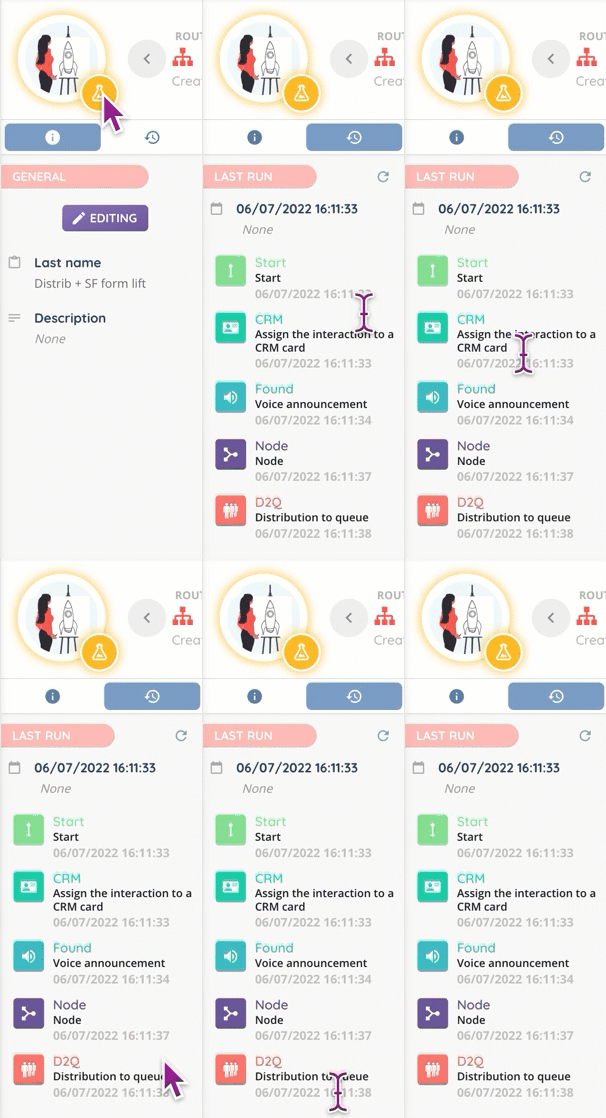
- Voice announcements can be generated from the “Sounds” module or directly from the dedicated action.
Preview
Here is an example of a simple smart routing, with branches and links.

Here, you have:
- A welcome voice announcement.
- A second voice announcement with 3 possible choices, each sending the caller to a separate queue.
- The 3 above-mentioned queues.
- A deterrence voice announcement, to which all the lines refer thanks to the links.
Use case
My request: I need a simple Smart routing to direct my customers either to the switchboard or to the service department during my business days.
Step-by-step process:
- Open the Maker, and go to the “Routing” module, then the “Voice” submodule.
- Create your voice Smart routing, and open it. You will see the default action, “Start”. Right click on it and add your opening hours’ calendar.
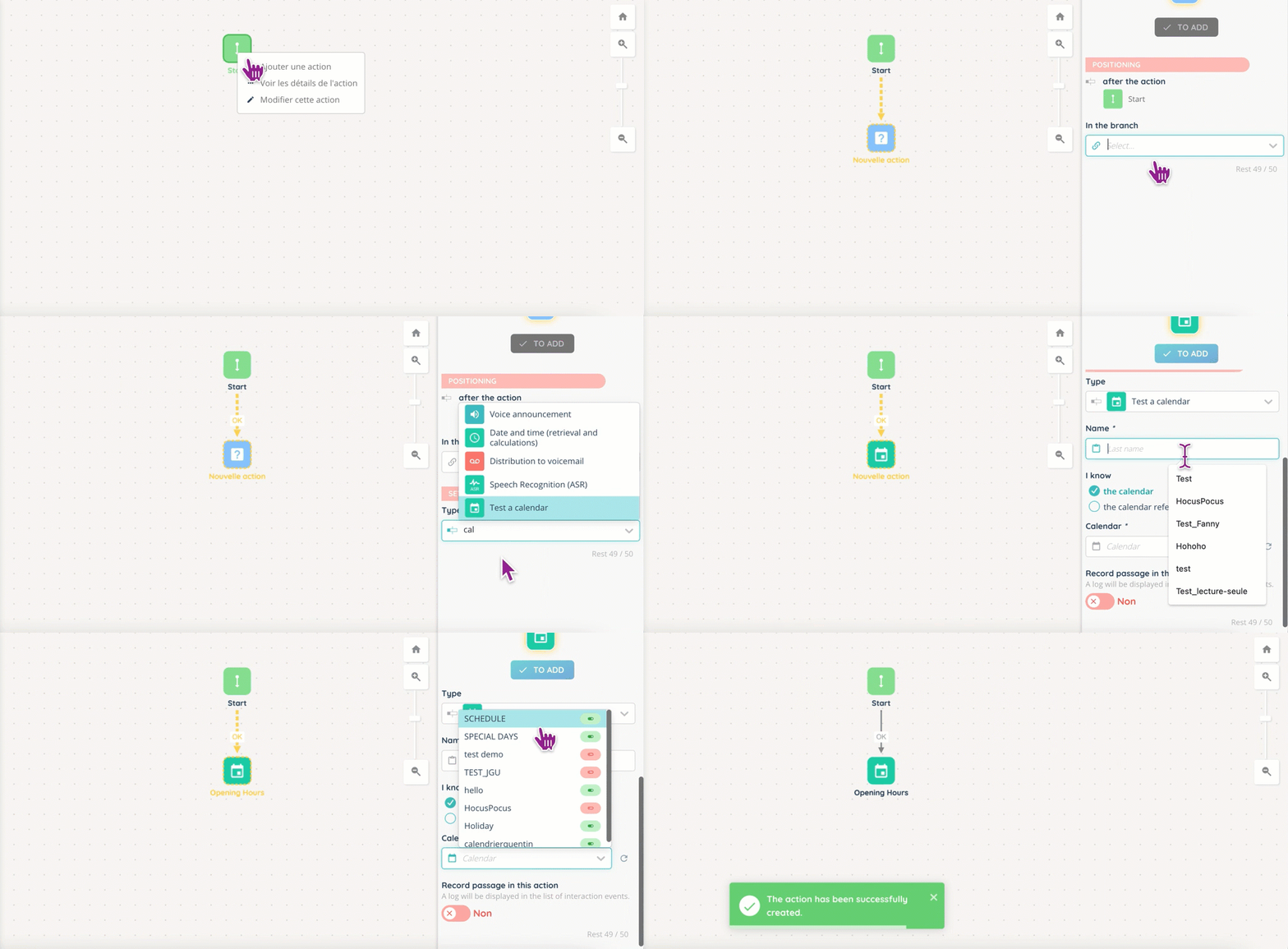
- Right click on your calendar, then add a vocal annoucement in the “Open” branch.
- Choose your voice and text, or your sound file if you have one. Here you invite your caller to choose between the switchboard and a service if he calls during business hours: there will be two branches following this action (for example, key 1 and key 2).
- Right click on the calendar and add the voice announcement for the closing days and hours.

- Now you will create the two paths for the opening hours: the distribution to a queue, and to a user.
- Create a “Distribution to queue” action for the branch of your choice.
- The a “Distribution to number” for another branch.
- And the last action: a voice announcement in case of heavy traffic, to incite the caller to try again later.
- Once you’re done, it should look like this:

- Now we’ll link the deterrent voice announcement to the “Distribution to number” action so we don’t have to recreate it.
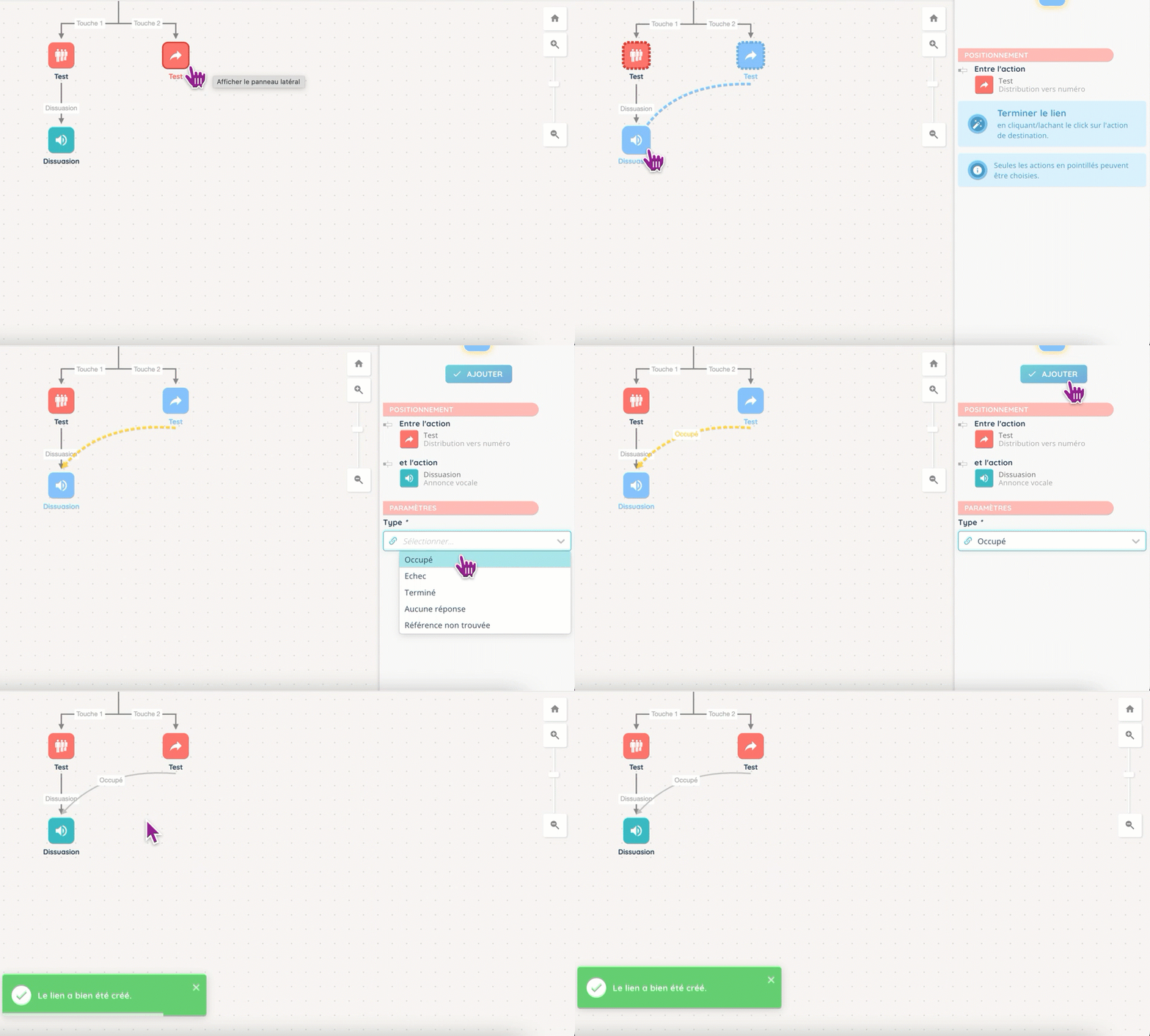
- ⚠️ The linked action will not be the same depending on whether you go from the distribution to the voice announcement, and vice versa ⚠️!
Frequently asked questions
- Can I schedule a smart routing into production?
- Yes, in the status page!