
Overview
Evaluation grids are used in combination with recordings (automatic or manual), and allow a Supervisor to judge an agent’s performance during a call. In this article we will see how to create them, add them to the profile, and then use them in the Banner.
Prerequisites
- None.
Configuring
Creation
The evaluation grids are created in the Maker, in the “Toolbox” module. Upon creation, you can add (and later, edit) a name and a description.
Category, section, question
Each evaluation grid follows a well-defined hierarchy:
- Category: the first level, which must be general. For example: the agent’s politeness.
- Section: to group the questions in more detail. For example: in politeness, you can dedicate a section to the rhythm of the call. Does the agent let the customer speak? Does the agent keep the conversation going?
- Questions: for all your questions. Each of them has its own coefficient and rating scale.
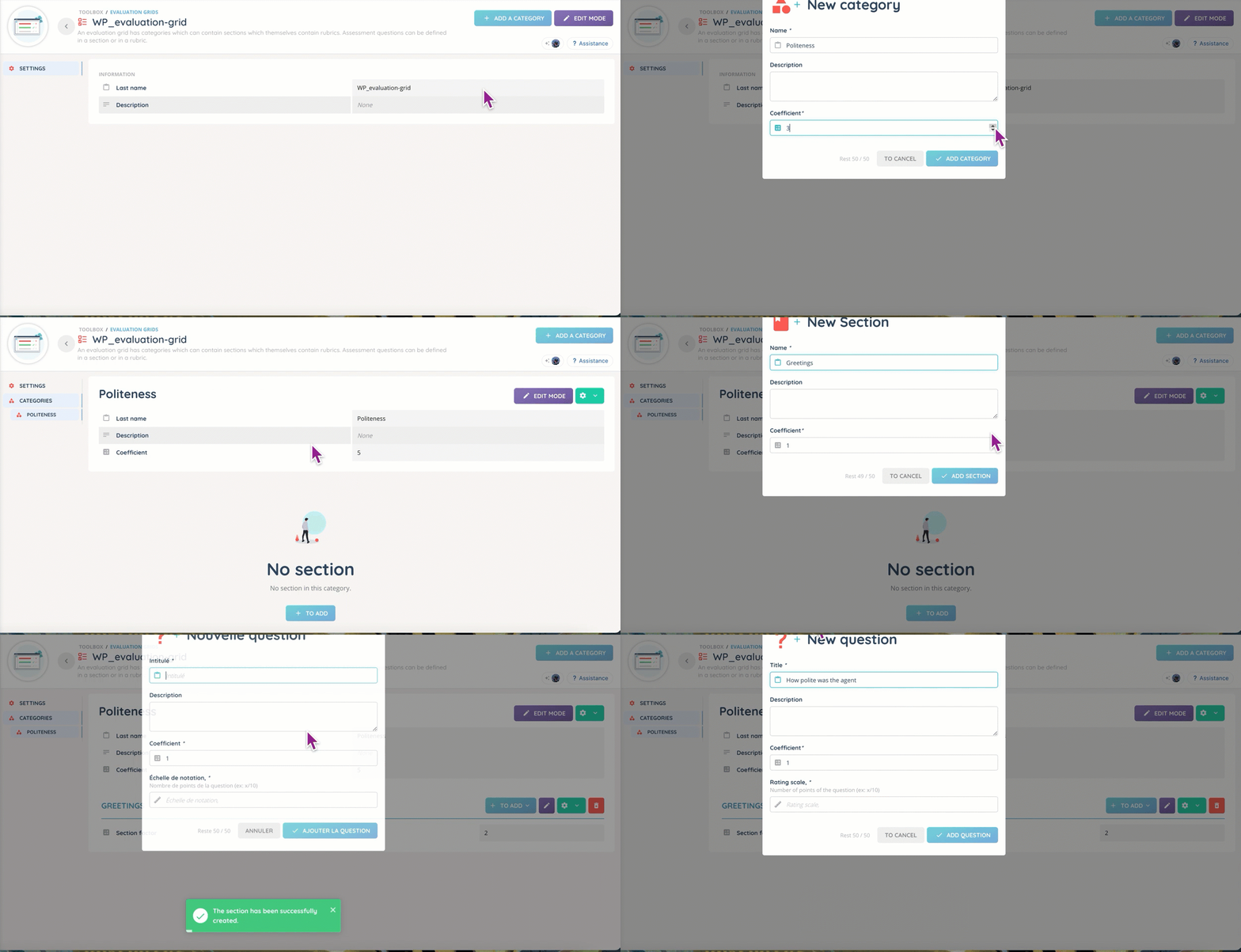
The coefficient determines the importance of the question, section or category in the overall evaluation.
The rating scale allows you to determine on how many points the answer will be scored: /2 for binary questions ? /5 ? /10 ? The choice is yours.
Profile integration
In order to be used, the evaluation grids must be added to the profile. This is done in two steps. First, you must open your profile and set up the access rights.

Here is a breakdown of the different accesses:
- Access: allows you to see and open an evaluation in the Banner.
- Add: if you want to assess a recording, you will be able to select a grid.
- Edit: you will be able to complete an evaluation grid.
- Delete: allows you to delete evaluation grids, completed or not.
Then, you can add your evaluation grids to your active profile, in the “Configuration” section.

In the banner
WIP
Preview
This is what an evaluation grid will look like in the Maker.

And this is what you’ll see in the “Quality Management” module of the Banner.

Tips
WIP
Use case
My request: I want to create a simple evaluation grid for my supervisor.
Step-by-step process:
- Open the Maker.
- Go to “Toolbox”, then “Evaluation grids”.
- Create your grid, with a name and (optional) a description.
- Open it.
- Add your categories, sections and questions.
- Once you’re done, go to the profile your Supervisor will use.
- In the first tab, set up the accesses accordingly: add, edit, delete.
- In the second tab, add your newly created grid.
- Open the Banner and check if it appears with the updated profile.
- Everything is set up, congratulations 🎉!
Frequently asked questions
WIP
Related contents
- Quality Management
- Recordings