

[Reading time: 3 minutes]
Overview
Entity groups allow you to create and organize collections of voice campaigns, queues, or users. These groups can include individual entities or a single level of subgroups. They help structure your data for reporting, KPI calculations, and table displays in the advanced display mode.

1. Entity groups list
When accessing the Entity groups module, you will see a list of existing groups. The table displays the following columns:
- Name – the name of the entity group
- Reference – a unique identifier
- Entity group type – either Voice campaign, Queue, or User
- Actions – buttons at the end of each row:
- Arrow – open the group
- Cog/wheel – view the history of changes and dependencies
- Pencil – edit the group
- Trash – delete the group
A search bar at the top allows you to find groups by name.
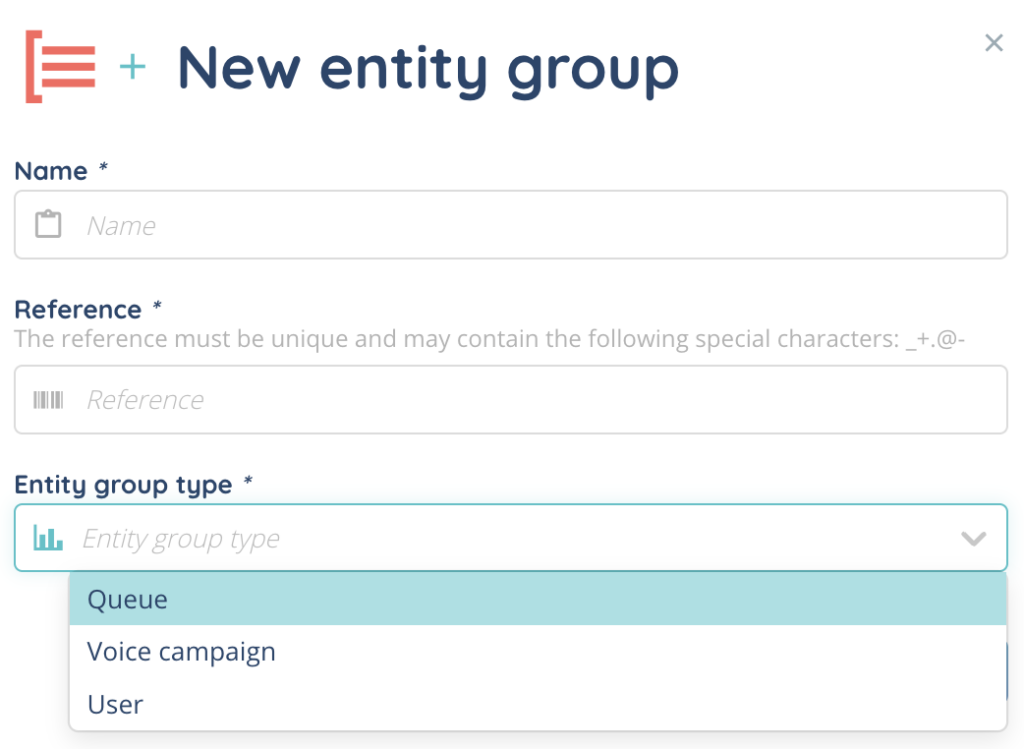
To create a new entity group, click the Create button at the top right. You will need to:
- Enter a Name
- Enter a Reference
- Select the Entity group type
2. Managing entity groups
After opening a group, you can add entities or subgroups depending on the selected Entity group type:
- Voice campaign – add individual voice campaigns or a subgroup containing voice campaigns
- Queue – add individual queues or a subgroup containing queues
- User – add individual users or a subgroup containing users
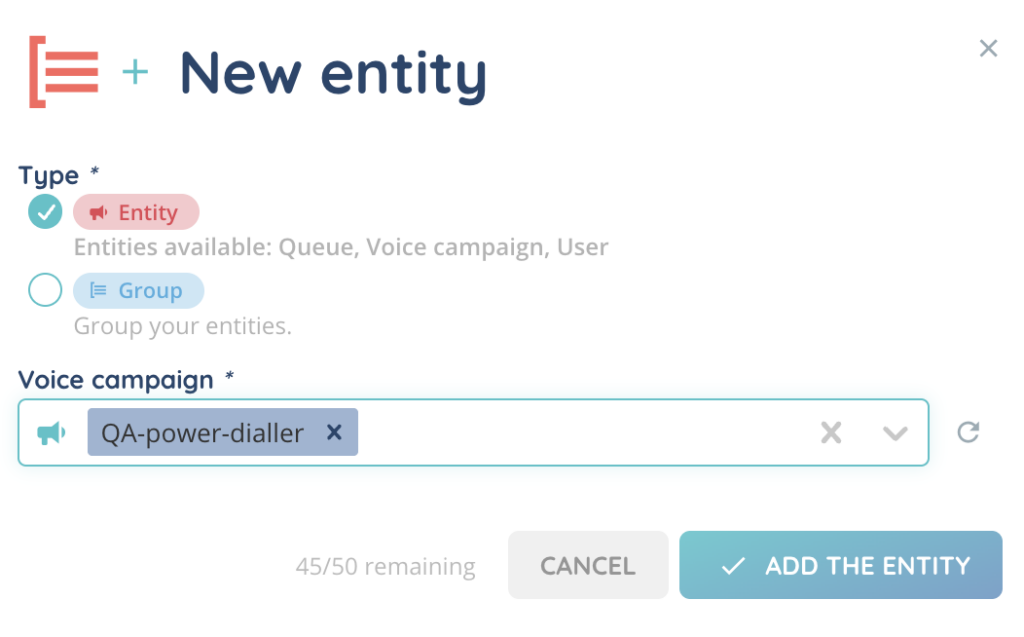
For each entity added to the group, three buttons appear:
- History – view modification history
- Edit – modify the entity
- Delete – remove the entity
For subgroups, the same buttons are available, and you can add entities inside the subgroup using the + button.

Subgroups can be expanded to view the entities they contain. Entities and subgroups can be dragged and dropped to change their order.
3. Using entity groups in KPIs (Table / advanced display mode)
Entity groups can be assigned to table KPIs in advanced display mode to structure and aggregate data:
- Fixed row structure – the table follows the order defined in the entity group
- Subtotals – automatically calculate totals for each group or subgroup
- Queues specific features – when a Queue entity group is assigned and the exploration is live, three columns are automatically color-coded:
- QS
- Waiting duration
- Number of waiting interactions
By combining entity groups with table KPIs, you can create structured reports with fixed rows, subtotals, and visual cues for key queue metrics.