[Reading time: 2 minutes]
Overview
If you need help to set it up first, please consult this article : Directory – Set it up.
Now that your directory has been set up, your advisors will be able to use it in the Banner.

Please remember that you will need access rights to use it, as explained in the “Set it up” article.
Find it in the Banner
To use the directory, log on to INO cx, on the Banner. Go to the small Banner, which is on the right-hand side of your screen by default (certain settings can change the display).
Click on the small icon at the bottom of the small Banner:
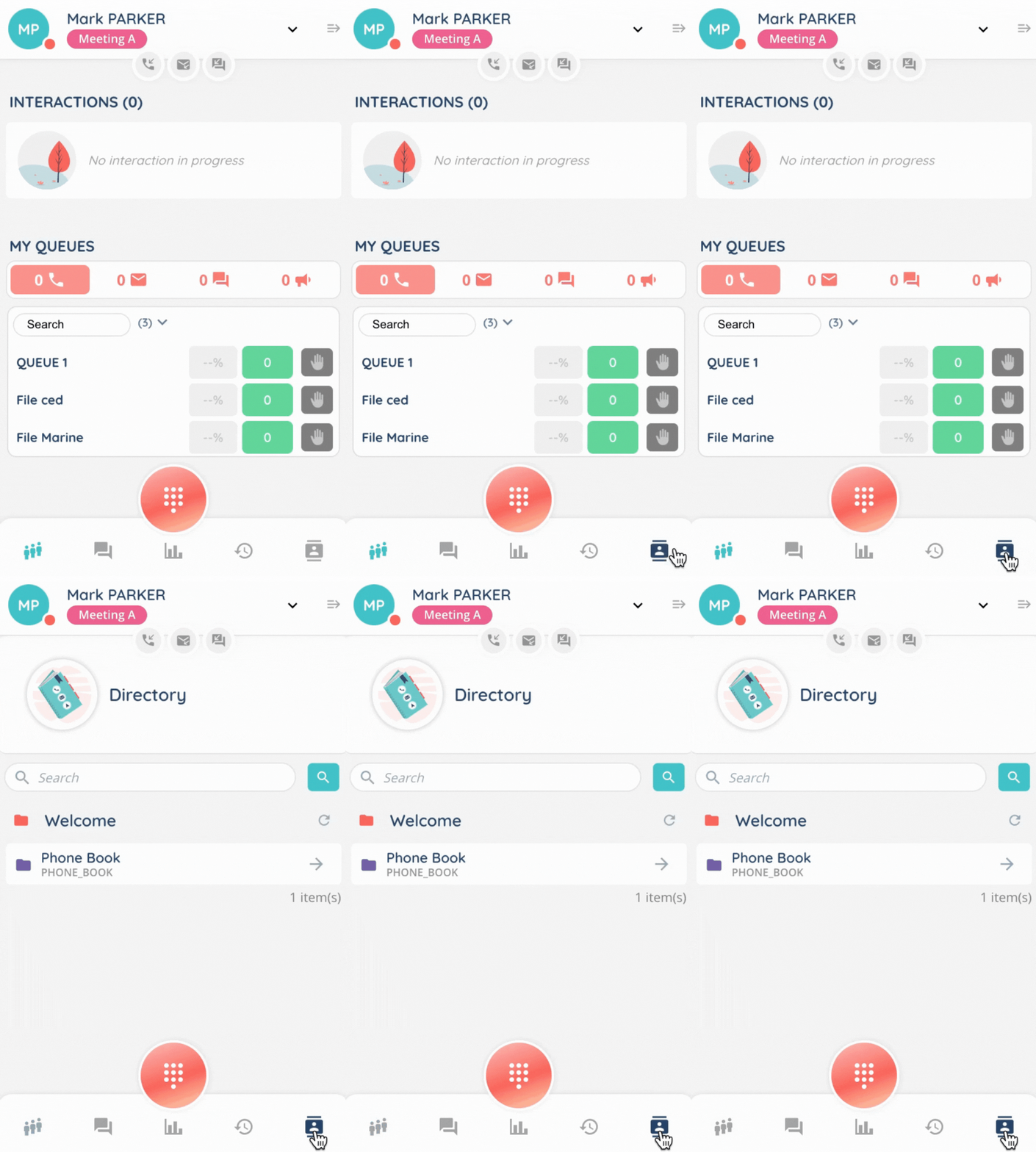
The directory is compartmentalized: depending on your active profile, the folders and contacts displayed in the directory will not be the same.
Interact with a contact
You can use the search bar to find a contact.
When you open a folder, you’ll also be able to access the contact list.
If a contact’s details have been entered in the Maker, you will immediately be taken to a call button, text message button, email button, or to the arrow that takes you to more detailed information.
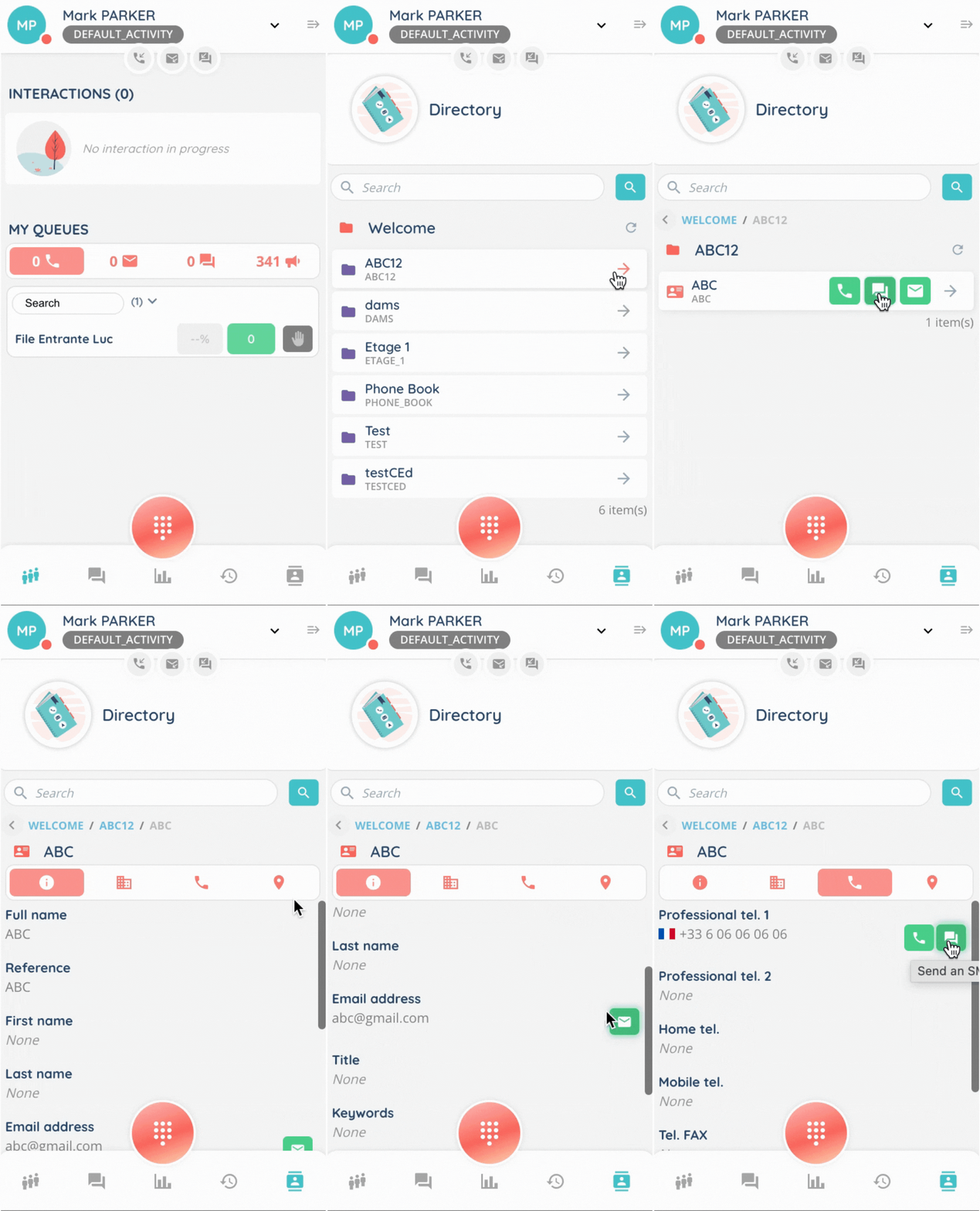
Note: if the advisor does not have the required rights, this button will not appear. For example, if the agent does not have the right to send emails, the email button will not appear in the directory contact.
Direct or smart interactions
- Voice
When you make a new call, you can choose between direct call or smart.
For a direct call, you can choose to make it anonymous by clicking the Yes/No button.
The BIS button lets you make the same call as before.
For a smart call, you need to choose your outgoing queue. The BIS button is also displayed.
- Text message
When you write a new SMS, you can choose between direct routing or smart.
For a smart SMS, you need to choose your outgoing queue.
When you send an email, the routing will automatically be smart. Choose the queue for this interaction.
Transfer interaction to a directory contact
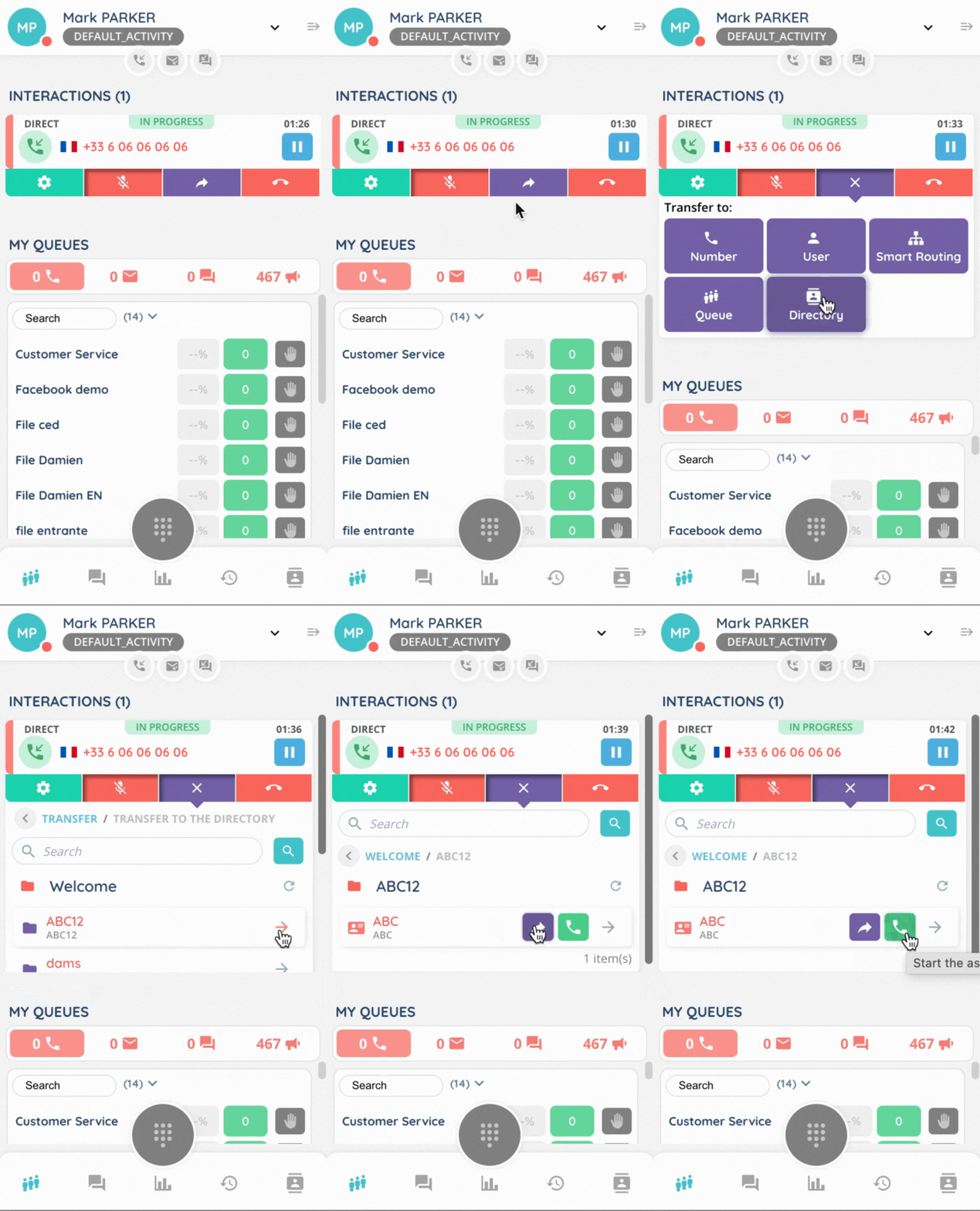
You can also use the directory to transfer direct or smart interaction.
In the case of a call, you can choose between ‘transfer and hang up’ and ‘start the assisted transfer’.
An assisted transfer allows an advisor to transfer a call while staying briefly on the line to ease the transition. The initial agent provides the receiving agent with call details, introduces the customer, and then exits once the transfer is smoothly completed. This ensures a seamless handoff and prevents the customer from repeating information.