
Overview
Data sources are the first module of the Reporter, and allow you to begin analyzing your available data, as well as to create Explorations, KPIs, Planned Reports, etc.
We will see here what are the features of the data sources and how to create new ones. For details of each data source, please consult each dedicated article.
Data sources types
There are two types of data source: system and custom.
System
System data sources are statistics collected automatically by INO on everything, and the name and description cannot be changed.
They are present by default when the Reporter is opened. They are related to the flows’ interactions and distributions (direct and Smart), campaigns (voice and SMS), and agents’ activities/interactions.
Custom
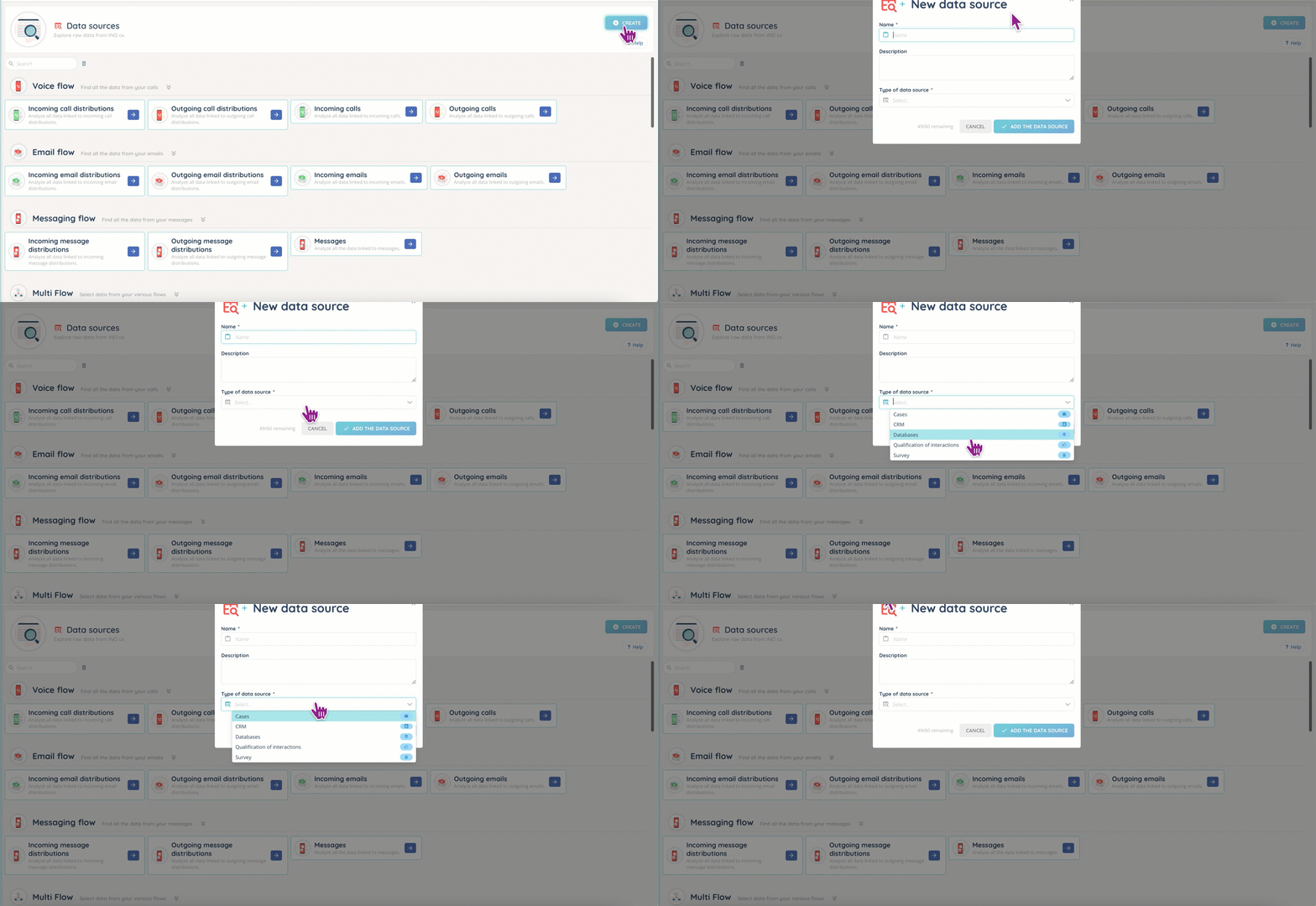
These data sources can be created to obtain statistics on a single entity: a database, a survey, etc.
Here is what you can create:
- Cases.
- Databases.
- CRM.
- Qualifications.
- Surveys.
Please also note that queue data is only available in “Distribution” type data sources: distribution of incoming/outgoing calls for example. To obtain all the distribution data for all flows, use the “Distributions” data source, which can also be used to gauge agent performance.
Conversely, the “Interactions” data source allows you to evaluate omnichannel interactions from the customer’s point of view: waiting, transfer, etc.

Only your added data sources can be edited (name and description).
Save
Once you open a data source, you can add columns to the table or filters. Please note that you cannot go back more than three months with the calendar panel.
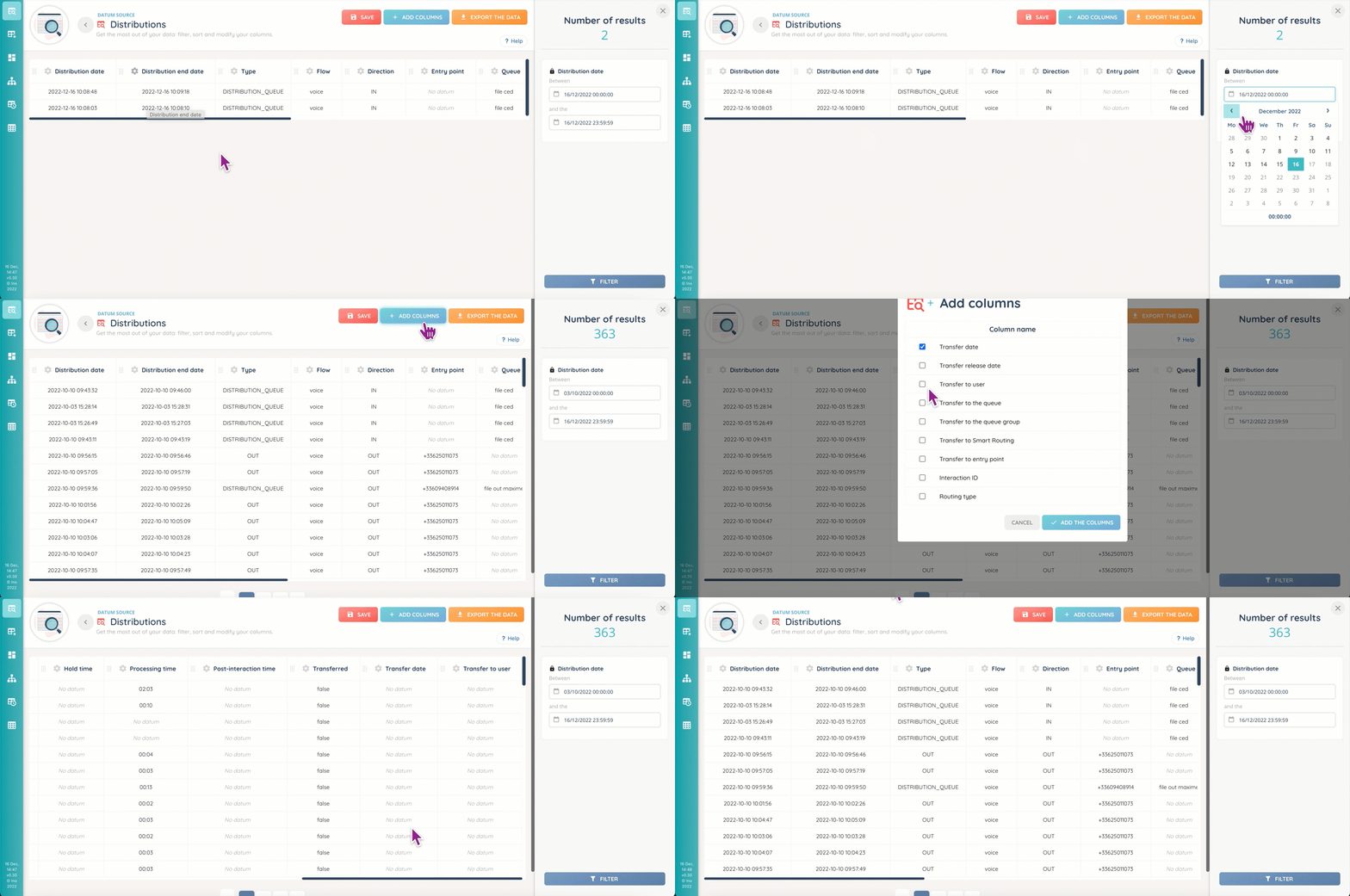
Once you’re done, you can hit the “Save” button, which will then create an Exploration to exploit your data further (see the dedicated article).
Upon creation, you will have the choice to add one or multiple users who will be able to access the Exploration, in read-only mode by default.

Explorations can be created here, or in the eponymous module.
Export
After adding columns and filters, you can export the data in .CSV format, and download them in the dedicated tab. Please be aware that exporting is a process that may take some time.
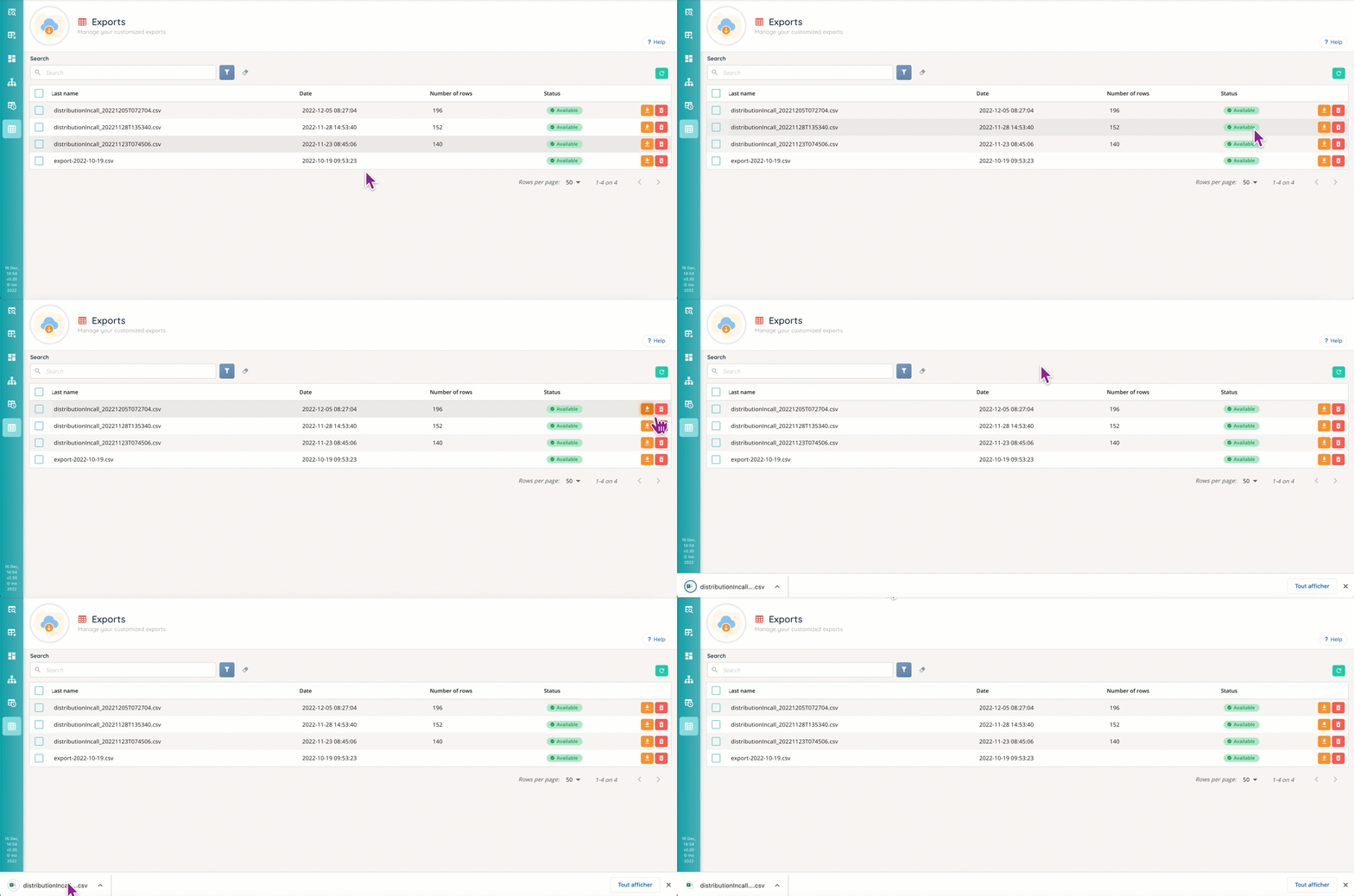
You can follow the progress of your current export and find all your other exports in the dedicated module.
Data sources details
Here we’ll take a look at each of the available data sources (default and custom). For a complete list of columns, please consult the “data sources” articles.
Voice
- Incoming/outgoing call distributions: for Smart calls, with queues, transfers, etc.
- Incoming/outgoing calls: for general data on calls: Smart routing, waiting time, etc.
Email flow
- Incoming/outgoing email distributions: the emails’ life, agent-side: supervision, transfer, etc.
- Incoming/outgoing emails: data surrounding the emails.
Messaging
- Incoming/outgoing email distributions: the messages’ life, agent-side: transfers, queues, etc.
- Incoming/outgoing emails: data surrounding the messages: country, checkpoints, etc.
Multi FLow
- Distribution: every interaction’s life, agent-side (and supervisor-side).
- Interaction: every interaction’s life, customer-side.
Agents
- Activities: active profile, time spent in interactions, etc.
- Users’ interactions: treatment duration, post-interaction, etc.
- User interaction presentations: everything done by the agent when an interaction is presented.
Campaigns
- Available data for your (and/or your agents’) campaign(s).
Databases
- Available data for your (and/or your agents’) database(s).
Cases
- Available data for your (and/or your agents’) Banner cases.
CRM
- Available data for your CRM(s).
Qualifications
- Your/your agents’ qualification(s) data.
Payments
- Invoices: for every payment/bill made with the Banner.
Routing
- Smart routing journey: the customer’s smart routing path: actions, junctions, etc.
Tips
- Applied column additions and filters will be reset if you log out of INO.
Frequently asked questions
- Which right should be unchecked in the Maker roles to prevent the creation of an exploration from a data source?
- The “creation” right, since the “Save” button allows you to create an exploration from a data source!