
Overview
INO’s CRM sheets make it possible for you to identify, classify and find contacts: if someone calls you regularly, their associated sheet will appear during every interaction.
Moreover, it is possible to link INO to a external CRM tool such as SalesForce.
Prerequisites
None: templates and fields can be created directly in the CRM module.
Configuring
Types
When you create a new CRM in the Maker, you are asked to assign it a type: INO or integration. This choice is final.
- INO: for use within the INO environment, without a connector to another platform.
- Integration: for data to be stored in another dedicated tool such as Salesforce.
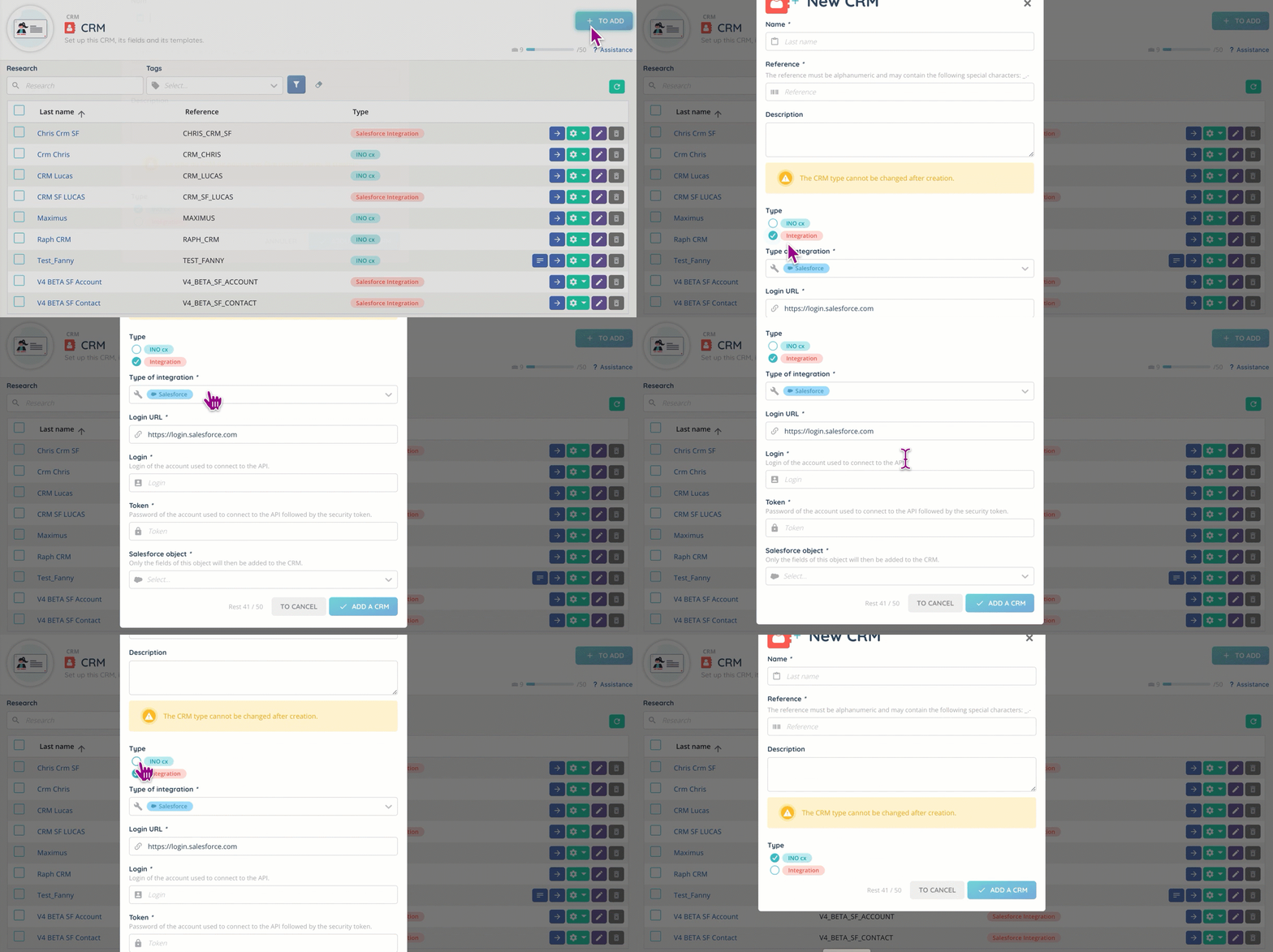
Note: the setup and operation of the Salesforce connector is covered in a separate article.
Fields and template
Once the CRM is created, you can create and/or add the templates (full page or widgets) and custom any fields you want. For integrations, the fields will be those of the tool linked to INO.
Banner and access rights
As with the knowledge base, directories and cases, access to CRMs is granted or revoked in the “Configuration” tab of the profile. The display in the Banner will change according to the CRM(s) linked to each profile: it is entirely possible to have multiple CRMs for different types of customers and needs.

As for the Banner, it allows you to present an interlocutor ‘s CRM sheet during the action, or to assign one to an interaction in the same way as a case.
It is also possible to insert a CRM into a voice or SMS campaign.
Tips
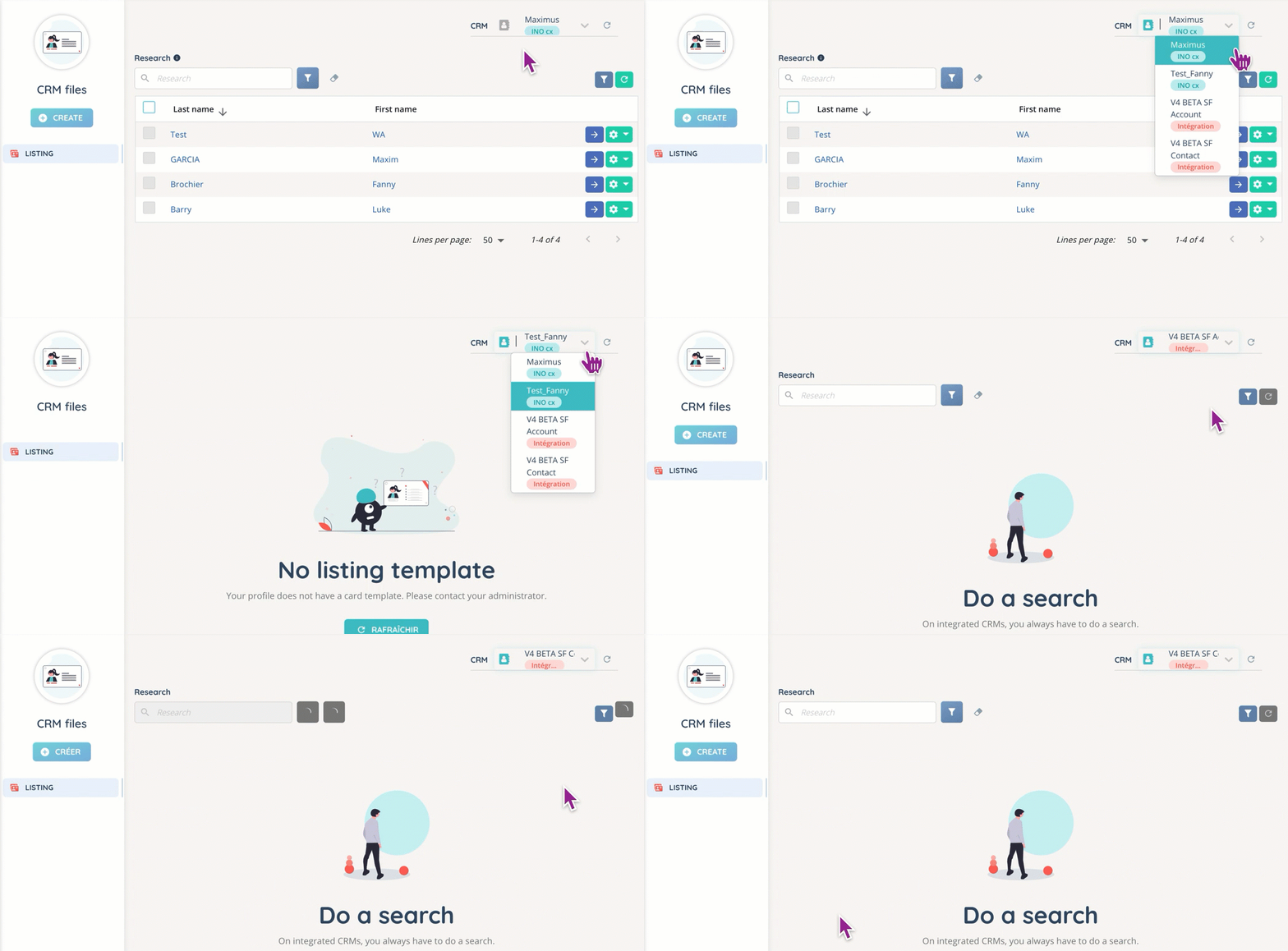
You can change your current CRM at will in the dedicated module of the Banner.
Preview
This is how a CRM sheet may look in the Banner module (depending on the fields), and the available options.

Use case
Issue: I have two types of customers: tradesmen and a supermarket chain. I need to partition the CRM related to these two very different sectors.
Step-by-step process:
- Open the Maker.
- Go to “CRM”.
- Create a new CRM, with the “INO” type.
- Open it.
- Go to the “Templates” tab, then create a widget and/or a full page template (we advise to do both).
- Go to the “Fields” tab and add as many fields as you need.
- Make sure the profile has the CRM rights in it.
- Agents are now able to use two CRMs for your
Frequently asked questions
Related contents
- Cases: how to use them
- How to create an SMS campaign
- Voice campaigns
- Sheet templates