

[Reading time: 2 minutes]
Overview
The Conversations tab lets you communicate directly with colleagues or in groups.

It centralizes internal messaging, calls, and video conferences within the small Banner.
1. Accessing conversations
To use the Conversations tab, you must have Access to conversations set to Yes in your profile settings. Once enabled, the tab becomes available in the small Banner.

2. Main display
The Conversations tab displays two sections:
- Direct conversations: one-to-one exchanges with a colleague (up to 20 conversations).
- Group conversations: discussions involving three to fifteen people (up to 20 conversations).
Each conversation shows the participants, and a status indicator for direct conversations’ user:
- Green: online
- Yellow: away
- Red: busy
- Grey: offline
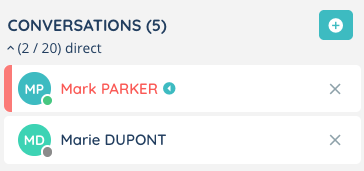
Additional indicators appear depending on the state of the conversation:
- A mute icon if the conversation is muted.
- A red badge showing the number of unread messages both next to the conversation and on the Conversations tab icon in the Banner.
3. Actions in a conversation
Inside a conversation, you can perform the following actions:
- Send and edit/delete messages: you may edit or delete your own messages within 5 minutes after sending.
- Save messages: messages can be saved for later.
- React with emojis: quickly respond using emoji reactions.
- Reply to a message: quote a message in your response.
- Mute or unmute the conversation.
- Rename a group conversation.
- Leave a group conversation.
- Add participants: include new members in an ongoing group or restart a past conversation.
At the top right of a conversation, several buttons are available:
- Start a video call.
- Mute the conversation.
- Add a participant.
- Start a voice call.
- Open saved messages, and for group conversations, leave or rename the conversation.
4. Creating conversations
New conversations can only be created from the Conversations tab in the small banner. You can start:
- Direct conversations with colleagues from your own team or from a public team.
- Group conversations including members from your team or any public team.
When adding someone to a group, you can choose between:
- Resuming the conversation: restoring its title and full history.
- Starting a new conversation: beginning fresh with the selected participants.
5. Conversation management
Conversations can be closed at any time. Closing does not delete the conversation history:
- If you delete a conversation from your list, it disappears locally but reappears if you write to the same person again.
- Other participants always keep the conversation history.