

[Reading time: 3 minutes]
Overview
Single Sign-On (SSO) is a mechanism that allows a user to log in once and access multiple applications without having to re-enter their credentials each time.
Example: If you log in once with your Google account, you can access Gmail, YouTube, and Google Drive without logging in again.
Benefits:
- No need to remember multiple passwords
- Saves time
- Reduces the risk of password theft
Configuring SSO on INO cx
Prerequisites
- The username must be in email format and match the one defined in your SSO Provider (Google, Azure, Okta, etc.).
Step 1: Creating an SSO connector
- In the Maker module, click on SSO connectors module.
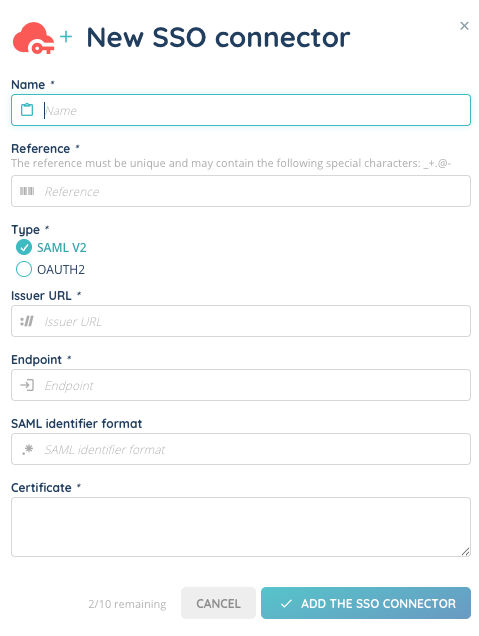
- Create an SSO plugin by filling in the following parameters:
- Name: Give a name to your connector.
- Reference: A unique identifier for the connector. Allowed special characters are _ . + – @
- Type:
- SAML v2 is a standard authentication protocol that allows exchanging information between an identity provider (IdP) and an application.
- OAUTH 2 is an authorization framework that allows applications to obtain limited access to user accounts on an HTTP service, without sharing the user’s credentials. Instead, the application receives an access token from the identity provider.
- Note: SAML v2 is an authentication protocol mainly used in enterprise environments. It allows your agents to log in to INO cx using their corporate identity (e.g. via Azure AD, Okta, Google Workspace) without creating a separate password. OAuth2 is an authorization framework. It is typically used when INO cx needs to connect to external applications (e.g. Salesforce, Hubspot, Zoho CRM) and access data on behalf of the user, using an access token instead of a password.
- FOR SAML v2:
- Issuer URL: The identity provider (IdP) URL, identifying the entity sending SSO requests.
- Example:
https://accounts.google.com/o/saml2?idpid=XXXXXXXXX
- Example:
- Endpoint: The URL to which INO cx sends SSO requests to authenticate users.
- Example:
https://accounts.google.com/o/saml2/idp?idpid=XXXXXXXXX
- Example:
- SAML Identifier Format: A unique identifier sent to the IdP to validate the user.
- Certificate: A security certificate provided by the IdP to ensure secure communication.
- Expected format: A text starting with
-----BEGIN CERTIFICATE-----and ending with-----END CERTIFICATE-----.
- Expected format: A text starting with
- Certificate: A security certificate provided by the IdP to ensure secure communication.
- Identity (EntityID): https://{{domain}}.ino.cx/api/saml/metadata
- Reply URL (ACS): https://{{domain}}/.ino.cx/api/sso/login/callback
- Issuer URL: The identity provider (IdP) URL, identifying the entity sending SSO requests.
- FOR OAUTH 2:
- An authentication method must be chosen (e.g. Hubspot, Salesforce, Zoho CRM, Zendesk Support, etc.).
- Each connector will redirect to the external tool for authentication.
Mandatory fields are marked with an asterisk (*). All these parameters are provided by your Identity Provider (IdP). If you don’t know where to find them, check your IdP’s documentation or ask your IT team.
Step 2: Linking a user to an SSO connector
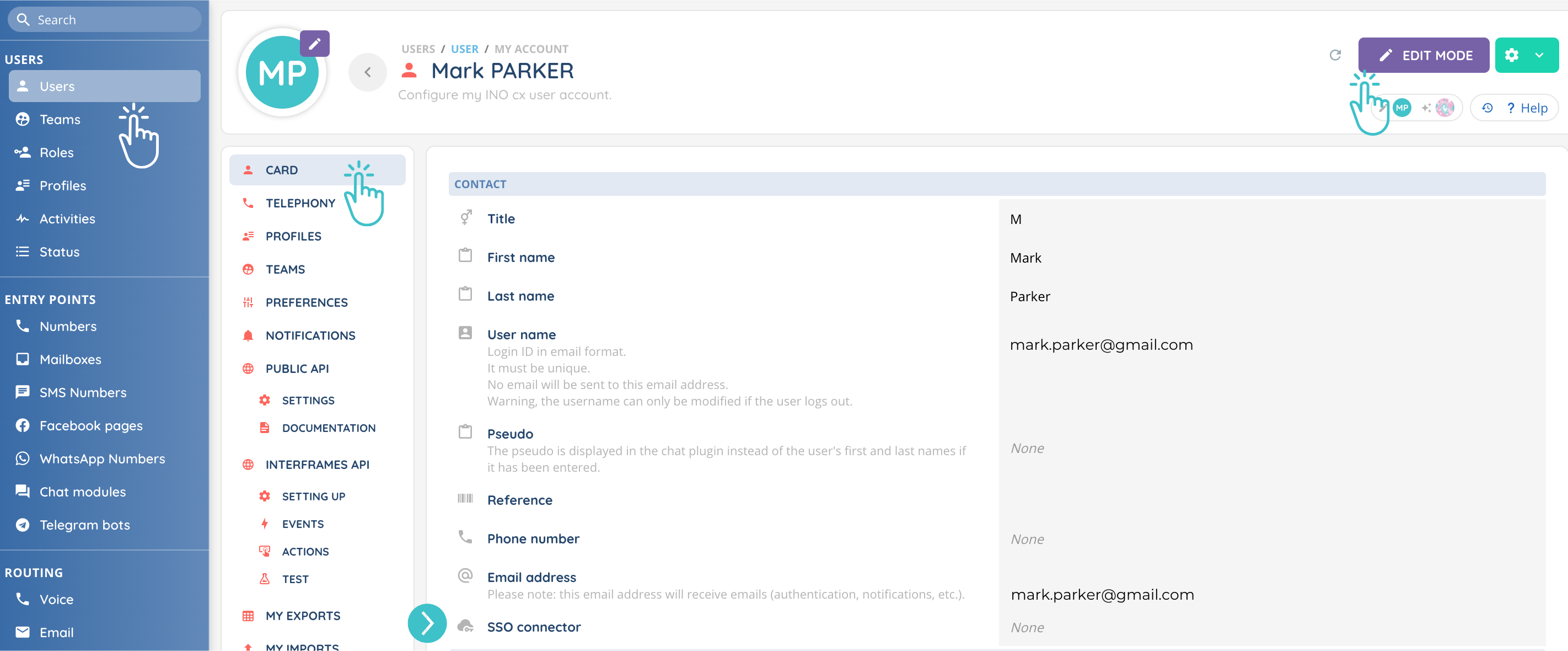
- In the Maker, go to the User module.
- Open the User card.
- In the SSO connectors tab, associate the user’s account with one or more SSO connectors.
Step 3: Generating the login URL
- Return to SSO connectors list.
- Click the cogged wheel next to the connector.
- Click “Copy the login address used on INO cx”.
- A new login URL is generated. Share this URL with users so they can log in via SSO.

Step 4: Managing SSO connectors
From the SSO connectors module, you can view and manage all existing connectors.
The list displays:
- Name
- Reference
- Type (SAML V2 / OAUTH2)
- Authentication method (for OAUTH2)
- Issuer URL (for SAML V2)
- Endpoint (for SAML V2)
- SAML identifier format (for SAML V2)
Identifier and Reply URL
Identifier (or Entity ID): What is the application?
The Identifier is a unique identity used to identify your application to the IdP. It ensures that the IdP is exchanging information with the correct application.
- Example:
https://yourclientdomain.com/api/saml/metadata(replace with your own domain).
Reply URL (or ACS URL, Assertion Consumer Service): Where to redirect the user after login?
The Reply URL is the address where the IdP redirects the user after a successful authentication. This is where the application retrieves and validates authentication information.
- Example:
https://yourclientdomain.com/api/sso/login/callback(replace with your own domain).
These two elements are essential for setting up a secure SSO with an Identity Provider!