

[Reading time: 3 minutes]
Overview
Voice campaigns allow advisors to manage and process outbound call campaigns directly from the Banner. From this interface, advisors can view pending targets, subscribe to voice campaigns, start outbound calls, and monitor campaign activity according to their permissions.

If you need help configuring voice campaigns, refer to the dedicated article.
1. Access voice campaigns in the Banner
In the Banner, voice campaigns are available in voice campaigns module, through the following tabs:
- Pending targets
- My voice campaigns
The Small Banner also provides a global overview of voice campaign activity.
2. Pending targets tab
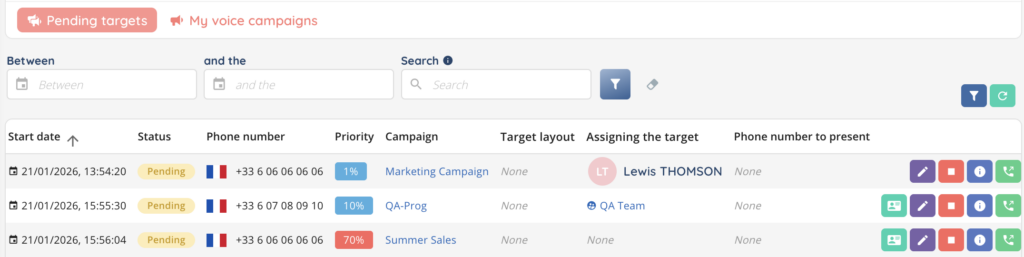
The Pending targets tab displays all targets with the status Pending for the voice campaigns included in the active profile.
Only targets from voice campaigns associated with the active profile are displayed.
2.1. Search and filters
The following filters are available:
- Date filter (3 rolling months)
- Campaign name
The Advanced search allows filtering by:
- Priority
- Target layout
2.2. Pending targets list
Each row corresponds to a pending target and contains the following columns:
- Start date
Date and time when the target entered the campaign. Format: DD/MM/YYYY HH:MM:SS. - Status
Displays Pending. - Phone number
Customer phone number to be called. - Priority
Priority percentage defined in the Maker. - Campaign
Voice campaign name. This field is clickable and redirects to the campaign configuration in the Maker. - Target layout
Layout associated with the target. - Assign the target
Assigned user or team. If the assignment is automatic, the value none is displayed. - Phone number to present
Phone number presented to the customer during the call. - Actions
The following actions are available:- CRM Card: opens the associated CRM card, if available
- Edit (pencil icon): edits the target
- Remove (red square icon): removes the target from the voice campaign
- Information (i icon): displays target details
- Call: starts the outbound call
3. My voice campaigns tab
The My voice campaigns tab lists all voice campaigns available in the active profile and allows agents to subscribe to them.
The following columns are displayed:
- Status
Campaign status: ON or OFF.
This value can be modified only if campaign activation has been authorized in the Maker. - Name
Voice campaign name. This field is clickable. - Reference
Campaign reference. - Alias
Campaign alias. - Mode
Dialing mode:- Progressive
- Power dialer
- Preview
- Subscribed
Subscription status:- Yes: the agent can receive calls from this campaign
- No: the agent will not receive calls from this campaign
4. Small Banner overview
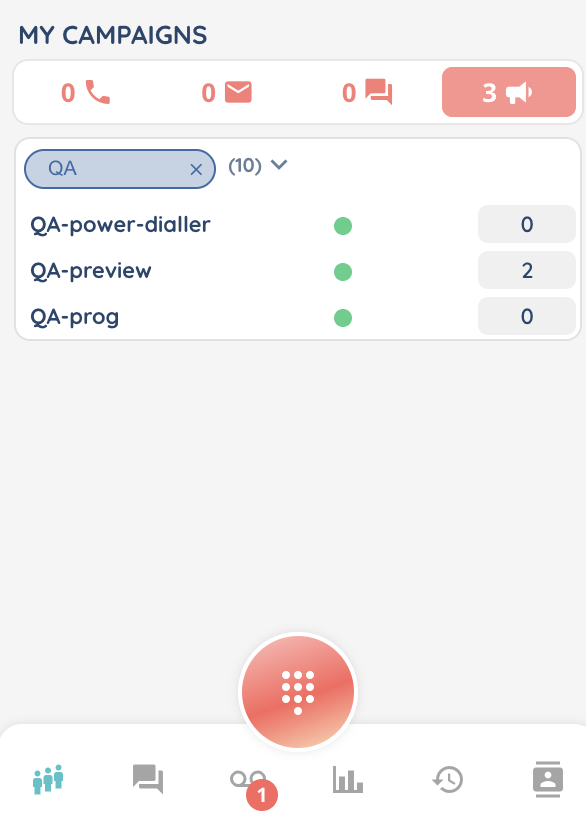
The Small Banner displays all voice campaigns added to the active profile.
For each campaign, it shows:
- The number of pending targets
- The campaign activation status (ON / OFF)
This view is read-only and provided for information purposes only.
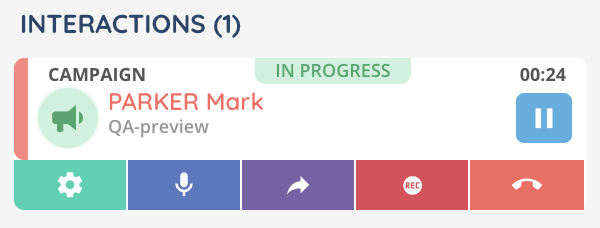
When a campaign call is emitted and accepted, the interaction is displayed at the top of the Small Banner.
5. Supervision campaigns tab
The Supervision campaigns tab provides a consolidated view of voice campaign activity.
It displays the following information:
- Activation date
- Session
- Number of targets in Waiting status
- Number of targets Ringing
- Number of targets Being processed
- Number of Processed targets
This tab also allows campaigns to be activated or deactivated, and use of discreet listening.
The Supervision campaigns tab is available only if the Supervision parameter is enabled for at least one voice campaign in the Maker.