
Overview
Bank contracts are the key to the use of payment modules in your interactions with your customers. In this article, we will see how to add them in the Maker and set them up.
Prerequisites
- To add a traditional bank account: the contract number and the AS (acceptance system) number. It is provided by your bank.
- For a Stripe account: the public key and the private key. You will find them in your customer account.
Configuring
Two types
The first thing to determine is what type of contract you use for payments: with your bank or Stripe?
Once you have made your choice, you will need to provide the necessary information in your contract or customer account.
Contract creation
The creation of the contract is simple: you will have to choose the type and enter the requested information.

Activation
Once the contract is created, an automatic check will be performed: if the data entered correspond to an existing bank or Stripe contract, the contract will become active.

Once the contract is active, you can use it in a payment module.
Tips
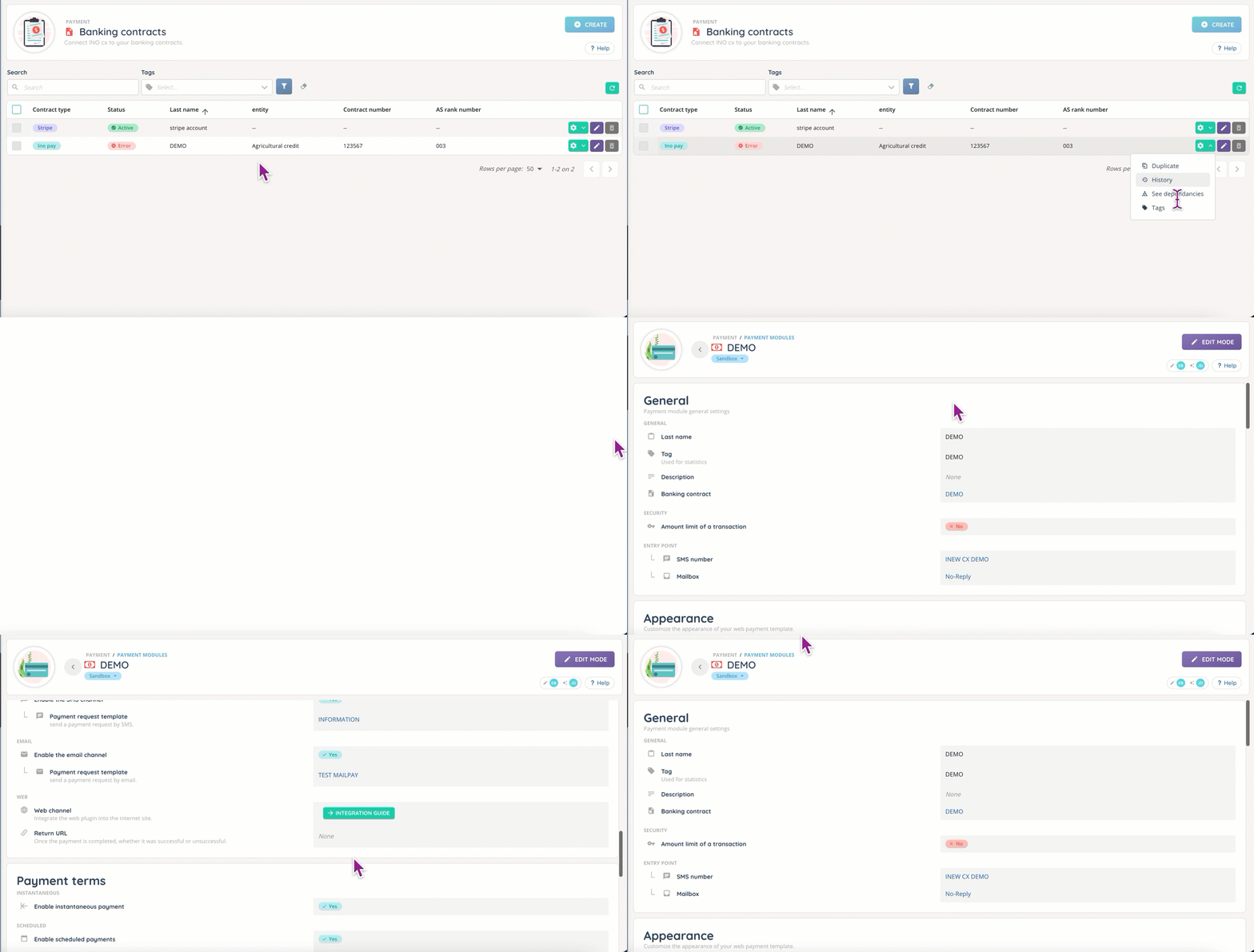
Don’t forget the “Settings” button: it allows you to consult the history of your contract, the tags and to duplicate your contract!

Preview
This is what a contract looks like when added to the Maker, and active. You can access the linked payment module with just one click!
Frequently asked questions
- Will there be alternatives to Stripe?
- This depends on your country and the evolution of the INO solution.
Related contents
- Payment modules