
[Reading time: 2 minutes]
Overview
If you are an administrator, you can add new users and integrate them into teams, manage their access rights to the Maker, the Reporter, and much more!
Prerequisites
To create or modify a user, you need to have the right to do it in your role. If you need more information about the role, please click here !

Configuring (Maker)
You can configure users by going to the Maker, Users module, Users sub-module.
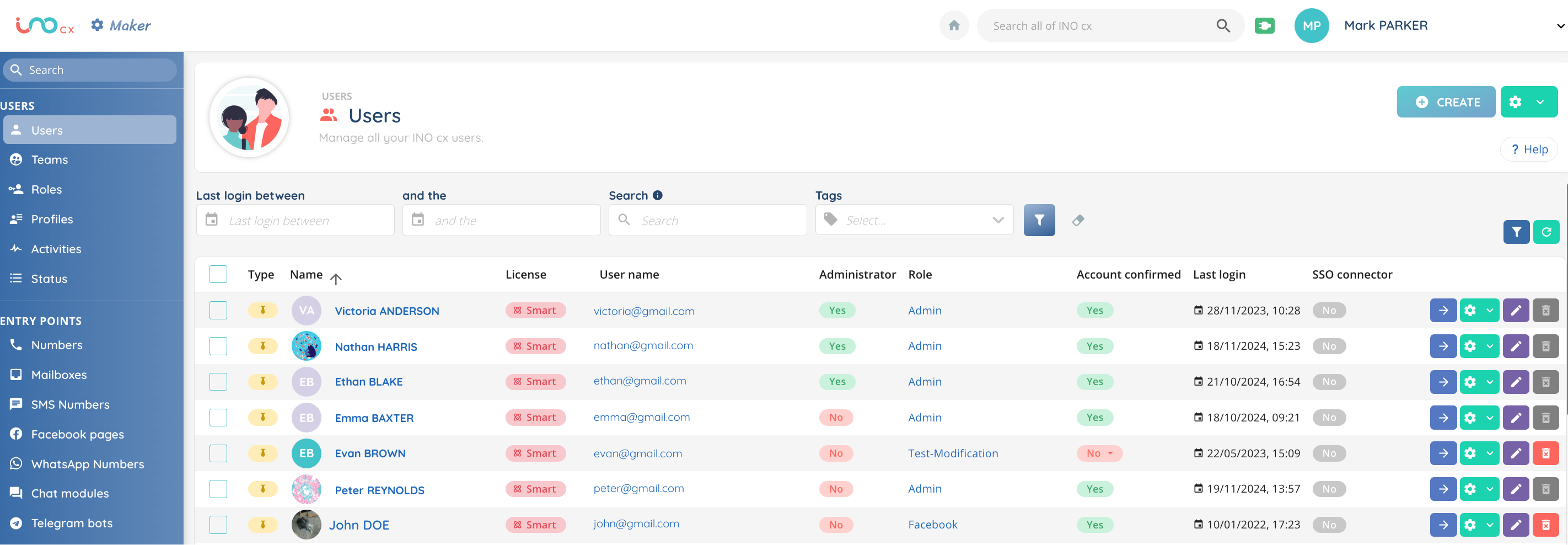
Here you’ll find a list of the users you manage.
You can search for a user using the search bar, using the login dates (between …/…/… and …/…/…). You can also filter by type (manager or employee) by clicking on the funnel on the right.
For each user, you can :
- open it with the arrow
- duplicate, view history, view dependencies, manage tags and reset password with the cogwheel
- modify it with the pencil
- delete it with the trash can
Create a user (Maker)
There are 2 ways to create a user: by importing a CSV file (with the cogwheel at top right) or by creating it manually (by clicking on create).

During manual creation, you will need to fill in several fields:
- Choice of license
- (For smart licence only) Type: manager (access to supervision) or collaborator.
- Title, name, login ID, phone number, email address
- SSO connector, to log in to multiple apps with just one set of credentials (like one username and password).
- Role (determines user rights (read, create, edit, etc.) and accesses to Maker and Reporter). A user can only have one role. – Article here
- Profile (allows accesses, skills and interactions in the Banner). A user can have several profiles and switch between them. The one you choose here will be assigned by default at login. Note: we recommend that you do NOT give all accesses by default. – Article here
- (For smart licence only) Flow access: voice, email, messaging.
Once the setting is complete, you new user(s) should only be able to access what they are authorised to.
Modify a user
If you use the pencil to modify the user, you can change the same information as when you created it (except for licence which cannot be modified). Type of user can only be modified by an administrator, when the user is logged out.
On the other hand, if you use the arrow to enter the user, you’ll be able to make more configurations.
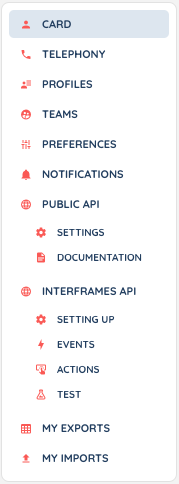
These user modifications are identical to those you can make for your own user in “my account settings”: profiles, teams, notifications… Please find the detailed article here if you need!
Now that the user has been created, he will be able to access INO applications (Maker, Banner & Supervision, Reporter), depending on the rights you have configured.