
[Reading time: 2 minutes]
Overview
The ‘Roles‘ module in the Maker allows configuration of rights of users in the Maker, the Reporter and in “My account”, such as creation, modification, deletion, export, import, etc.
If certain permissions are not associated with the role, some actions may not even be displayed for the user.
The list of everything the user can see or do in the Maker will depend on his role.
Note: if the user is super-admin and manager, his role is ignored in the Reporter and Maker.
Unlike profiles, a user can only have one role.
Prerequisites
To set up their role in the Maker, users must have a role that allows them to modify their own information ( Maker > Users > Roles > All apps > My account : modification ✅).
Note: if you have the right to modify all users (Maker > User > Roles > Maker > Users: modification ✅) you will be able to modify them regardless of the ‘my account’ settings.
Configuring (Maker)
The ‘Role’ sub-module can be found in the Maker’s ‘Users’ module.
You will find a list of previously created roles, if any. You can create up to 50 different roles.
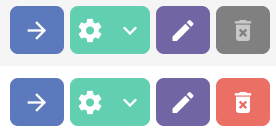
For each role, you can: open it (arrow), duplicate it, view its history, view its dependencies and tags (cogwheel), modify it (pencil), delete it (bin). If the bin is greyed out, you cannot modify a role that is in use by a user. Click on ‘view dependencies’ to find out where.
Each role has three tabs: Maker, Reporter and All apps, with specific rights that will match your needs.
The role interface looks like this:

You can access 3 buttons

- Edit mode: allows you to configure each module’s rights separately, which can come in handy for users who have limited needs for the Maker/Reporter.
- Options: for giving/revoking a particular right (e.g. creation) on all modules.
- Disallow the Maker (or disallow the Reporter) : the user won’t have any access to the Maker (or Reporter).
Note: creation, modification and deletion rights cannot be granted without reading.
When edit mode is activated, each module looks like this:
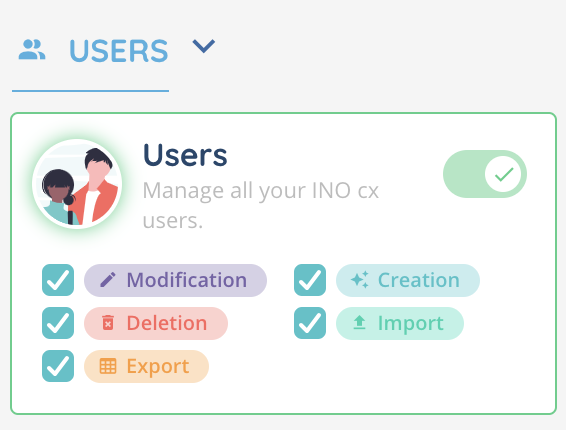
- Drop-down menu next to the module title: giving/revoking rights on all sub-modules.
- On/off button: access to the sub-module, the user is on read-only, if no checkboxes below are checked. If the button is off, the sub-module is greyed out in and disappears from the menu (disabled in the Maker, Reporter or My account).
- Checkboxes: check the rights you wish to give the user. You can check multiple boxes or none, depending on your needs.
Note: other rights of the Reporter are managed directly in the Reporter.
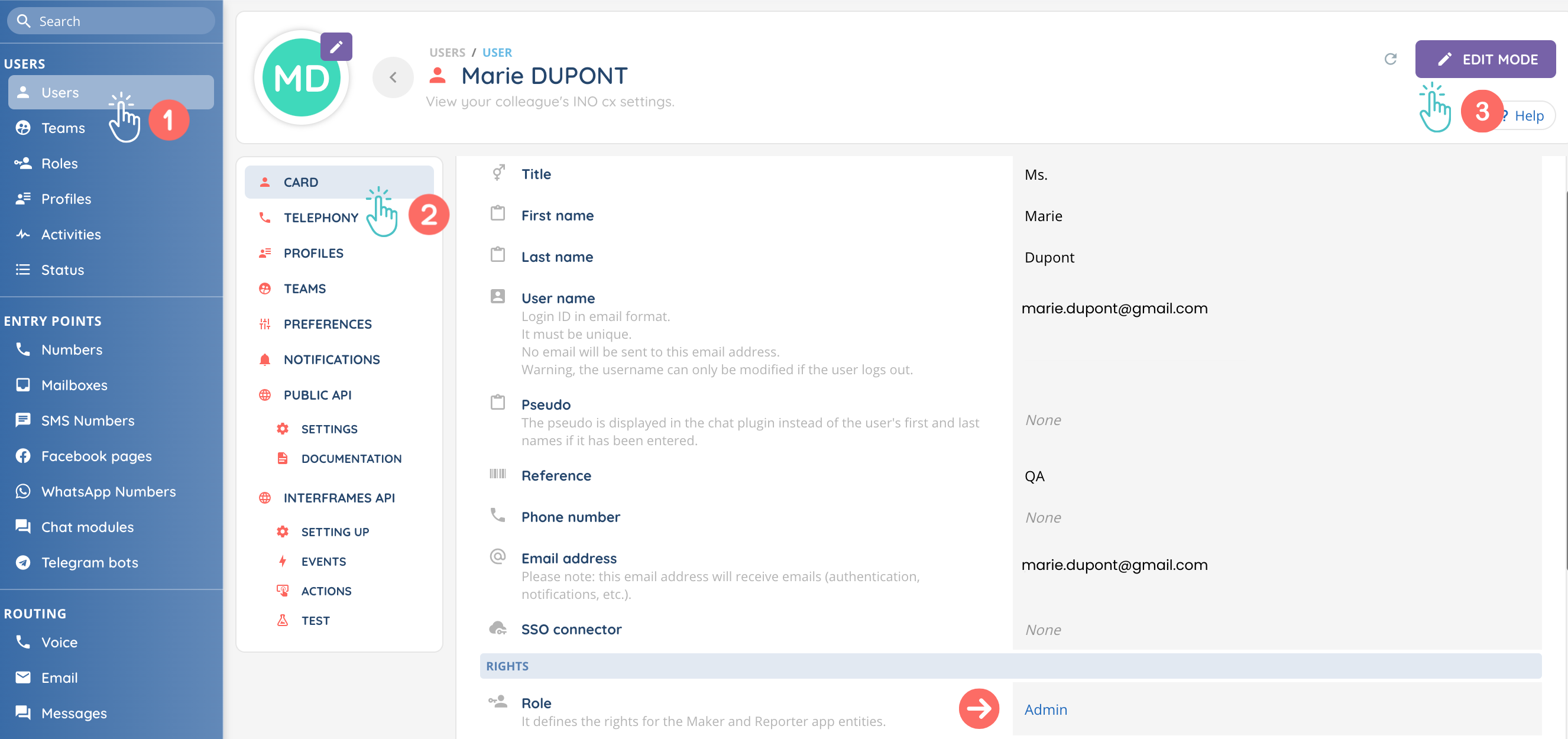
Give a role to a user (Maker)
You will need to select a role when creating a user.
You can always change the role later by going to the ‘Users’ sub-module.
Preview
Depending of the role’s parameters, the user will or will not be able to perform certain actions.
Case n°1: read-only

Case n°2: creation

Case n°3: creation+modification

Case n°4: creation+modification+deletion

Note: you can’t delete an element that is used elsewhere.