
[Reading time: 2 minutes]
Overview
Activities, profiles and statuses are the three main parameters of the Banner.
Activities determine the activation of channels (voice, messages, email) and campaign subscription/unsubscription.
If the agent has rights in their profile, they will be able to activate/deactivate channels themselves and manage their campaign subscriptions.

Note: activation of flows (voice, messaging, email) only concerns smart routing interactions.
Configuring (Maker)
Activities are created and managed in the Maker in the ‘Users’ module, ‘Activities’ sub-module, before being used in the Banner.
Setting up activity categories
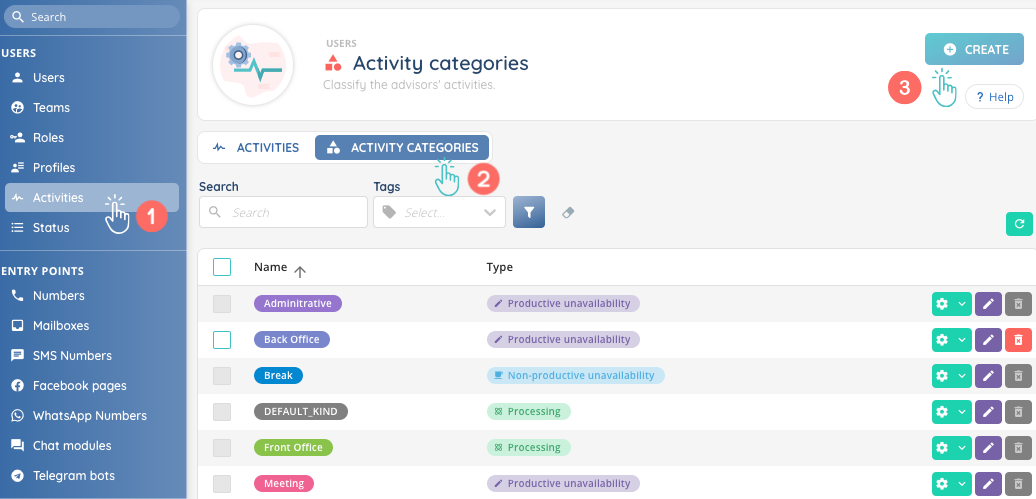
The first step is to create your activity categories. You can choose from 3 types:
- green: the agent is ready to take an interaction ➡️ ‘processing’.
- purple: the agent is working on something other than an interaction ➡️ ‘productive unavailability’
- blue: the agent is doing something other than working ➡️ ‘non-productive unavailability’
You can create several categories of the same type. E.g. for the ‘productive unavailability’ type, we can create a category for ‘in a meeting’, ‘administrative task’, etc.
Each category can be associated with a specific color.
You can edit and delete the categories you have created. If the bin is greyed out, the category is already being used by an activity. Click on the cogwheel to find out which activity is using it (‘see dependencies’).
Creating activities
Once the activity categories have been created, you can add activities. You will need to select the flows that are activated when switching to this activity, and the subscription or unsubscription to the campaigns of the active profile.
Note: only one activity can be active at a time.

GIVINg ACCESS
In the Maker, in the ‘Users’ module, ‘Profile’ sub-module, you can manage a profile’s access to the activities you want.
Enter the desired profile, click on the ‘Configuration’ tab, then ‘Activities’. Add the activities, then choose which activity will be activated by default at login.
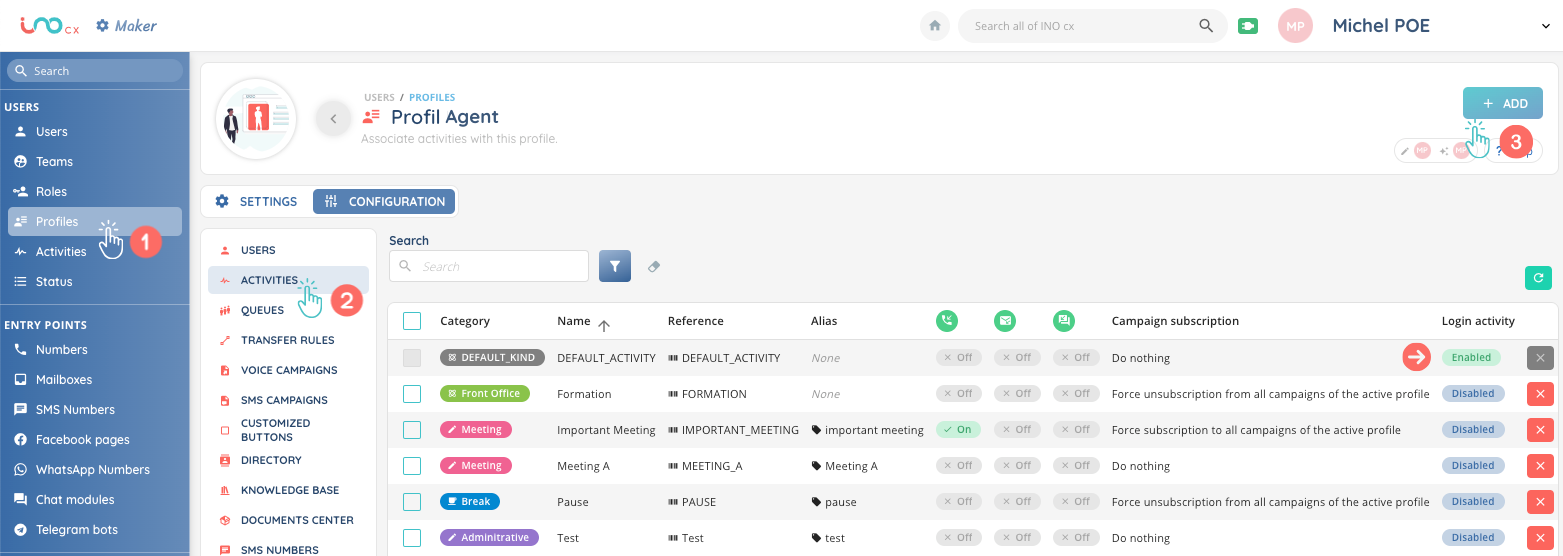
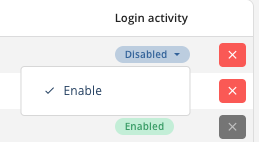
One activity is ‘default activity’ at login, and can be modified with the drop-down menu.
Note: if there is a conflict between the activity and the profile (example: voice+mail channel in the activity, mail only in the profile), the profile rights will be applied.
Using (Banner)
Once the activities have been configured and added to the profiles, they will appear in the Banner (depending on the active profile). Changing activities will activate/desactivate the corresponding flows.
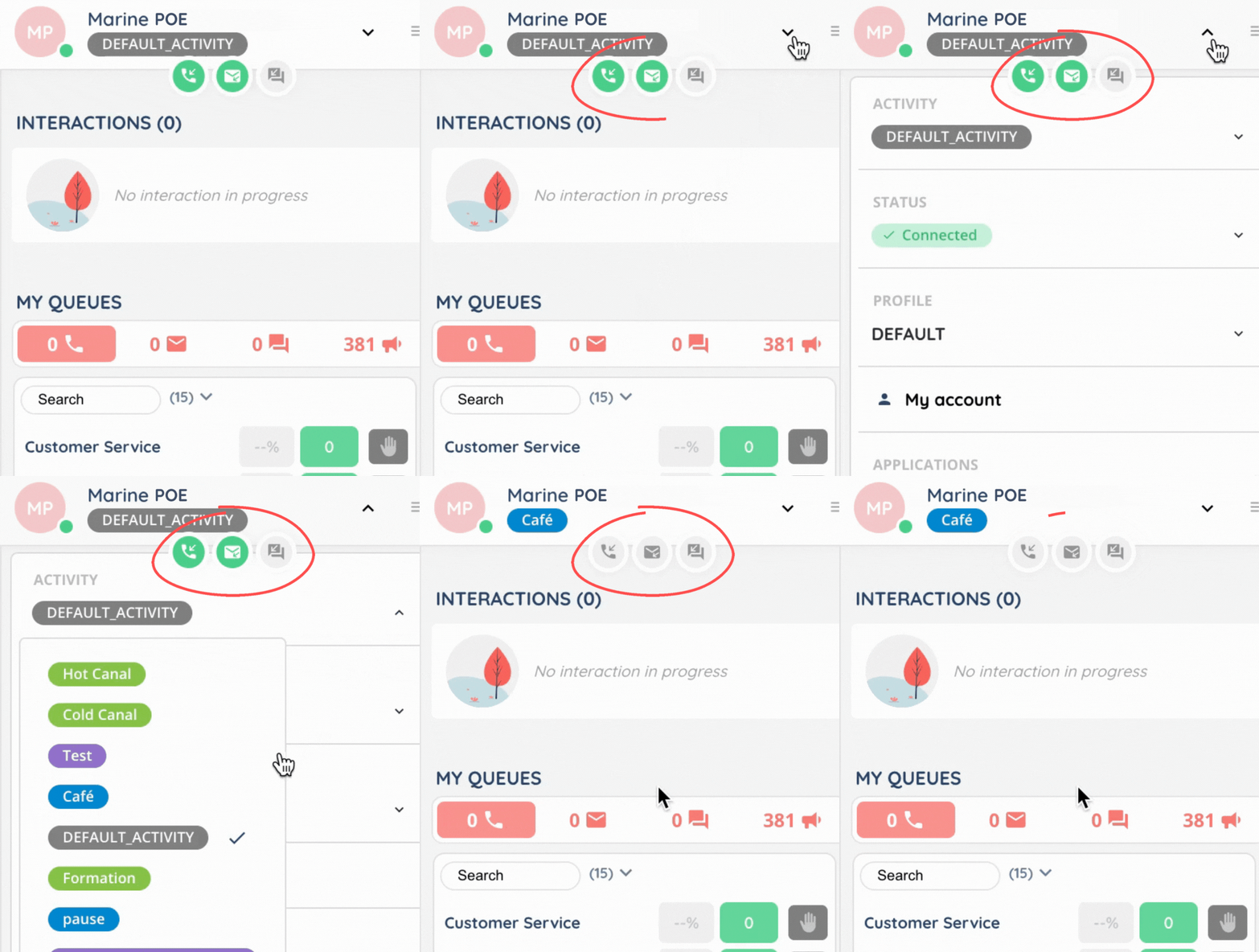
Changing profile will also change the list of available activities in the drop-down menu.
If you are a supervisor, you also will be able to change agents’ activity through platform‘s supervision or advisor’s supervision.