

[Reading time: 3 minutes]
Overview
The data source compiles all the cards of the selected INO CX CRM V2 (integration CRM are unavailable). It contains one column per field defined on that CRM V2, so you can filter, sort, export and analyse your data.

1. Prerequisites
For an overview of the Reporter, please read this article. The CRM V2 must have been created beforehand in the Maker, and its fields configured.
You also need the following permissions:
- Access to the Reporter.
- The right to create, edit and delete data sources.
- The right to export, in order to generate an export.
Note: the number of data sources you can create is limited per platform. The corresponding limit is ‘Number of data sources’.
2. Using a CRM as a data source
2.1 Access this feature
To access this feature, go to the Reporter, click on the ‘Data sources‘ module and then select the ‘CRMs‘ category.
2.2 Create the data source
Click on ‘Create‘ to create a data source, then fill in the form:
- Name: required, 255 characters maximum.
- Description: optional, 255 characters maximum.
- Data source type: keep ‘Internal‘.
- Origin of the data source: select ‘CRM‘.
- CRM object: select the CRM object whose cards you want to analyse.
As soon as you select a CRM, a message confirms which CRM the data source will compile.
Click on ‘Add the data source‘ to finish.
Note: you can create several data sources from the same CRM, and two data sources can carry the same name.
Note: the CRM you select cannot be changed afterwards.
Open the data source you created. The card’s fields are displayed in columns: one column per field configured on the CRM in the Maker, plus the default columns added by the Reporter (see the Columns section below).
3. Using the CRM data
3.1 Filter the data
Click on ‘Add filter‘ to restrict the cards displayed. The number of results is updated accordingly.
The syntax depends on the type of column:
- Dates: strictly greater than, greater than or equal to, strictly lower than, lower than or equal to.
- Numbers: a simple value (15), an interval (20-40), a comparison (>17), or a combination of these (<=6,15,20-40).
- Text: a close expression.
A filter can be locked as a default filter so that it is applied every time the data source is opened.
Note: unlike the data sources built on interactions, a CRM data source does not require a date filter.
3.2 Adjust the columns
For each column, two actions are available:
- Filter the column
- Hide the column
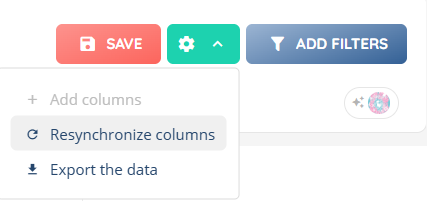
To display a column you had hidden, click on the cogwheel at the top right, then ‘Add columns‘.
3.4 Resynchronize the columns
When a field is added to the CRM in the Maker, the corresponding column is not added automatically to the existing data sources. Click on the cogwheel at the top right, then ‘Resynchronize columns‘. The interface indicates the number of columns that have been added, or informs you that there is nothing new to add.
This feature is linked to the ‘Modification’ permission in the role.
Note: resynchronization only adds the missing columns.
3.5 Use the data
You have several options:
- Export the data (on the cogwheel): the export is generated in the background. It becomes available on the ‘Exports‘ module.
- Save as an exploration (on the floppy disk): your current filters and columns are saved as a new exploration, which you can then use in the ‘Exploration‘ module and on your dashboards.
Note: on an exploration built on a CRM data source, the key performance indicators must be created from scratch. No indicator template is offered for this type of data source.
3.6 Modify or delete the data source
From the tile of a data source, in the ‘Data sources‘ module:
- ‘Edit‘ allows you to change the name and the description. The type, the origin and the linked CRM cannot be modified.
- ‘History‘ displays the creations and modifications recorded on the data source.
- ‘Delete‘ removes the data source permanently.
Note: a data source used by an exploration cannot be deleted. Delete the explorations built on it first.
Note: deleting the CRM in the Maker also deletes the data sources created from it.
3.7 Columns
Here are the details for each column:
- CRM card ID: the unique ID of the CRM card.
- Date added: the date and time the card was added to the CRM.
Every other column corresponds to a field configured on the CRM in the Maker, and carries the name of that field.